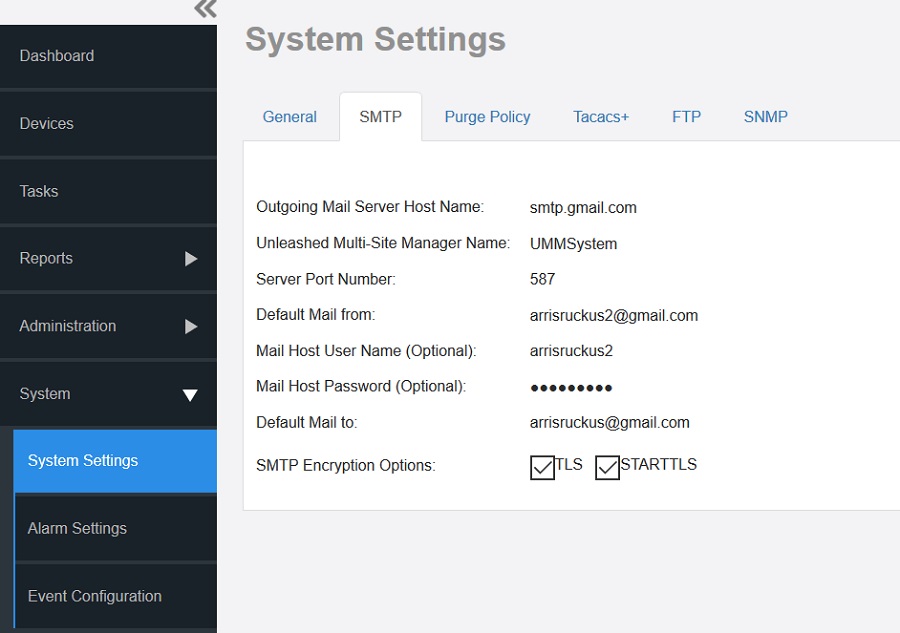
SMTP Settings
Note: You may have already configured the SMTP settings during the software installation.
- Go to .
- Click SMTP.
- In Outgoing Mail Server Host Name, type the host name of the outgoing SMTP server.
- (Optional) In UMM Name, enter a new name for the software server.
- In
Server Port Number, type the SMTP server’s listening port number.
The default SMTP port number is 25.Note: . If you select TLS or STARTTLS SMTP Encryption Options, You must check the SMTP host name and port number with the SMTP service provider, and configure Unleashed Multi-Site Manager accordingly. For example, the Gmail server uses 587 as its STARTTLS port and 465 as the TLS port, and the QQ server uses 25 as its non-SSL port and 465 as its TLS port.
If your port number setting and protocol setting do not match, emails cannot be sent successfully. For example, if you select port 25 and select STARTTLS for a QQ server, testing will fail. Emails do not automatically revert to the non-TLS protocol.
- In Default Mail from, type the email address that appears as the sender of the email.
- In Mail Host User Name (Optional), type the SMTP user name for the email account that you are using to send email notifications.
- In Mail Host Password (Optional), type the SMTP password for the email account.
- In Default Mail to, type the email address of the user to whom you want to send email notifications.
- In
SMTP Encryption Options:
- Check the TLS box if you want the software to use Transport Layer Security cryptographic protocol.
- Also check the STARTTLS box if you want the software to use the STARTTLS extension to upgrade plain email connections to encrypted TLS connections instead of using a separate port for encrypted communication.
- Click Test to verify that the software is able to use the SMTP settings that you configured to send email notifications. If an error appears, then check your settings and update them with the correct settings.
- Click the Save button that is in the same section.