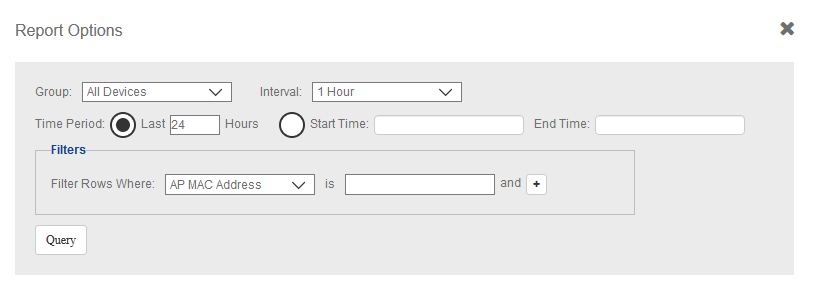
Configuring Report Options
You can customize a report based on the device you wan to group based on the time
interval and also provide the time-range between when you want the report to be generated
for a device.
- After you to login to the Web interface, select Reports from the menu in the left.
- Click on any of the sub-menu options.
- Click one of the options (Group, Interval or Period).
- In Group, select the list of devices or groups for which you want to generate the report.
- In Interval, select the time interval within which the report must be generated periodically. Options include 15 minutes, 1 hour, 1 day, and 1 week.
- In Time Period, select the time duration for which you want to generate the report. For example, you can set the report to be generate for APs in the last 24 hours.
- In Start Time and End Time, provide the time-range within which you want to generate a report for the device.
- In Filters, you can use this setting to filter reports based on one or more criteria. For example, you can generate reports where the AP firmware version is lesser than 2.0 and AP Model is R700.
- Click
OK. A report is generate based on the options configured.
You can also save the report periodically. For more information see, Saving Reports and Generating Reports