Generating a Client Report
You can generate reports for clients to analyze their health and performance.
- After you to login to the Web interface, select Reports from the menu in the left.
- Click
Client in the sub-menu.
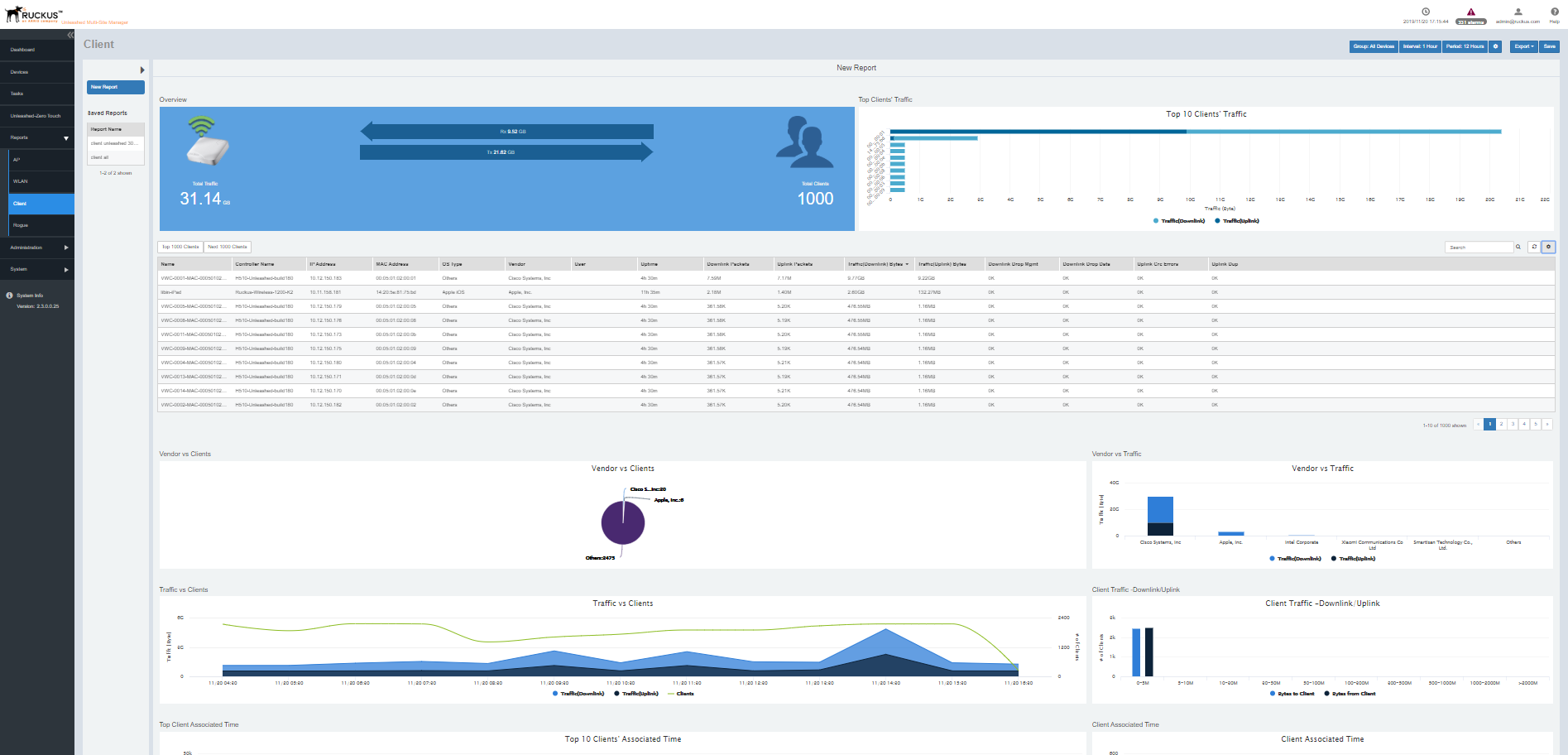
The Client reports page is displayed with a Report Option area, Table area and a Graph area.
The Reports Option area displays the Group, Interval and Period.
The Table area displays additional information about the clients such as their name, IP address, OS type, Controller Name and so on. You can also view the list of clients by the top 1000 clients and next thousand client. You can click on Top 1000 Clients and Next 1000 Clients to view the same.
You can also click on Export and select CSV or PDF to have the reports saved as a CSV or PDF file, respectively.
- Configure the report settings as described in
Configuring Report Options.
The table area displays information about the client such as the name, IP address, OS type, vendor, Controller Name and so on. The Graph area displays trends pertaining to the clients performance such as top 10 clients by traffic, traffic analysis of clients based on their vendor, associated time, potential throughput, OS, and so on.
- Generate the report as described in Saving Reports and Generating Reports.