Onboarding the controller to RUCKUS AI
- Sync SmartZone controller to a valid NTP server.
- Make sure that the SmartZone controller has outbound connectivity over port 443 for network traffic and that this port is open in the network firewall settings. For more information, refer to Firewall Ports to Open for RUCKUS AI.
- Make sure that SmartZone has fully paid RTU license and AP license.
- Note:
- SmartZone controllers and APs serve as the data source for RUCKUS AI. After allocating licenses to the APs, you must wait up to one hour for the data to be populated across all dashboards and reports.
- Each SmartZone controller is licensed to a specific organization; you can check the license affiliation on the RUCKUS Support website. During onboarding, the SmartZone controller is automatically linked to the specific organization in RUCKUS AI.
- If you are a partner onboarding your customer's SmartZone controller by using your own RUCKUS Support credentials, then the SmartZone controller will be onboarded to your customer's organization, and you are automatically added as an administrator in your customer's RUCKUS AI account.
- Activate the RUCKUS AI licenses in License Manager (LiMAN), from https://support.ruckuswireless.com. For more information, refer to the RUCKUS AI Software Licensing Guide.
- Log in to the SmartZone controller user interface that runs SmartZone 5.1.2 or later.
- Enable SmartZone cloud software
services and then connect SmartZone to your RUCKUS AI
account by performing the following steps. The menu navigation has changed in SmartZone 6.0 and later releases.
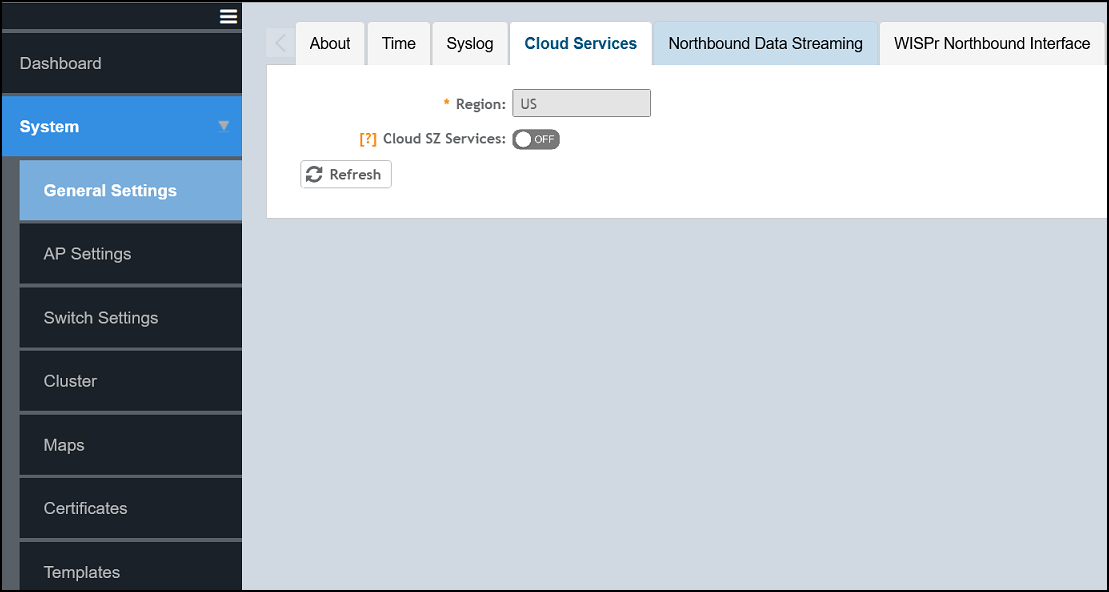
- Select .
- In the Region field, select the specific cluster region US, EU, or Asia from the dropdown to which you want to onboard the controller.
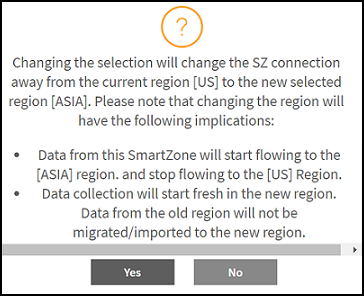
- Click Yes if you wish to change the region or select No to continue with the current selection and exit the window.
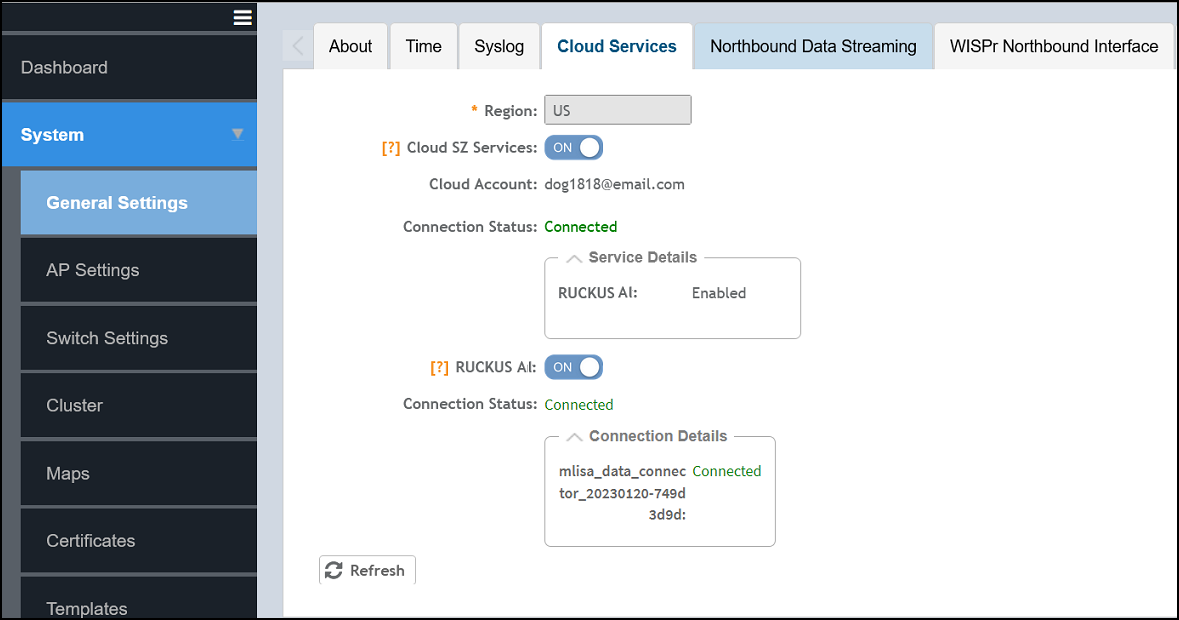
- Toggle the button to ON to enable Cloud SZ Services which displays the RUCKUS cloud single sign-on window that prompts you to log in with your RUCKUS Support credentials. After successful login, SmartZone is securely connected to your RUCKUS cloud account to use RUCKUS AI cloud services.
- Toggle the button to
ON to enable RUCKUS AI. This will connect SmartZone to your RUCKUS AI account and enable data streaming to the RUCKUS AI instance.The onboarding process will take a few minutes to complete after which the connection details are displayed. You can view the status of the onboarded controllers in RUCKUS AI as described in Step 5.
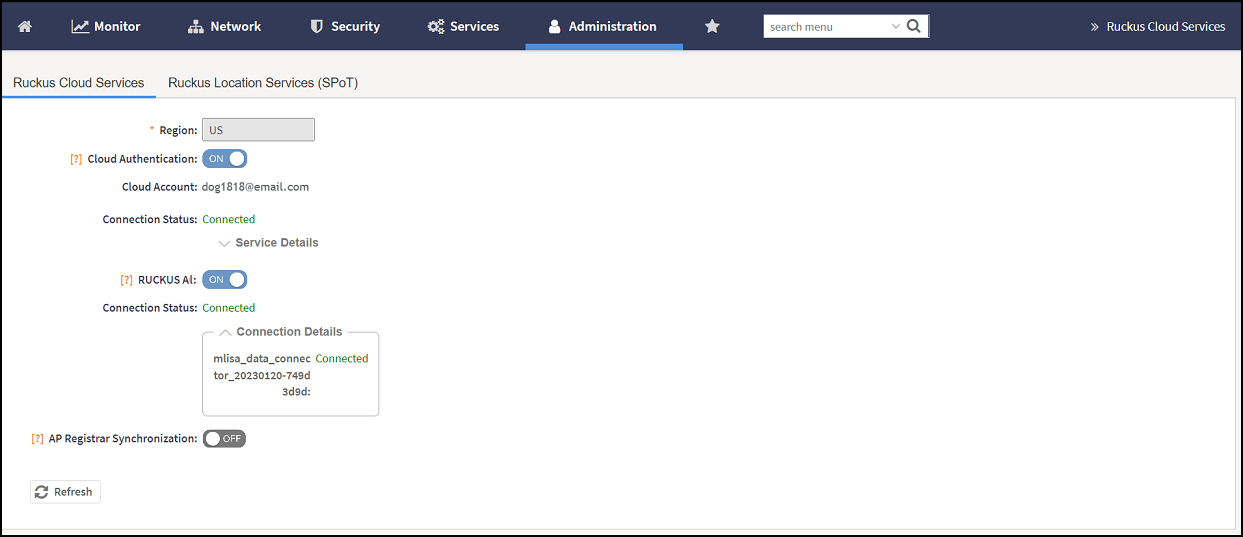
- Select . The RUCKUS Cloud Services tab is displayed.
- In the Region
field, select the specific cluster region US,
EU, or Asia from the
dropdown to which you want to onboard the controller.
- Click Yes if you wish to change the region or select No to continue with the current selection and exit the window.
- Turn on Cloud Authentication which displays the RUCKUS Cloud single sign-on window that prompts you to log in with your RUCKUS Support credentials. After successful login, SmartZone is securely connected to your RUCKUS Cloud account to use RUCKUS AI Cloud services.
- Toggle the button to
ON to enable RUCKUS AI. This will connect SmartZone to your RUCKUS AI account and enable data streaming to the RUCKUS AI instance.The onboarding process will take a few minutes to complete after which the connection details are displayed. You can view the status of the onboarded controllers in RUCKUS AI as described in Step 5.
- Log in to RUCKUS AI
with the following RUCKUS AI URL for your
region using your RUCKUS Support credentials.
- For US users, https://ruckus.cloud/analytics or https://ruckus.cloud/ai
- For EU users, https://eu.ruckus.cloud/analytics or https://eu.ruckus.cloud/ai
- For Asia users, https://asia.ruckus.cloud/analytics or https://asia.ruckus.cloud/ai
- On the Navigation
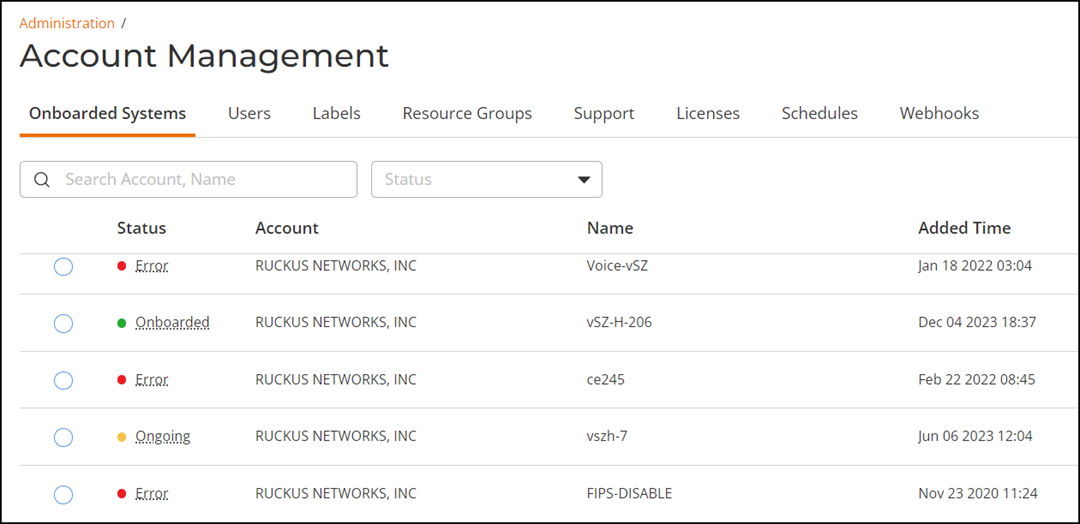
bar, click and verify the status of the onboarded SmartZone controller is
green.
The SmartZone controller name is retrieved from the controller at the time of onboarding. However, if the name is changed after onboarding the controller, RUCKUS AI will not display the updated controller name.
If the controller has onboarded and connected successfully, and if data is transmitted to RUCKUS AI, the status is displayed in Green. If the controller is offboarded and not sending any data, the status is displayed in Grey. If the onboarding is in progress, the status is displayed in Yellow. If the connection to the controller is lost, or when data is not transmitted, the status is displayed in Red.
- Manage and assign the licenses to the desired access points (APs). Refer to Managing and Assigning the licenses to the APs.