Configuring Email Notifications
RUCKUS AI allows you to configure
email notifications for Incidents, IntentAI status changes, and license expiry events.
Notifications are automatically sent to all designated recipients added in the notification
settings.
Complete the following steps to configure the email notifications:
- Click the user icon in the
upper-right corner of the UI, then select . The My Profile page is displayed.Note: The user icon shows the initials of the user's first and last name.
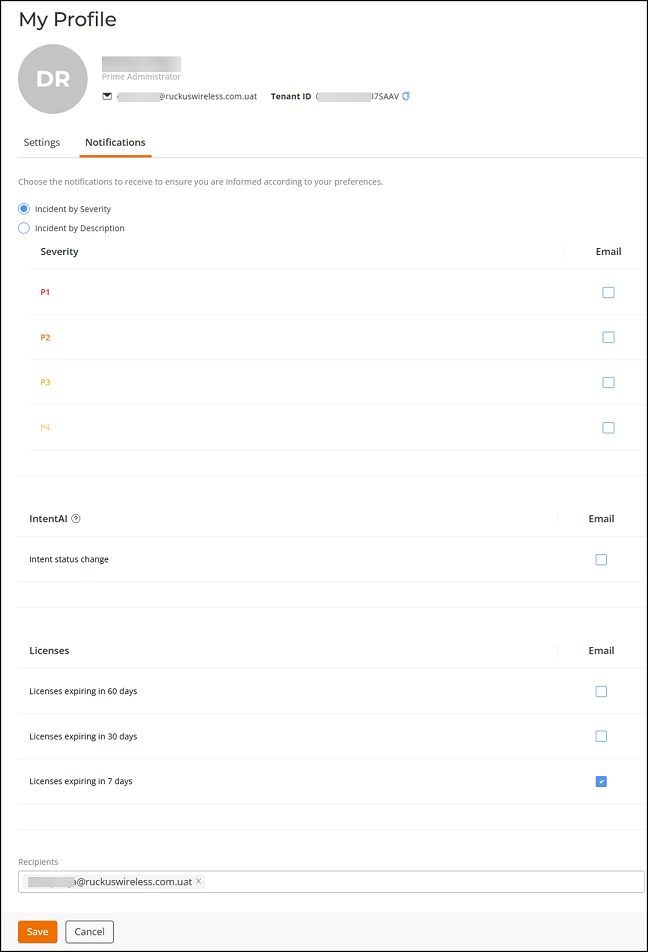
- Click the Notifications tab. The Incidents, IntentAI, and Licenses sections are displayed.
- For Incidents, select one of the following options and configure the
notification preferences:
- Incident by Severity: Select this option to receive email notifications based on incident severity level. Select one or more severity levels (P1–P4) to receive email notifications when incidents of the selected severity occur.
- Incident by
Description: Select this option to receive email notifications
based on incident description. Each description corresponds to a
specific incident type.
Incident descriptions are grouped under the following categories:
Expand a category to view the individual incident descriptions listed under it. Select one or more incident descriptions to receive email notifications when those specific incidents occur. You can also select the checkbox at the category-level to receive email notifications for all incident types within that category.
- In the IntentAI section, select the Intent status change checkbox to receive an email notification whenever the status of an Intent changes.
- In the Licenses section, select one or more expiry time periods for which you want to receive the email notifications:
- (Optional) Add email addresses in the Recipients field for anyone who should receive the selected notifications. By default, the logged-in user's email address is already included.
- Click Save to save the email notification configuration.