Occupancy
On the Navigation bar, click . The Occupancy page is displayed. To create a site, refer to Creating a Site section.
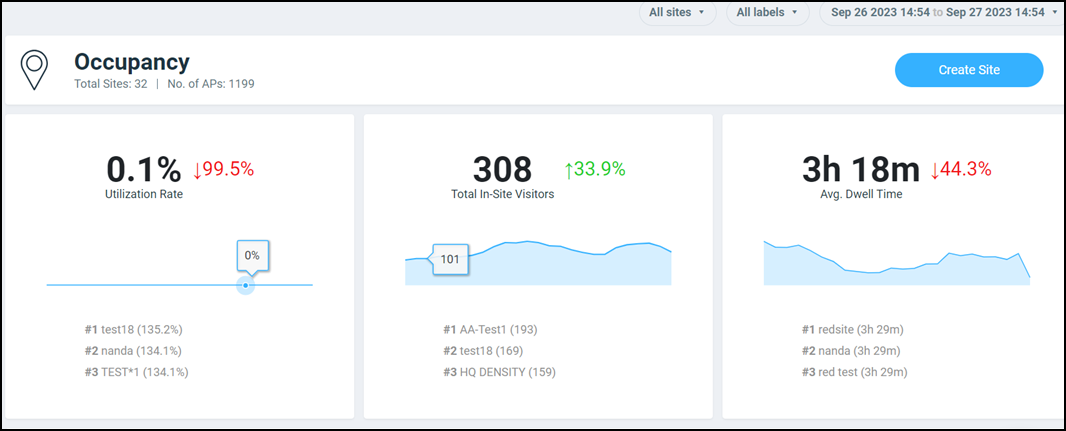
The Occupancy page has the following components:
- Header tile
- Utilization tile
- Total In-Site Visitors tile
- Average Dwell Time tile
- Sites Overview tile
- Sites Listing table
The Date and Time filter is displayed in the upper-right corner of the Content panel. This option controls the elements displayed within the Content Panel. To modify this option, refer to Content Panel.
The All sites and All labels filters are displayed in the upper-right corner of the Content panel. These option controls the elements displayed within the Content Panel. Click on the filter, select a value, and click Apply. The applied filter value is displayed in the Content Panel.
Header Tile
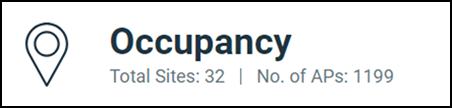
The Header tile displays the total count of sites and the total count of all the APs connected to all the sites.
Utilization Rate Tile
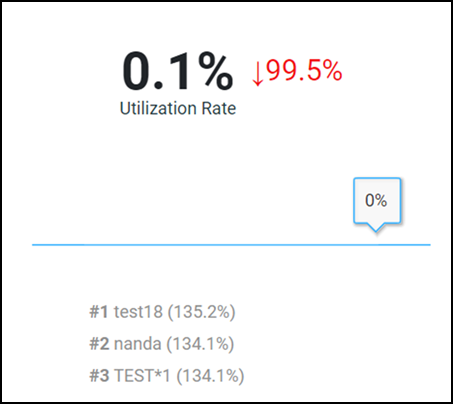
The Utilization Rate tile displays the average site utilization percentage and the increase or decrease in utilization percentage from the previous time. An increase in average site utilization is displayed as a green number while a decrease is displayed as a red number. The Utilization Rate tile also displays the top three clients utilizing the site. Pausing the pointer over the line graph displays the utilization rate.
Total In-Site Visitors Tile
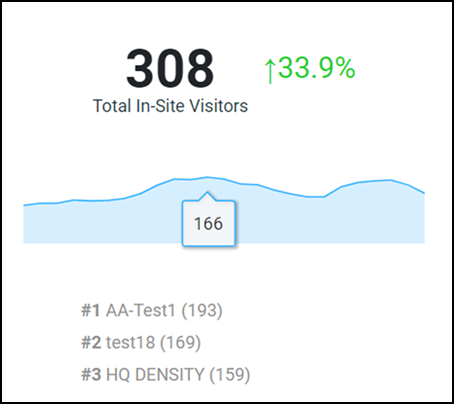
The Total In-Site Visitors tile displays the average number of visitors visiting the site and the increase or decrease in the number of in-site visitors from the previous time. An increase in average in-site visitors is displayed as a green number while a decrease is displayed as a red number. The Total In-Site Visitors tile also displays the top three clients visiting the site. A "visitor" is a device connected to an AP in the site with a unique MAC address. Pausing the pointer over the line graph displays the visitors count.
Average Dwell Time Tile
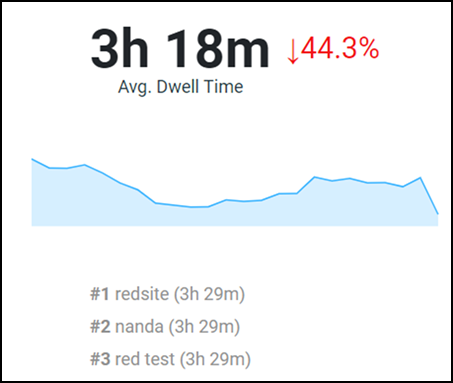
The Average Dwell Time tile displays the average amount of time in minutes a device is connected to an AP in the site, and the increase or decrease in the dwell time from the previous time. An increase in average dwell time is displayed as a green number while a decrease is displayed as a red number. The Average Dwell Timetile also displays the top three clients with the highest dwell times in the site. Pausing the pointer over the line graph displays the average dwell time.
Sites Overview Tile
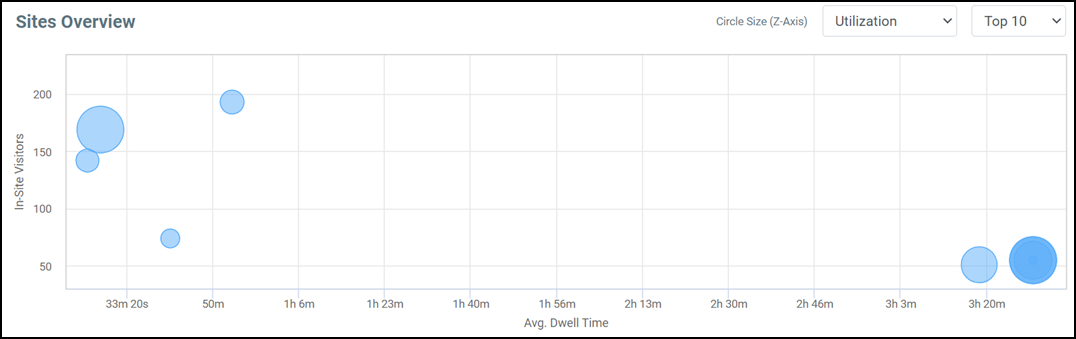
The Sites Overview tile provides a graphical representation (bubble chart) of the AP count, average dwell time, and in-site visitors. Selecting one of these parameters from the menu populates data related to the other two in the graph and provides multi-site data for comparison and analysis. For example, selecting AP Count from the menu, populates data pertaining to the in-site visitor on the Y-axis and the average dwell time on the X-axis. Pause the pointer over a bubble to view the site rank, average dwell time, AP count, and in-site visitors count. By default, the top 10 sites are displayed, however, you can view up to top 100 sites by using menu options.
Sites Listing Table
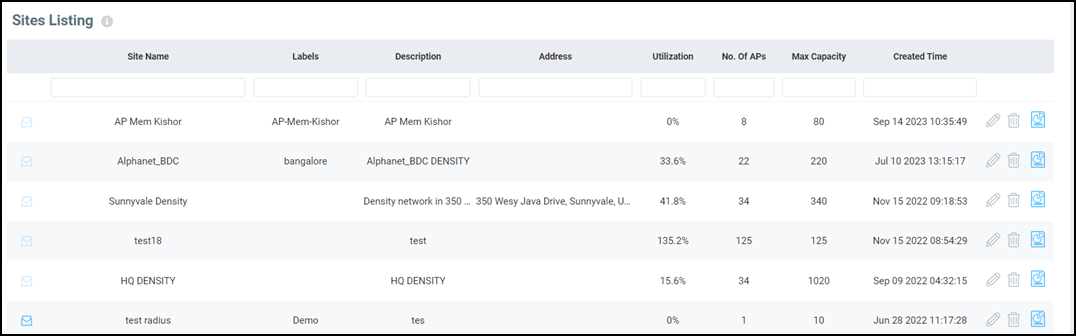
The Sites Listing
table displays information such as the email notification, site name, labels,
description, address, utilization, AP count, maximum capacity, and time of site
creation. The properties of each site can be edited using the  icon.
Click the
 icon to view the Site Report. For
more information, refer to Site Report. Click the
 icon
to delete the site. To view the email ID assigned for the notification, hover over
the
 icon. You can select the number of sites displayed in the table from the
Show rows drop down at the bottom of the table. The range
is from five sites per table to 200 sites per table.
Creating a Site
The first step to performing the analysis is to divide the facility into sites. A site is a group of APs; a physical unit. Complete the following steps to create a site.
- On the Navigation bar, click . The Occupancy page is displayed.
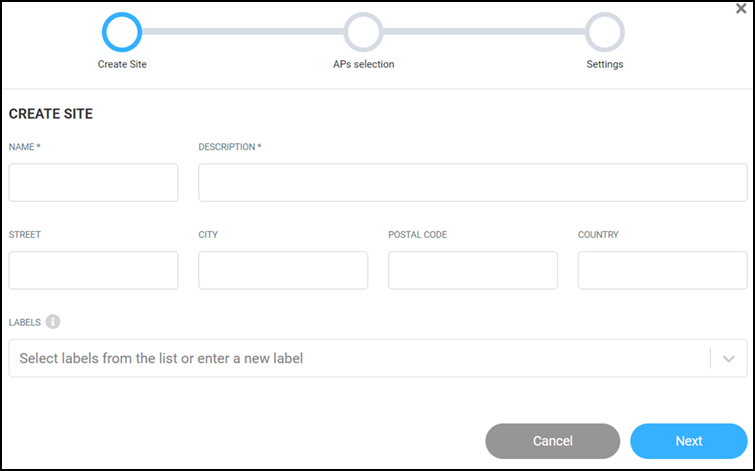
- Click Create Site. The Create Site dialog box is displayed.
- Complete the following
fields:
- Name: Enter the name of the site.
- Description: Enter the description of the site, such as an area of the facility for which you are creating the site, for example, the gym, the lobby, the third floor, or a similar area.
- Street: Enter the street name where the site is located.
- City: Enter the city name where the site is located.
- Postal Code: Enter the postal code of the site.
- Country: Enter the country name where the site is located.
- Labels: Select a label from the drop down
or you can enter a custom name to create a new label term.
Note: You can include one or more labels for a site. Labels make searching for a particular site easy, especially when there are multiple sites within the network.
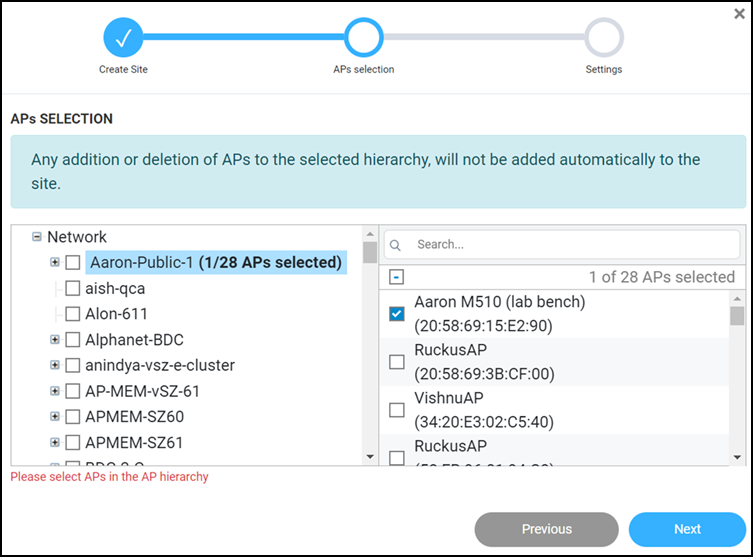
- Click Next. The APs selection dialog box is displayed. All the AP Groups are displayed in the Network tab.
- Click on a AP Group name. All the associated APs of that group are displayed in the right tab.
- In the right tab, select the APs you want to group within this site, or you can search for the required AP using the search field. To select all the APs, select the top-most check box.
- To select the different APs from different AP groups, repeat Step5 and Step6.
- Click Next. The Settings dialog box is displayed.
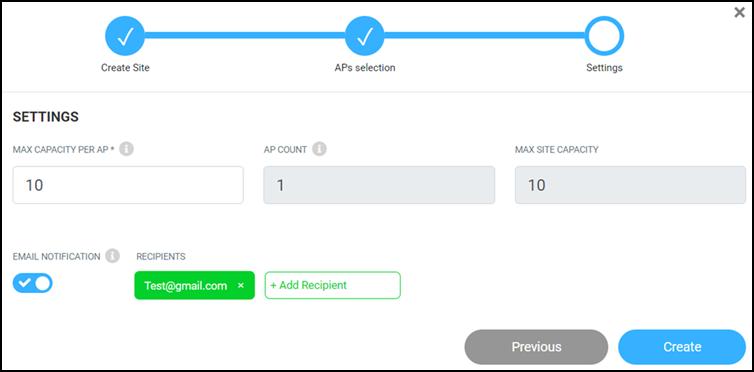
- In the Settings
dialog box, complete the following fields:
- Max Capacity Per AP: Set the maximum number of client devices that can be connected to each AP.
- AP Count: The count of selected APs is displayed.
- Max Site Capacity: The product of Max Capacity Per AP and AP Count is displayed. The value displayed here is the maximum capacity of this site.
- Email
Notification: By default, email notification is
disabled. Toggle the switch to on to enable
email notification. By default, your registered email ID is
displayed in the Recipients field. To add more
recipients, enter the email ID in the
+Recipient field.
Note: The email notification is sent every 15 minutes once the site maximum capacity is reached.
- Click Create. The site is created and displayed in the Sites Listing table.