Activating and Editing the Vostio Plugin
Activate this plugin to manage Vostio door locks. The RUCKUS IoT Controller securely routes data to the configured Assa Abloy Vostio cloud.
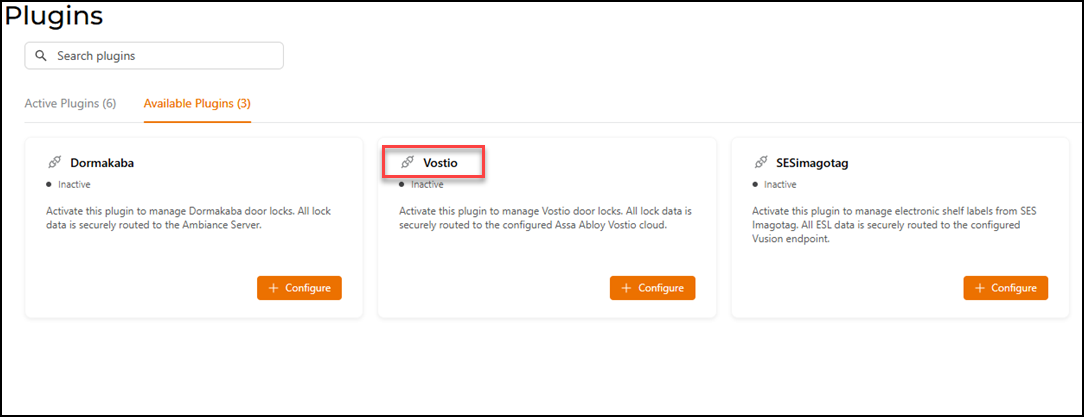
- From the RUCKUS IoT Controller main menu, select Admin.
- Click Plugins.
- Click the Available Plugins tab.
- In the Vostio tile,
click +
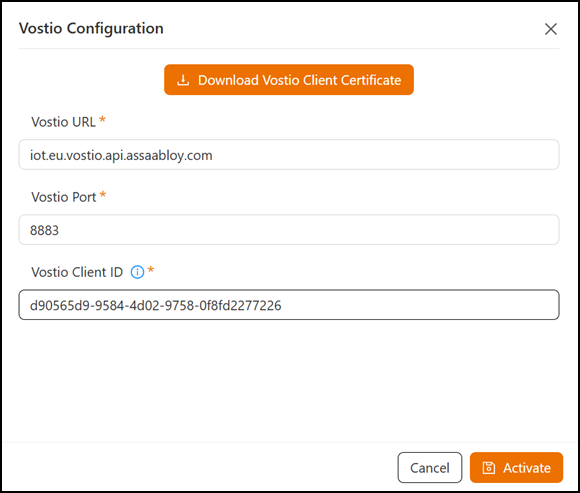
Configure to activate the plugin.The Vostio Configuration sidebar is displayed.
- Enter the following
configuration parameters.
- Click Download Vostio Client Certificate to generate and download the Vostio client certificate.
- In the Vostio
URL field, enter the URL for Vostio.Note: By default, the Vostio URL is set to the Vostio URL endpoint.
- In the Vostio Port
field, enter the port number.Note: By default, the port number is 8883.
- In the Vostio Client
Id field, enter the Vostio Network ID. Note: Refer to Getting the Network ID from the Vostio Cloud Platform to retrieve the Network ID.
- Click Activate to save the changes.
- (Optional) Click Configure to edit the existing configuration.
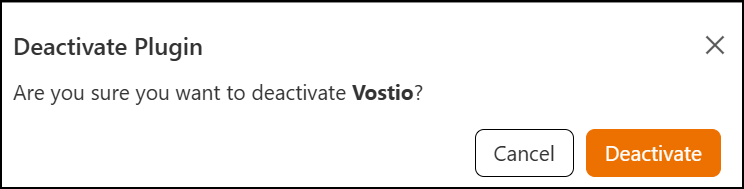
- (Optional) Click Deactivate to deactivate the plugin.