Changing the RUCKUS IoT Controller Password
A single administrator is responsible for creating and managing the RUCKUS IoT
Controller account. This administrator oversees all system operations.
The administrator must perform the following steps to change the password:
- On the global header in the RUCKUS IoT Controller, click the user icon and then select Account.
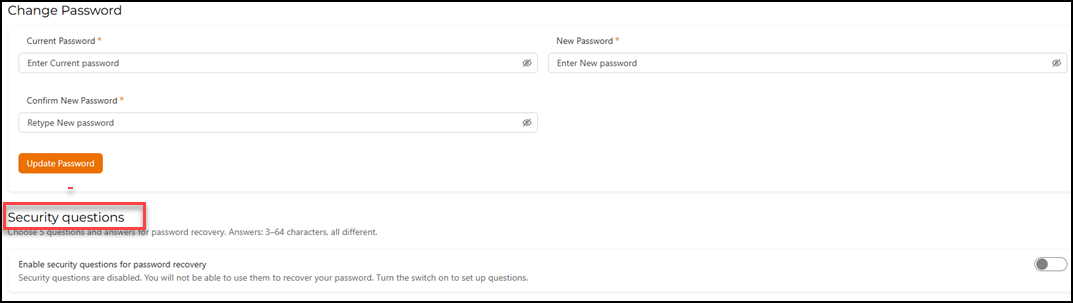
- In the Change Password section,
follow these steps to change the password.
- In the Current Password field, enter the existing password.
- In the New Password field, enter the new password.
- In the Confirm New Password field, re-enter the new password.
- Click Update Password to save the new password.
- In the Security questions section, enable the toggle
switch to answer the security questions. Attention: RUCKUS recommends enabling security questions and providing appropriate answers to the selected questions. This helps you recover your password if you forget it when logging in to the RUCKUS IoT Controller.
- Click Save security questions allows you to save the selected questions and their answers.