Logging In to RUCKUS IoT Controller
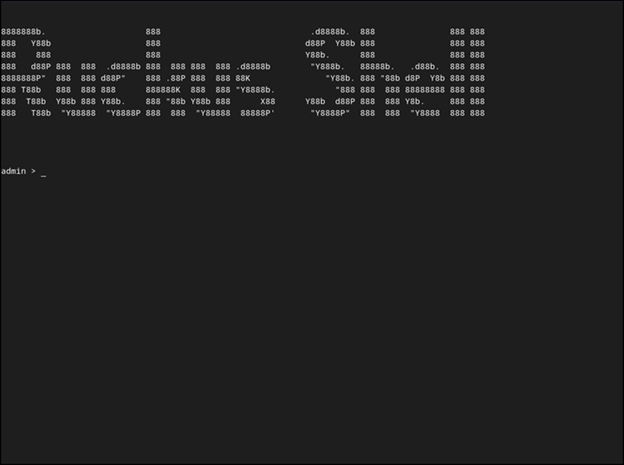
- Log in to the console of the RUCKUS IoT Controller using the username "admin" and password "admin".
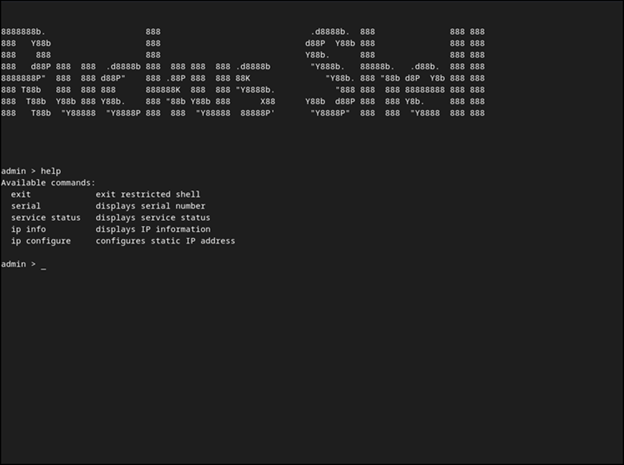
- Enter help at the admin prompt to view the list of available commands.
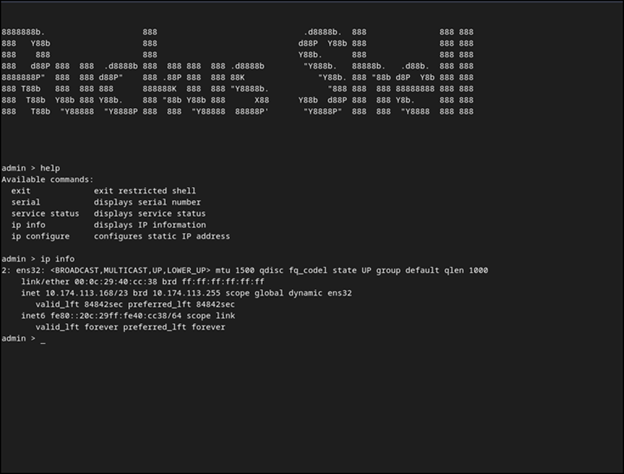
- Enter ip info at the admin prompt to get the IP address of the virtual machine.
- Open a web browser, enter the IP address in the address bar, and press Enter.
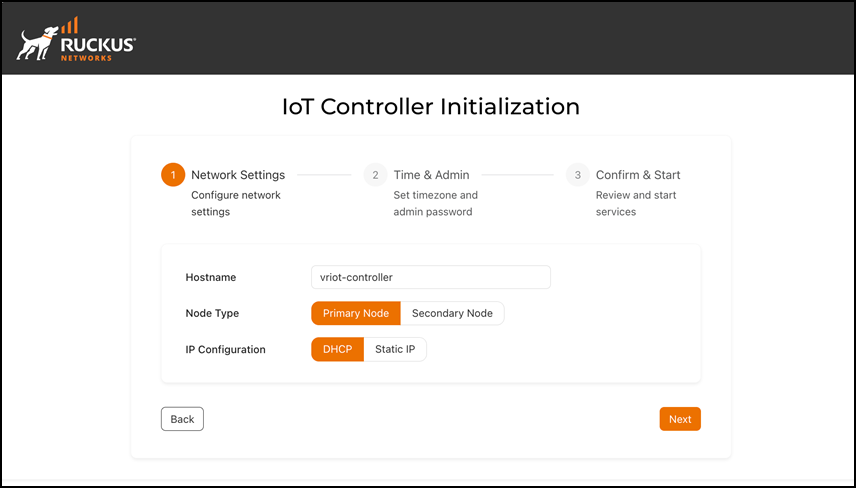
- Configure the Network Settings. Enter the Hostname. Select Primary Node to configure the controller as standalone or select Secondary Node to add the controller to the HA cluster. Select the IP Configuration (DHCP or Static), and click Next.
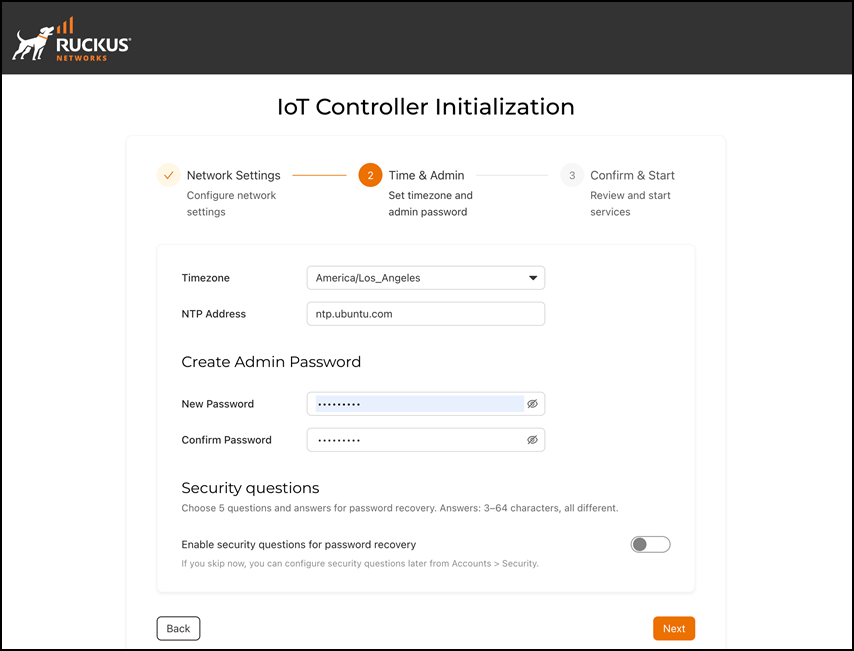
- Configure the Time & Admin. Enter the values for Timezone and NTP Address. In the Create Admin Password, enter new password and re-enter the new password in the Confirm Password field. Enable the toggle switch and provide answers to the security questions. These answers are used to recover your password if you forget it. Click Next.
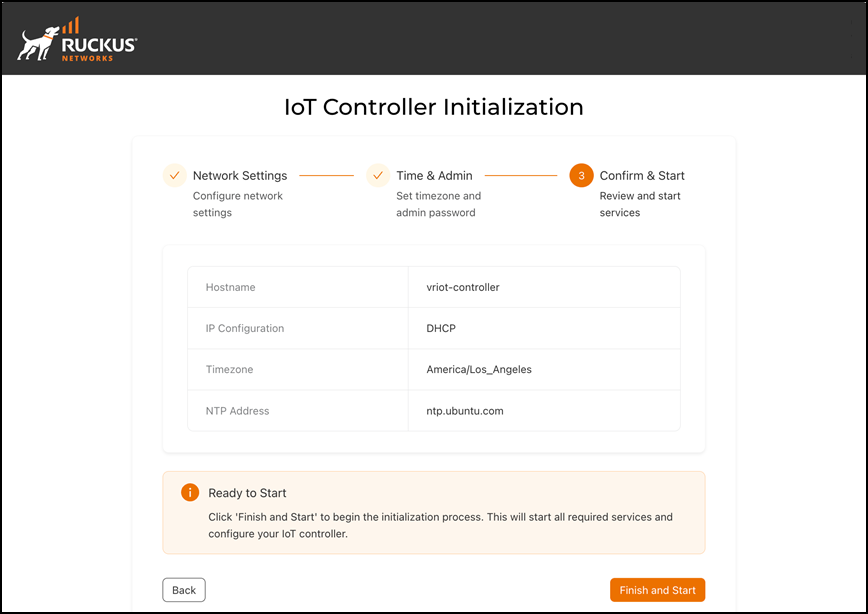
- Review the configurations and click Finish and Start.
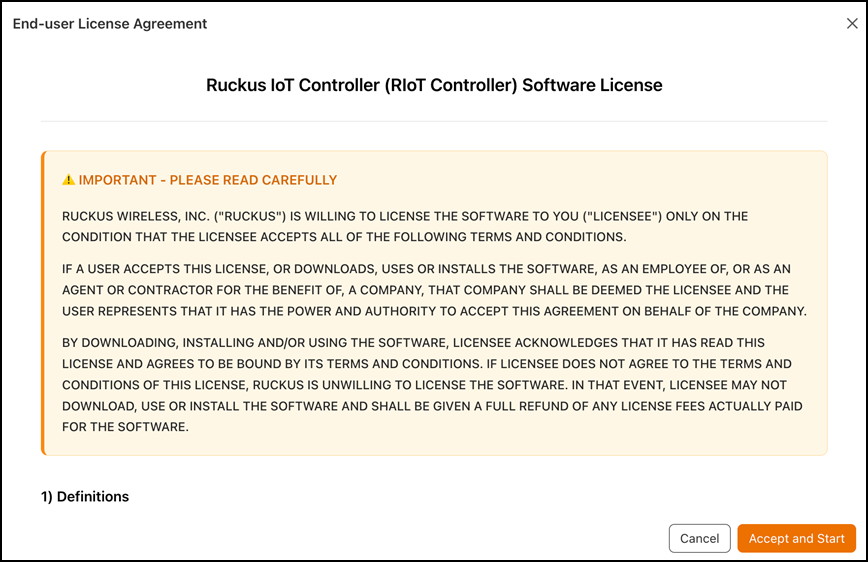
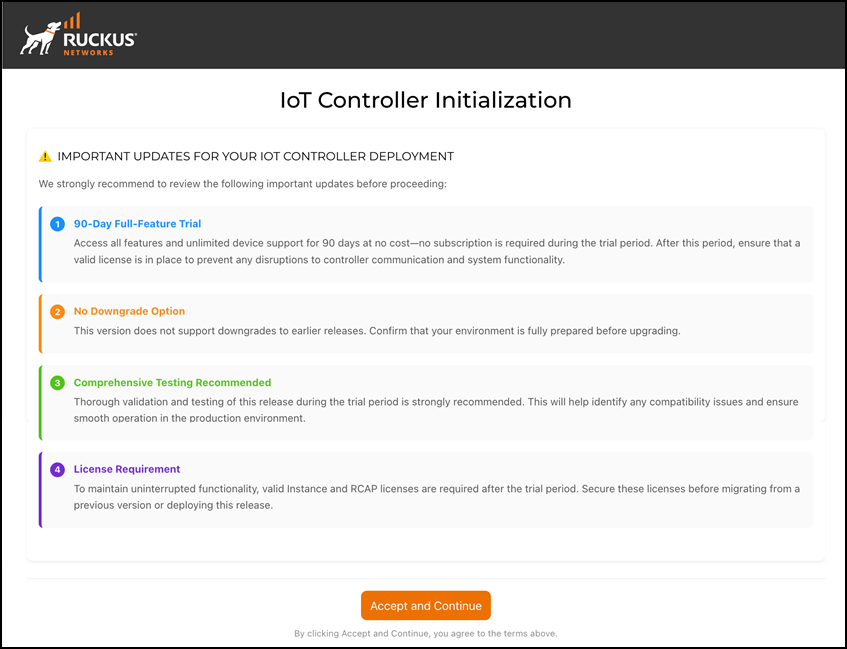
- The End-user License Agreement page is displayed. Click Accept and Start to accept the RUCKUS IoT Controller license.
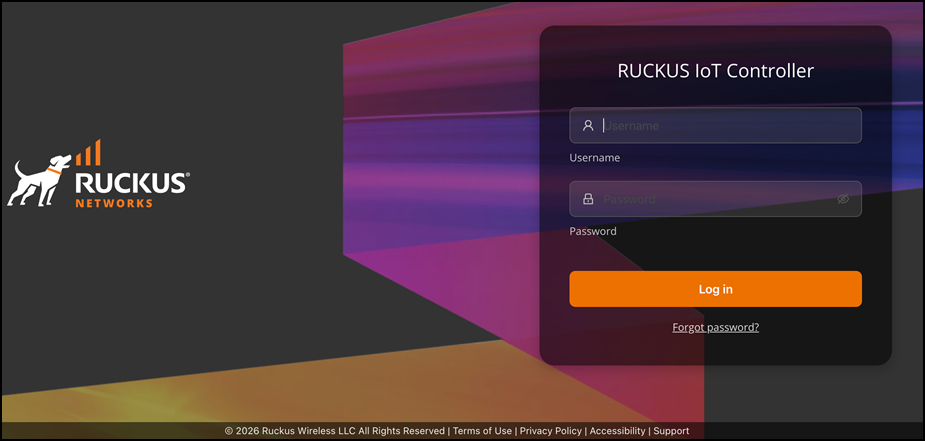
- Log in to the RUCKUS IoT Controller. In the Username field, enter your login username. In the Password field, enter your account password. Click Log in to access the controller dashboard.
- If you forgot your password, click Forgot password? and
follow the recovery steps.
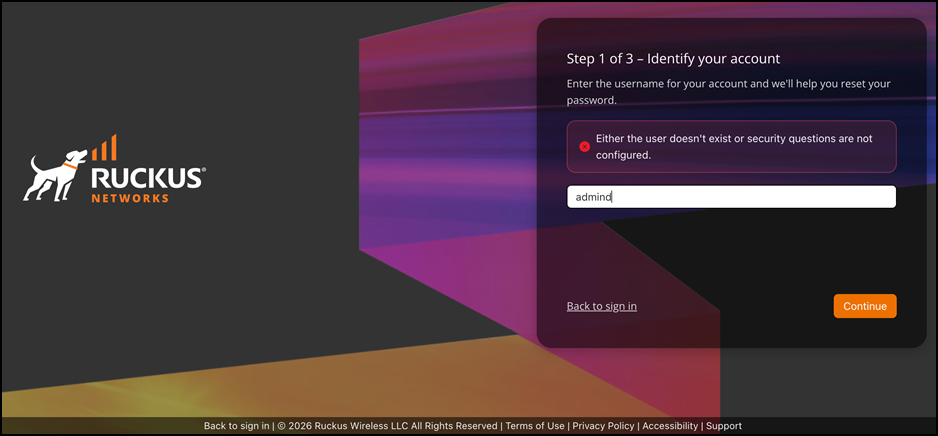
- In the Step 1 of 3 - Identify your account screen, in the Username field, enter the username for your account. Click Continue to proceed to the next step. If the system displays an error message stating that the user does not exist or the security questions are not configured, verify the username and try again. To return to the login page, click Back to sign in.
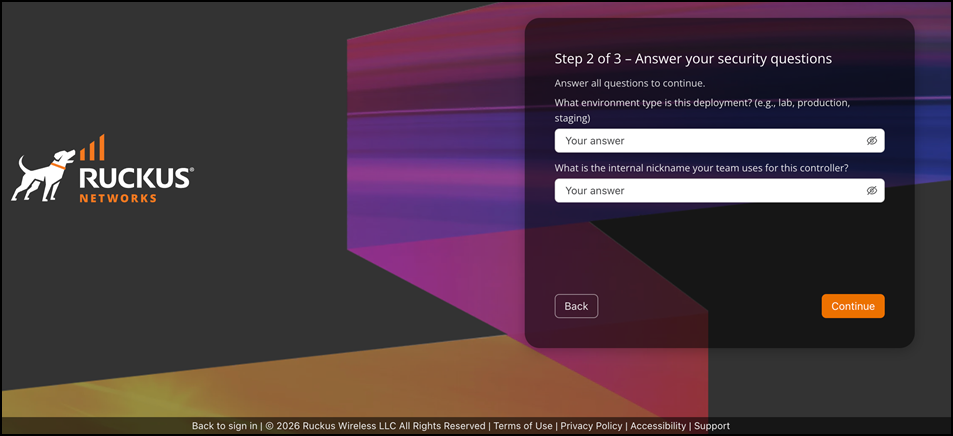
- In the Step 2
of 3 - Answer your security questions screen, enter
appropriate answers for the security questions displayed on the screen.
Click Continue to proceed to the next step. To return to the
previous screen, click Back.
Note: If you are unable to answer the security questions, RUCKUS recommends contacting the RUCKUS Support Portal https://support.ruckuswireless.com/ for assistance.
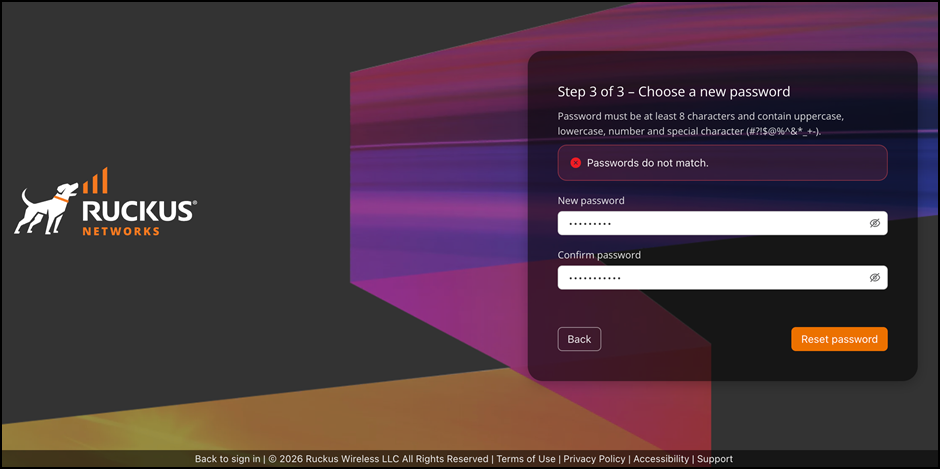
- In the Step 3 of 3 Choose a new password screen,
in the New password field, enter a password that
meets the password‑policy requirements. In the Confirm
password field, re-enter the same password. Click
Reset password to complete the password‑reset
process.If the system displays a message indicating that the passwords
do not match, re-enter both fields and try again. To return to the
previous step, click Back.Note: Password must be at least 8 characters long containing, upper case, lower case, numbers, and special characters such as ! # ? $ % ^ & * - _ + .
=GUID-54BF4085-78C3-44BA-B69C-915CF7489C3A=1=en-US=Low.png "Displaying the CLI Window")
=GUID-66BADA96-0EAA-4CB6-9DBD-31E4B8F45F81=3=en-US=Low.png)