Uploading the RUCKUS IoT Controller License
The RUCKUS IoT Controller supports two
licenses: INSTANCE-IOTC and CONTAINER-IOT-RCAP. To obtain and activate the license,
refer to
RUCKUS IoT Controller Software
Licensing Guide.
- From the main menu, click .
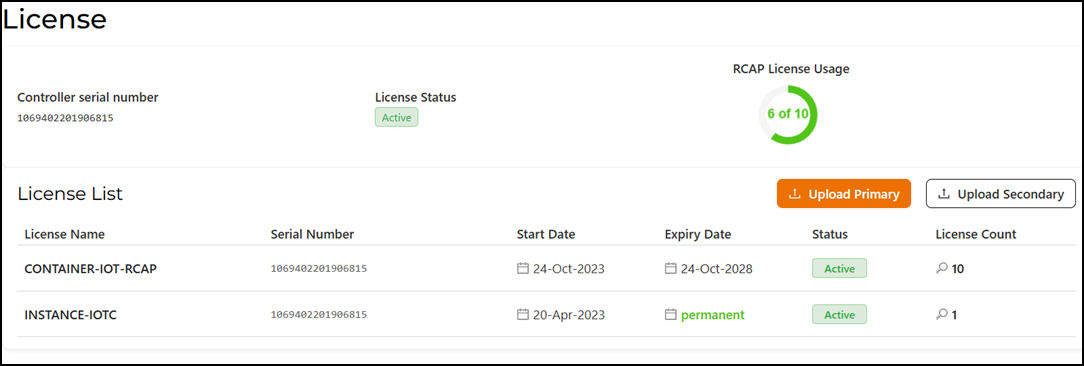
The License page displays the following information.
- Controller serial number: Displays the unique serial number of the RUCKUS IoT Controller, which can be used to activate the license.
- License
Status: Displays the current status of the
controller's license. The license state transitions are as
follows:
- Active: To continue using the controller after the trial period, upload valid instance and RCAP licenses tied to the primary node’s serial number.
- Expired: If no valid instance or RCAP licenses are available, the system redirects you to the license page to upload a new license and disables all plugin services.
- Usage Limit Reached: The number of activated plugins exceeds the available license count or one or more RCAP licenses have expired, reducing the effective RCAP count. Due to the insufficient RCAP count all the plugin services will be disabled.
- RCAP License Usage: Displays the number of licenses used out of the total available for RCAP.
- Click Upload Primary or Upload Secondary button to upload primary or secondary license files to activate or extend licensing for additional features or capabilities on the controller.
- In the License List section, you can view the details of each license associated with the controller, including the License Name, Serial Number, Start Date, Expiry Date, Status, and License Count.