Getting the Network ID from the Vostio Cloud Platform
The Vostio network ID value is used as the Vostio Client ID when configuring
the Vostio plugin in the RUCKUS IoT Controller.
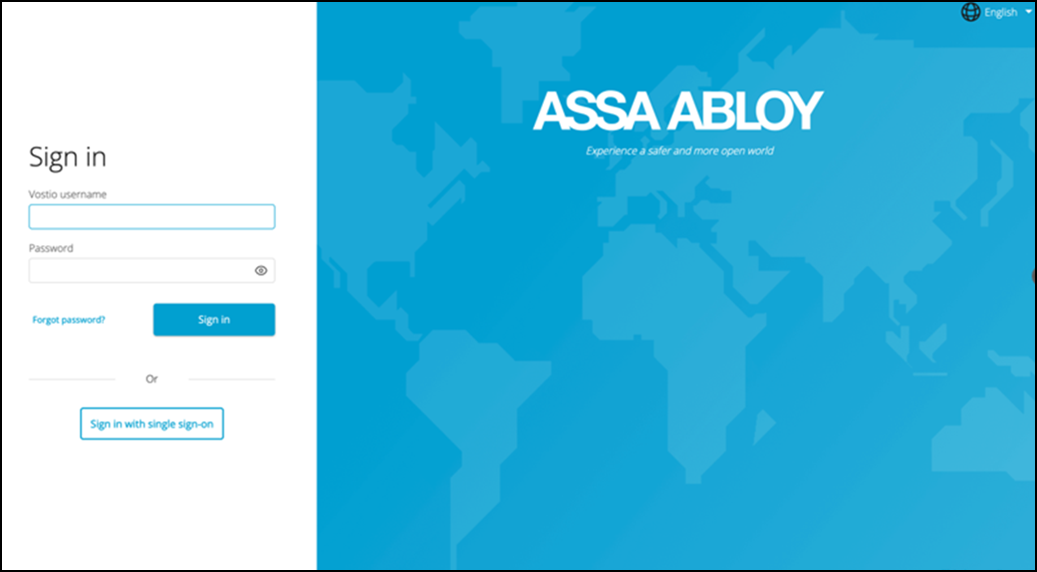
- Open a web browser and type the
URL https://vostio.assaabloy.com/#/login.The ASSA ABLOY Vostio Sign in page is displayed.
- Enter your Vostio username and password. Click Sign in.
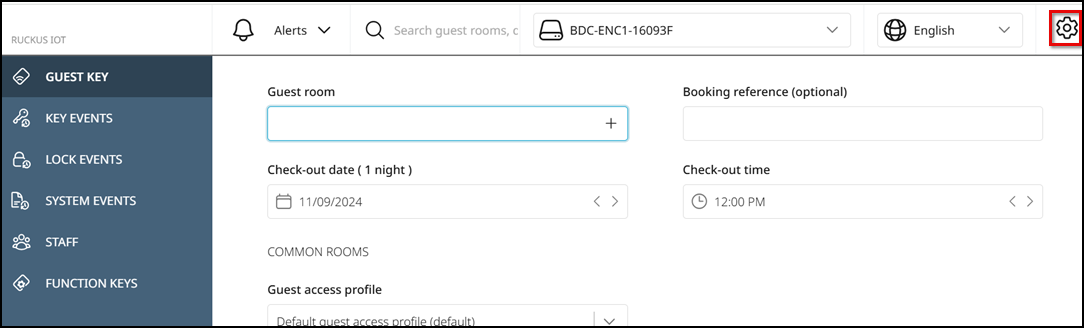
- Click the
 icon in the top right corner.
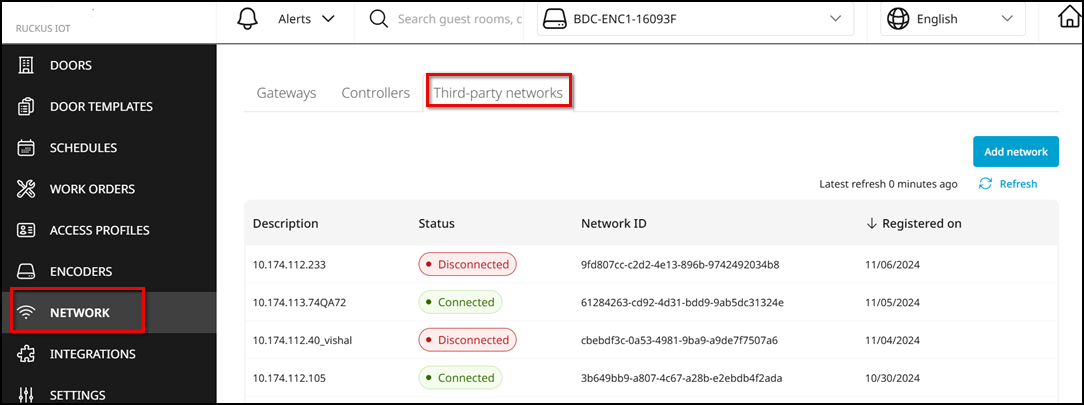
- From the navigation pane, select NETWORK and then click the Third-party networks tab.
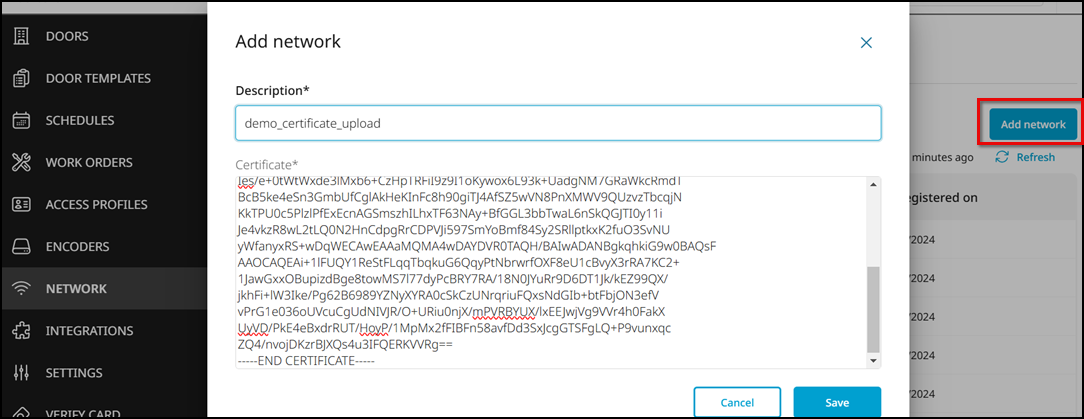
- Click Add network to
add the details of the certificate in the Add network
page.In the Description field, enter the name for the certificate. Paste the content of the Vostio client certificate (obtained from the RUCKUS IoT Controller) into the Certificate field and click Save.Note: Refer to Activating and Editing the Vostio Plugin for downloading the Vostio Client certificate.
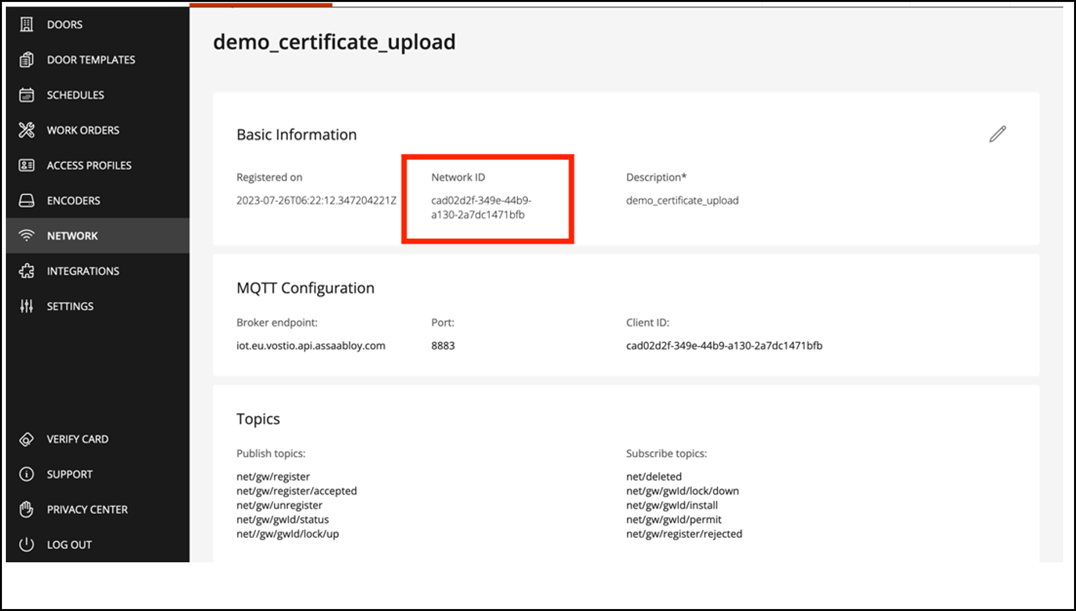
You can now access or view the certificate under the Third-party networks tab.
- Click the uploaded certificate in the Description column. In the Basic Information panel, view the certificate details and capture the value displayed in the Network ID column.
=GUID-0BA2142F-DDA5-44F8-BF0E-78AEA182ED0C=1=en-US=Low.png)
=GUID-7A6502CB-68C9-4EF2-994A-500351FFA720=1=en-US=Low.png)