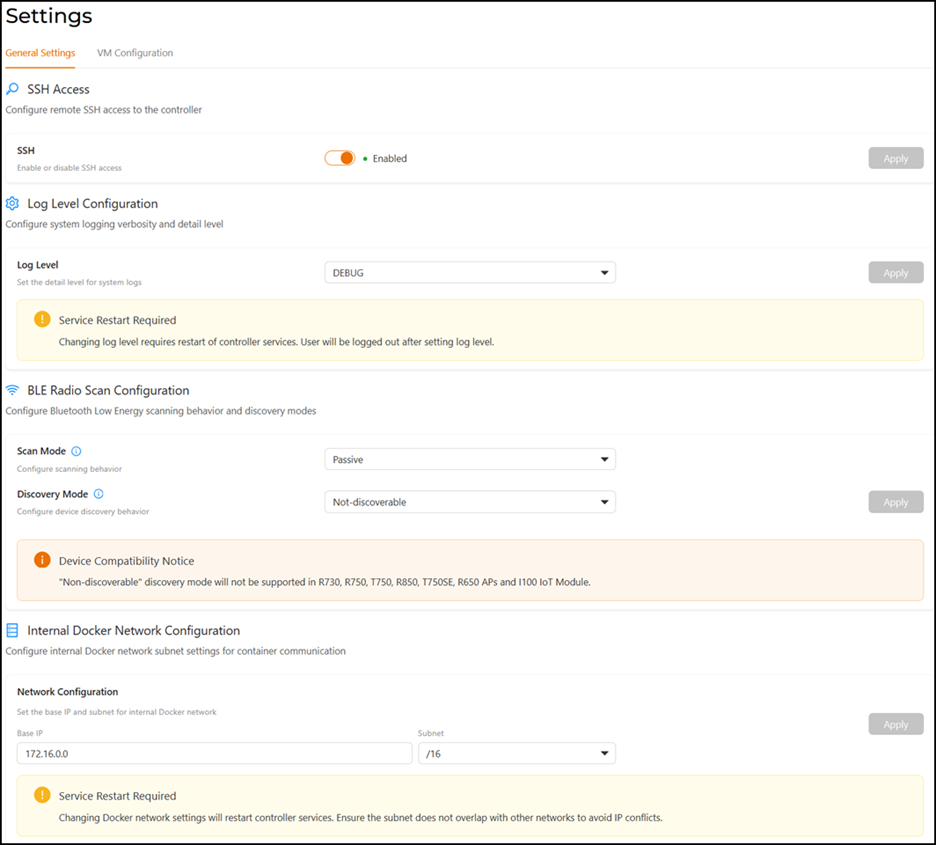
Configuring the General Settings
The IoT Controller's general settings
comprise SSH access, system log level, Bluetooth Low Energy scan, and internal Docker
network
configurations that you can modify to meet your needs. For example, you must have
SSH enabled
before you can perform High Availability (HA) configuration and Hot Upgrade.
- From the main menu, select . The General Settings tab is displayed by default.
- Enable SSH and click
Apply.Note: If you disable SSH, the HA and Hot Upgrade features will not be available.
- Select the desired Log Level from the drop-down
list and click Apply.
- DEBUG - Application developers use detailed tracing to debug problems in the IoT controller and log messages at the DEBUG level on the logger.
- INFO - INFO logs are used to record informational messages that help end users and system administrators monitor the application's progress. It logs a message at the INFO level on the logger. By default, INFO is selected.
- WARNING - Warning logs indicate that an unexpected event has occurred in the application, which may disrupt or delay other processes. These logs record a message at the WARNING level on the logger.
- ERROR - Error logs record events that are critical and disrupt normal program execution. However, the application may still continue running. These logs capture messages at the ERROR level on the logger.
- CRITICAL - Indicates a severe issue that can cause system failure, service disruption, or data loss.
- The BLE Radio Scan Configuration
section consists of the Scan Mode and Discovery Mode. By default,
Passive and
Discoverable modes
are set, respectively.
You can configure the Scan Mode to operate in Active mode. In the Active mode, gateways send scan requests and expect a SCAN_RSP packet in response to each broadcasted packet. For more details, refer to BLE Radio Scan Settings.
You can configure the Discovery Mode to operate in Not-discoverable mode, meaning all beacons for supported devices will be scanned regardless of their discoverability settings.
- Internal Docker Network Configuration: The Internal Docker Network is a virtual network that allows communication between the microservices (containers) that make up the IoT Controller application stack.