Zero Touch Deployment Setup Example
- Backup the Unleashed configuration via Unleashed UI or you can register the Unleashed to UMM and backup the Unleashed configuration via UMM backup task and download it to your laptop.
- Provision the Zero Touch Deployment rule on UMM server.
- Login to UMM WebUI and go to the Unleashed-Zero Touch Deployment page.
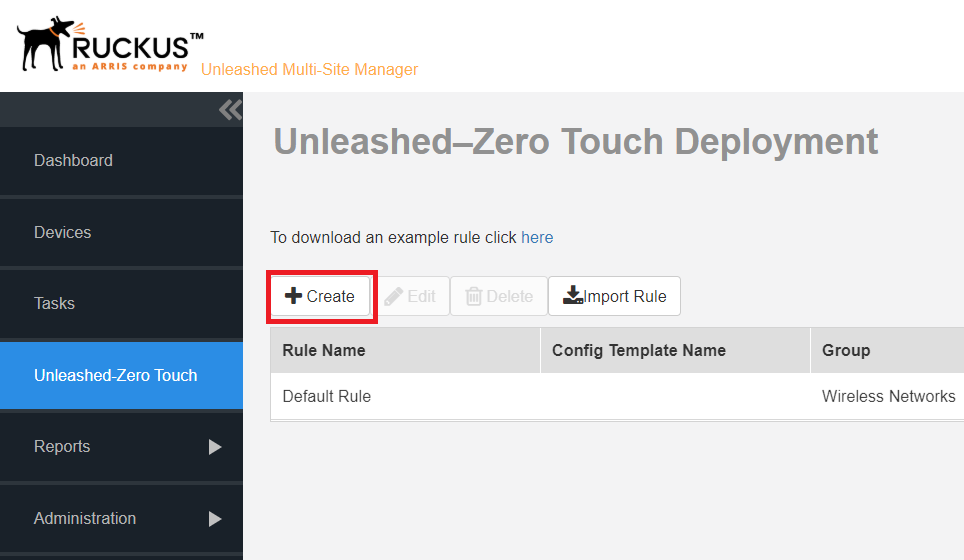
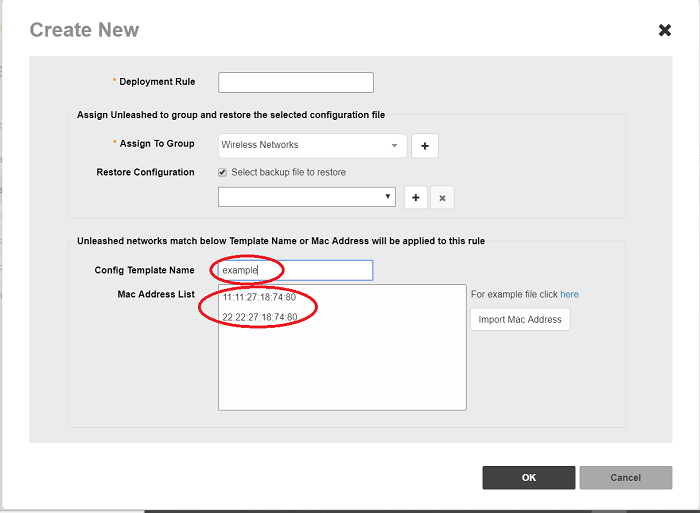
- Click the 'Create' Icon to create a new Zero Touch Deployment rule.
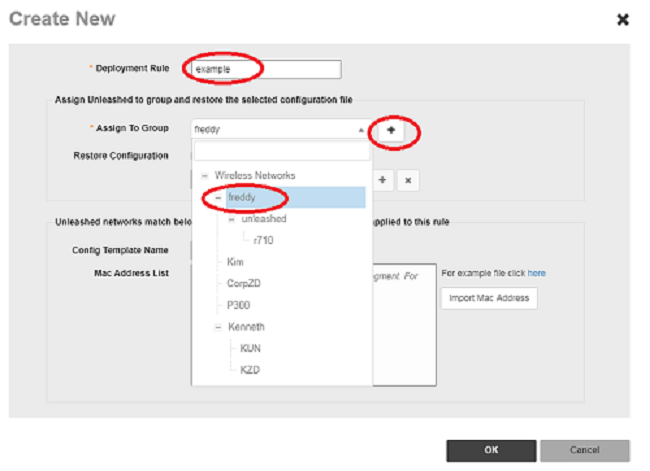
- Enter the Deployment Rule name and select the Device Group from the Assign To Group drop-down menu.
- Enter the Deployment Rule name and select the Device Group from the Assign To Group drop-down menu.
- Enable the
Restore Configuration option and select the configuration file from the drop-down menu or click (
 ) to upload new
Restore configurationfile.
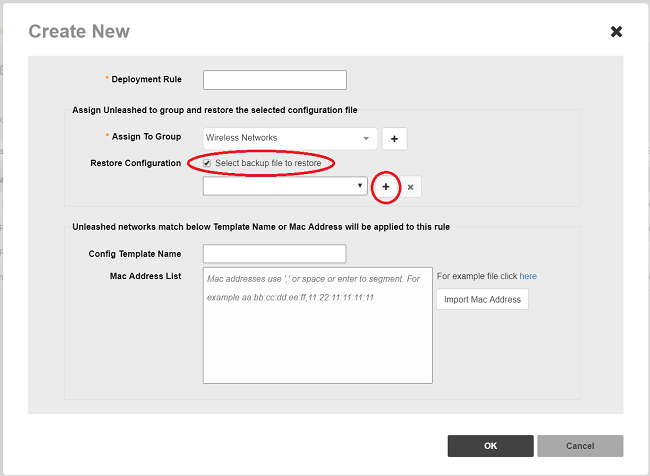
- Match the Config Template Name with the Config Template Name received from Unleashed and make sure to provision the same 'Config Template Name' on both UMM and Unleashed.
- Use the
Mac Address List to match the rule against Unleashed Master AP and Click
OK to save the rule..
- Initiation of Unleashed manually.
- Initiate Unleashed AP by DHCP
- Whenever there is an Unleashed match the Zero Touch Deployment rule, UMM creates a
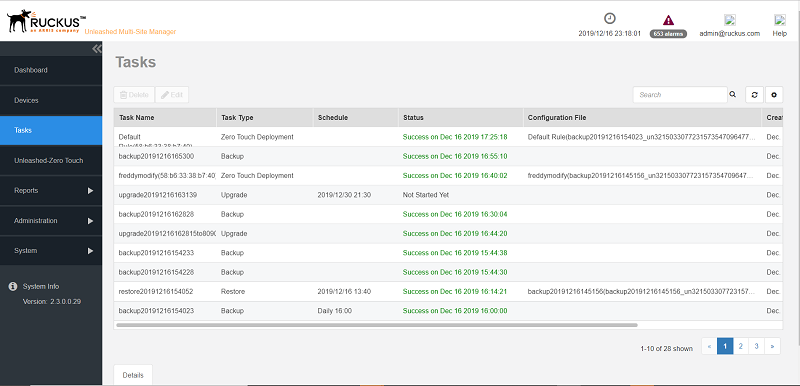
Zero Touch Deployment task in the Task page and displays the status of the deployment.
- Check the status of Zero Touch Deployment in the task page.