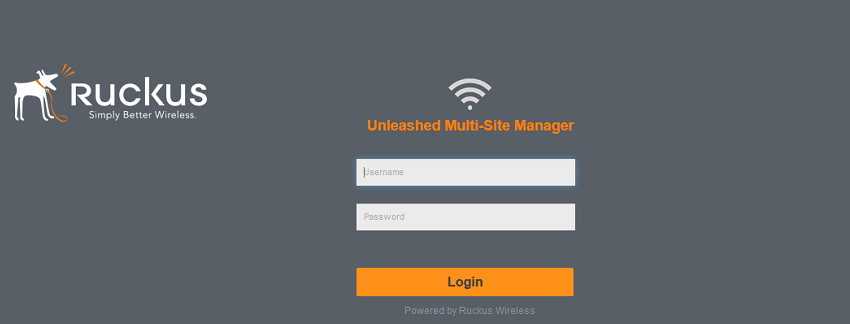
Logging In to Unleashed Multi-Site Manager
Note: When accessing the Web interface, Ruckus recommends using a monitor with at least 1280 x 1024 screen resolution. If you use a monitor with lower resolution, then you may not be able to see all Web interface elements at the same time and you may have to scroll through the page to see hidden elements.
- On your computer, open a Web browser window.
- In the browser window, type the IP address or host name (if you have set up DNS for the server) of the software server as follows:
- Press
Enter to initiate the connection.
If you are using HTTPS, then a security alert dialog box appears. Click OK/Yes/Proceed anyway to continue.Note: By default, Unleashed Multi-Site Manager uses a Ruckus signed security certificate that Web browsers do not recognize, causing them to display the security alert. If you want to prevent the security alerts from appearing every time you connect to the software using HTTPS, then you can install a certificate issued by a recognized certificate authority such as VeriSign. For information, refer to Managing SSL Certificates.
- If you are not using remote authentication, then type the administrator account user
name and password that you configured during installation.
The full user name includes the company domain name that you specified during the software installation (refer to Installing the FlexMaster Software). For example:
- If you are using remote authentication, then log in using the TACACS+ server configured in TACACS+ Settings.
- Click
Log In. The Web interface appears in the browser window. The
Dashboard workspace appears by default.
For more on the Dashboard, refer to Getting to Know the Dashboard and Its Widgets.Note: The Web interface has a session timeout mechanism that logs you out of the system automatically after 30 minutes of inactivity. This helps secure the Web interface and prevent unauthorized users from changing your software configuration.Note: If you recently upgraded the software, then Ruckus strongly recommends that you clear your Web browser’s cache before logging in to the Web interface. This helps ensure that the Web interface shows all the changes and enhancements that were implemented in the new software version.