Viewing Devices Managed by UMM
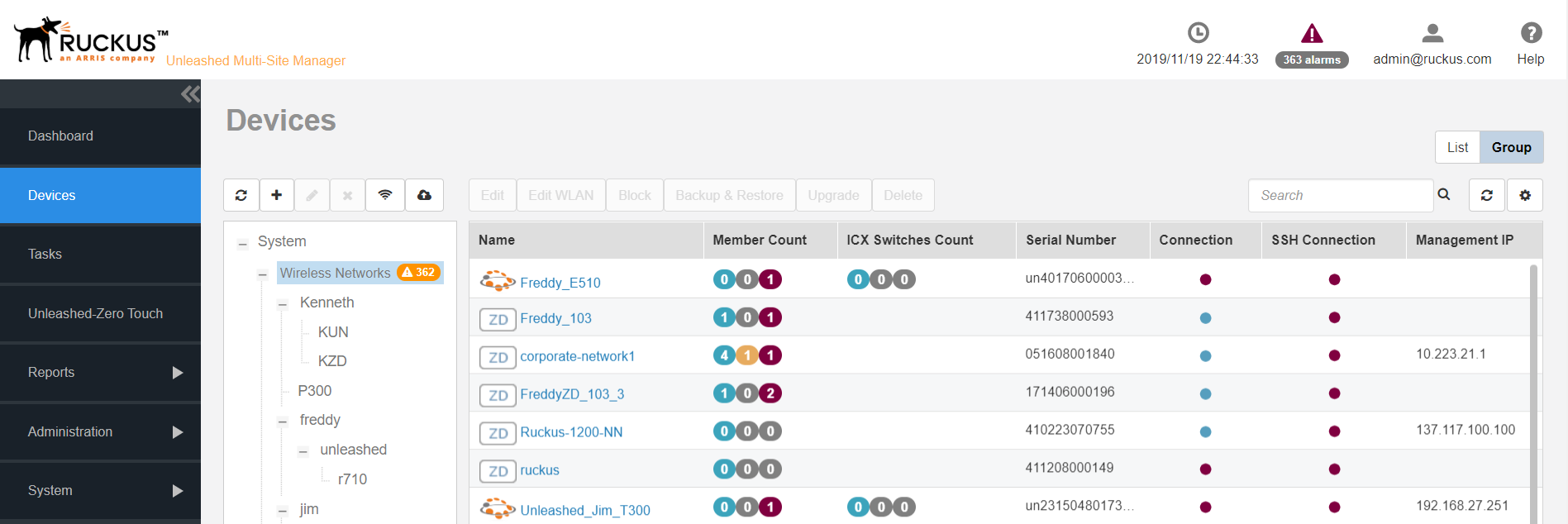
- Follow these steps to view the devices manage by the software:
- After you to log in to the web interface, select
Devices from in the navigation bar.
You can use the View Mode to select how you want the device information to be presented:
- List: Displays the list of all devices irrespective of the group to which they belong.
Group: Displays the list of devices in a hierarchical format.
Click the Refresh icon (
 ) to refresh the contents of the table.
Click the Edit WLAN icon (
 ) to edit the selected WLAN to the Unleashed which belong to this group.
Click the Upgrade icon (
 ) to upgrade all the Unleashed which belong to this group.
The following table lists some of the fields and table columns that appear by default.
Configuring Device Management
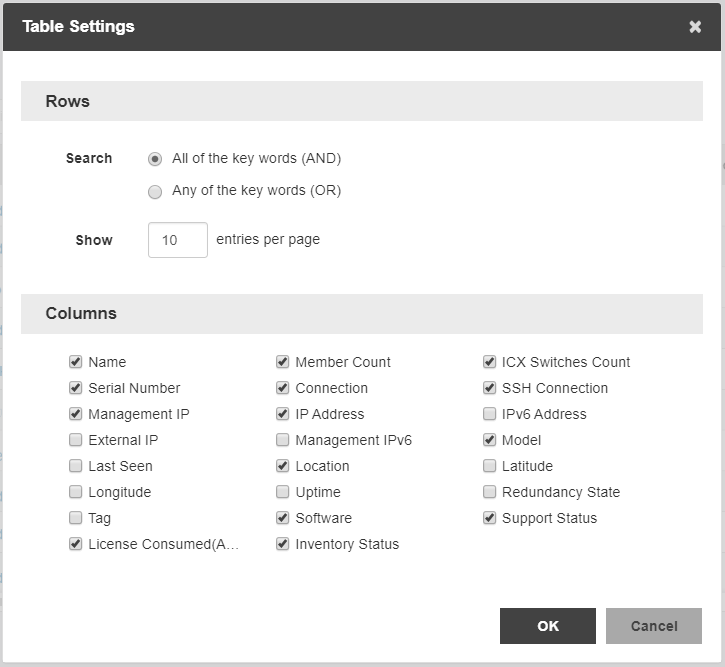
By clicking Configure table icon (
 ), you can customize the table settings that are displayed. You must select the check
boxes to display the columns in the table and enter the number of rows you want to
display in the table, in addition to specifying the search criteria.
To search for information in the table, enter word or phrase in the Search field. The page refreshes and displays devices with attributes that matched your search keyword or keyphrase. The matching attributes are highlighted and Unleashed Multi-Site Manager displays up to ten search results on each page by default. The number of rows is customizable. When your search generates more results than the number of rows set, use the left arrow and right arrow buttons after the Search box to display the previous page or next page, respectively.
- List: Displays the list of all devices irrespective of the group to which they belong.