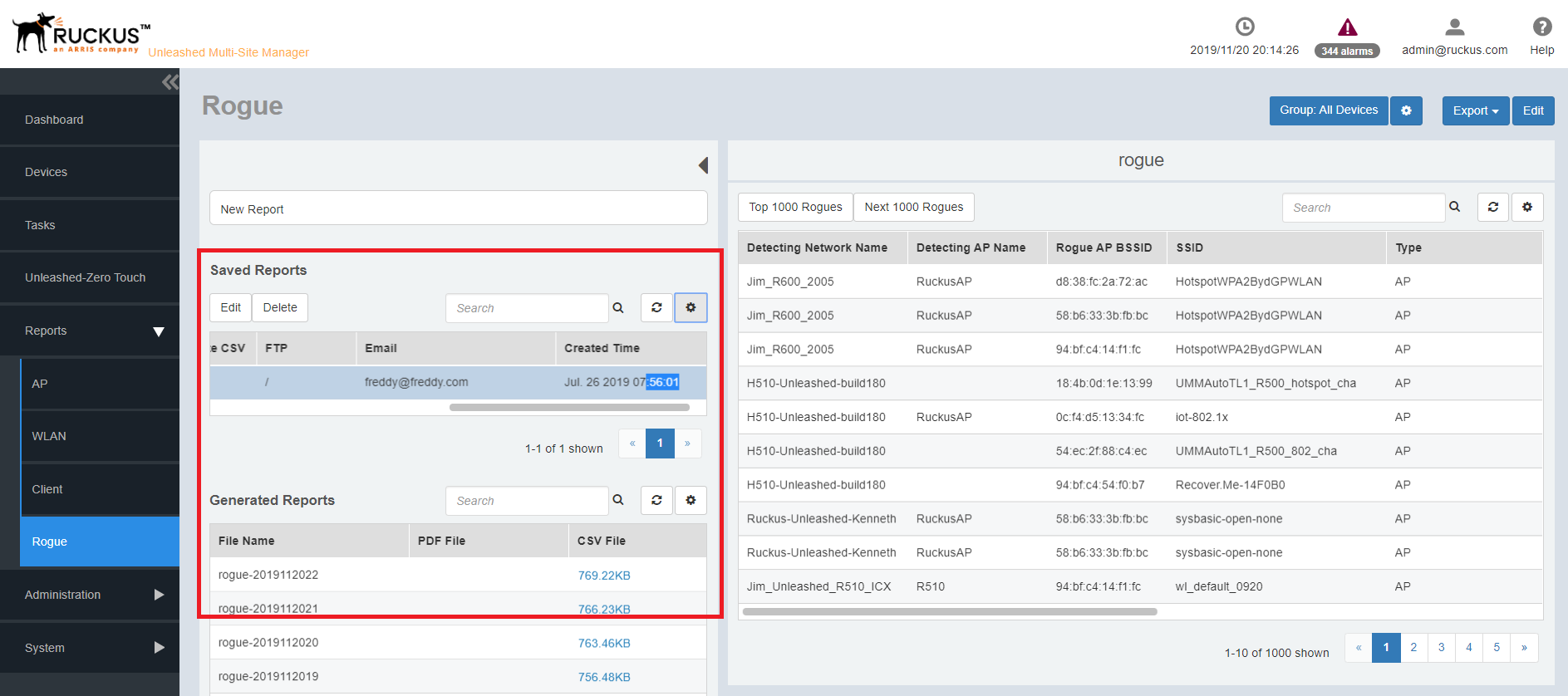
Viewing Saved Reports
The Saved Reports page displays reports that you have previously configured and saved.
- After you to login to the Web interface, select Reports from the menu in the left.
- Click any of the sub menu.
The Saved Reports reports is appeared in the middle pane. The first table lists all the reports generated and saved. Its displays the following information about the saved reports.
- Report Name: displays the name of the report.
- Frequency: displays how periodically the report was configured to generate.
- Generate PDF: displays Yes if the report was saved as a PDF.
- Generate CSV: displays Yes if the report was saved as a CSV.
- Email: displays the email address provided while saving the report.
- FTP: displays the FTP location where the report is saved.
- Created Time: displays the time when the report was saved.
The second table display the following:
- File Name: displays the name of the report file name
- PDF File: displays the size of the generated PDF. You can download the PDF by clicking the file.
- CSV File: displays the size of the generated CSV. You can download the CSV by clicking the file.
- Created Time: displays the time when the report was generated.
- Configure the report settings as described in Configuring Report Options.