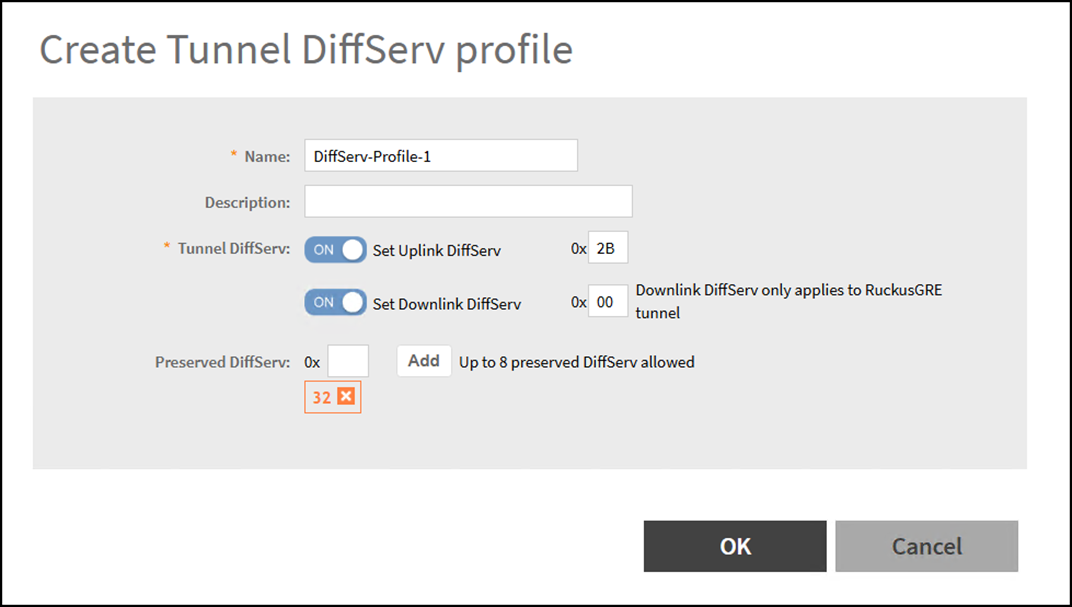
Creating a Tunnel DiffServ Profile
A Tunnel DiffServ profile defines how
Differentiated Services Code Point (DSCP) values are applied to traffic inside RuckusGRE
or
SoftGRE tunnels. This ensures Quality of Service (QoS) markings are preserved or
set for
uplink and downlink traffic.
- In the controller web UI, select .
- Select the zone for which you want to create the profile and click Create.
- Configure the following options:
- Name: Enter a unique profile name. This is required and identifies the DiffServ profile.
- (Optional) Description: Text to describe the profile purpose or usage.
- Tunnel DiffServ: Configure the following options.
-
Preserved DiffServ: Enter DSCP values (hex format) that should remain unchanged when traffic passes through the tunnel. You can add up to eight preserved values.
- Note:
- Downlink DiffServ applies only to RuckusGRE tunnels.
- The valid range is 0x00 to 0x3F (decimal 0–63).
- You can use standard QoS values or custom values based on your network policy. For guidance on the values to enter, refer to Common DSCP Values and Use Cases.
Common DSCP Values and Use Cases
Hex Value Decimal Class / Name Recommended Use 0x00 0 Best Effort Default traffic with no QoS requirements 0x0A 10 AF11 Low-priority data or background traffic 0x1A 26 AF31 Business-critical data 0x28 40 AF41 High-priority video or streaming traffic 0x2E 46 Expedited Forwarding (EF) Real-time traffic such as VoIP or voice 0x2C 44 Class Selector 5 (CS5) Interactive video or conferencing 0x38 56 CS7 Network control traffic (highest priority) - Click OK.