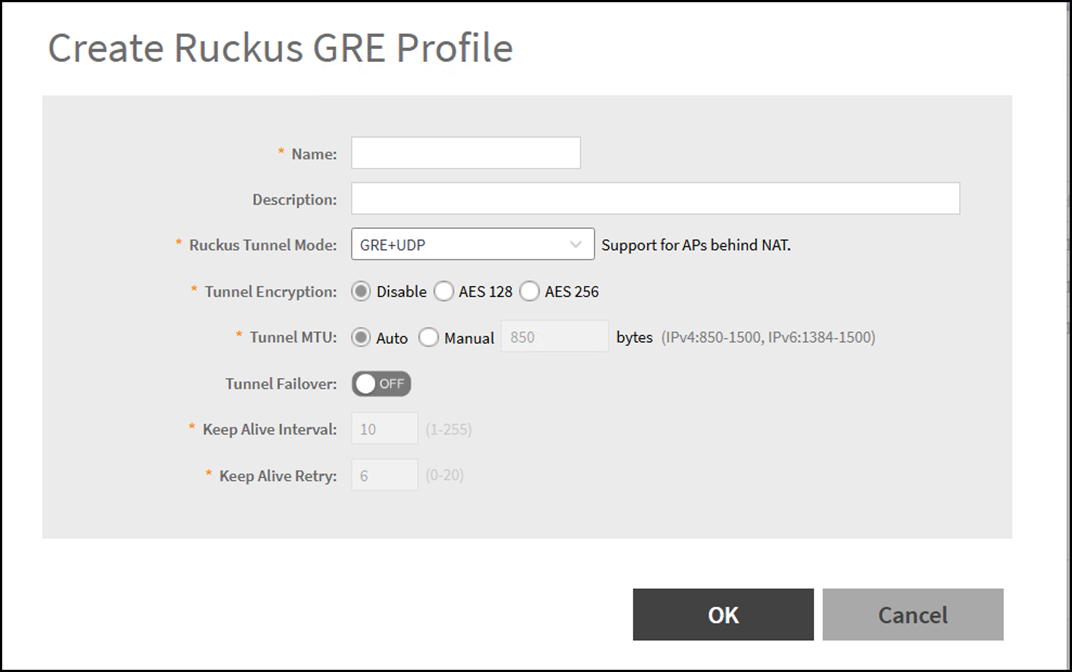
Creating a RUCKUS GRE Profile
A RUCKUS GRE tunnel profile defines
encapsulation of wireless LAN (WLAN) traffic between access points (APs) and the
RUCKUS data
plane (DP). When applied, the profile determines the tunneling protocol, encryption,
and
failover behavior, allowing you to control how tunnels are formed.
- In the controller web UI, select .
- Click Create.
- In the Name field, enter a descriptive name for the profile.
- (Optional) In the Description field, enter a brief description.
- In the Ruckus Tunnel
Mode field, use the drop-down menu to select the protocol for
tunneling WLAN traffic:
- GRE + UDP— Select this option if your APs are deployed behind a NAT device. GRE + UDP encapsulation allows APs to tunnel WLAN traffic back to the data plane even when NAT traversal is required. This is recommended for distributed or remote deployments where APs do not have direct, routable connectivity to the controller or data plane.
- GRE— Select this option for standard deployments where APs have direct, routable connectivity to the data plane. GRE encapsulation is more efficient and should be used when NAT traversal is not needed.
- For Tunnel Encryption, select one of the following options:
- Set the Tunnel
MTU:
- Auto. Use this option to let the system automatically determine the optimal Maximum Transmission Unit (MTU) size for the tunnel. This is recommended for most environments, as it reduces the risk of fragmentation and ensures compatibility with varying network paths.
- Manual. Specify the MTU value if you need to fine-tune tunnel performance for specific network requirements.
- Set the Tunnel
Failover option:
- OFF: The tunnel will not automatically failover to a backup path if the primary connection is lost. Recommended for stable environments where redundancy is managed at a higher network layer.
- ON: Enables automatic failover, allowing APs to switch to a backup tunnel path if the primary connection becomes unavailable. Recommended for high-availability deployments or networks with variable connectivity.
- Enter the Keep Alive Interval (default: 10; range: 1–255). A shorter interval increases responsiveness to tunnel failures but may add overhead; use the default unless your network requires faster detection. This option becomes configurable only when Tunnel Failover is enabled.
- Enter the Keep Alive Retry value (default: 6; range: 0–20). Higher retry values increase tolerance for transient network issues; lower values trigger failover more quickly. This option becomes configurable only when Tunnel Failover is enabled.
- Click OK to save the profile.