Associating Multiple Tunnel Profiles with a Zone
Tunnel profiles define the parameters for
encapsulating and forwarding WLAN traffic to specific data planes. Adding multiple
tunnel
profiles to a Zone enables flexible assignment of tunnels to different WLANs within
that
Zone.
Note: Tunnel profiles must be added to the Zone before they can be
assigned to WLANs. Only tunnel profiles present in the Zone configuration are
available for WLAN assignment.
- In the controller web UI, select .The Wireless LANs page opens.
- From the System tree, select the
Zone you want to assign with multiple tunnel profiles and click
 .The Edit Zone: page opens.
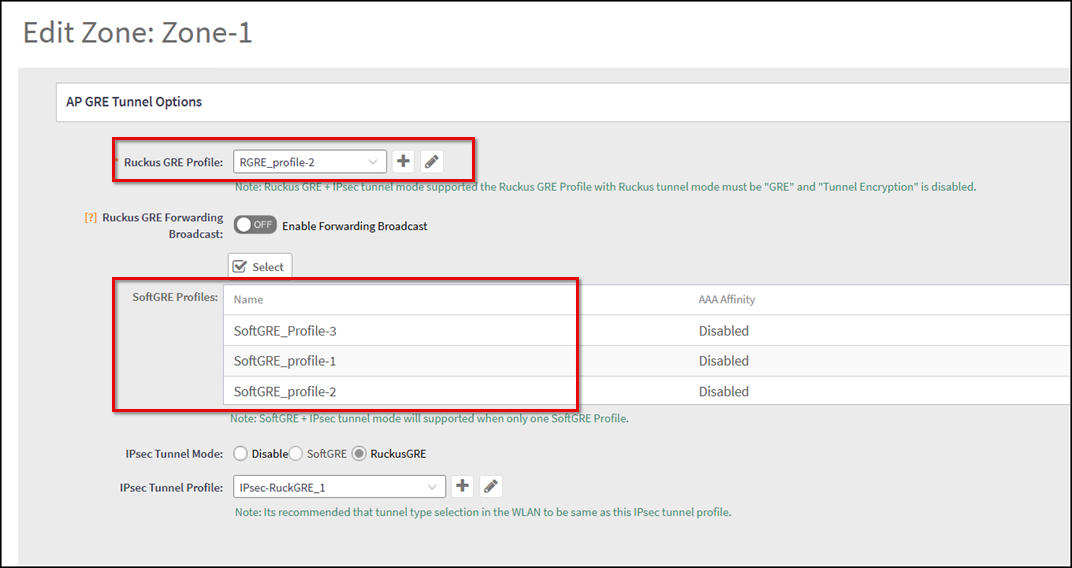
- Scroll to the AP GRE Tunnel Options section.
- In the Ruckus GRE
Profile drop-down menu, select a profile or click the
 icon to create a new Ruckus GRE profile.
- In SoftGRE Profiles,
click Select.The Select SoftGRE Tunnel Profiles window opens.
- In the Select SoftGRE
Tunnel Profiles window, select up to three SoftGRE profiles from
the Available Profiles
list and click
 to include them in the Selected Profiles list.
Use
 to return selected profiles to the available
profiles.
- (Optional) Switch ON the AAA Affinity toggle to ensure APs in the Zone prefer authentication servers associated with the selected tunnel profiles.
- Ensure you configure the Ruckus GRE Forwarding Broadcast, IPSec Tunnel Mode, and IPSec Tunnel Profile options as explained in WLAN Data Plane Options.
- Click OK to save the list of selected SoftGRE profiles.
- Click OK to save the
Zone configuration.The selected tunnel profiles are now available to WLANs that belong to the Zone.
 ,
 to create, modify or delete a SoftGRE profile, respectively.