Troubleshooting Using Custom Events
You can create custom events to define failure scenario and use them to generate troubleshoot
switch issues.
To access the Switch Custom Events window do the following:
- On the menu, click to display the Switch Custom Events window.
- Click Create to display the Create Switch Custom Event dialog box.
- Complete the following fields:
- Event Name: Enter the name.
- Event Description: Enter a brief description.
- Event Type: By default, TextPattern is selected.
- Event Contains The Text: Enter the text contained in the switch event that needs to be monitored.
- Threshold: Enter the threshold value between 0 to 255.
- Time Window: Select the time from the list.
- Event Severity: Select Major, Critical or Warning status from the list.
- Click OK.
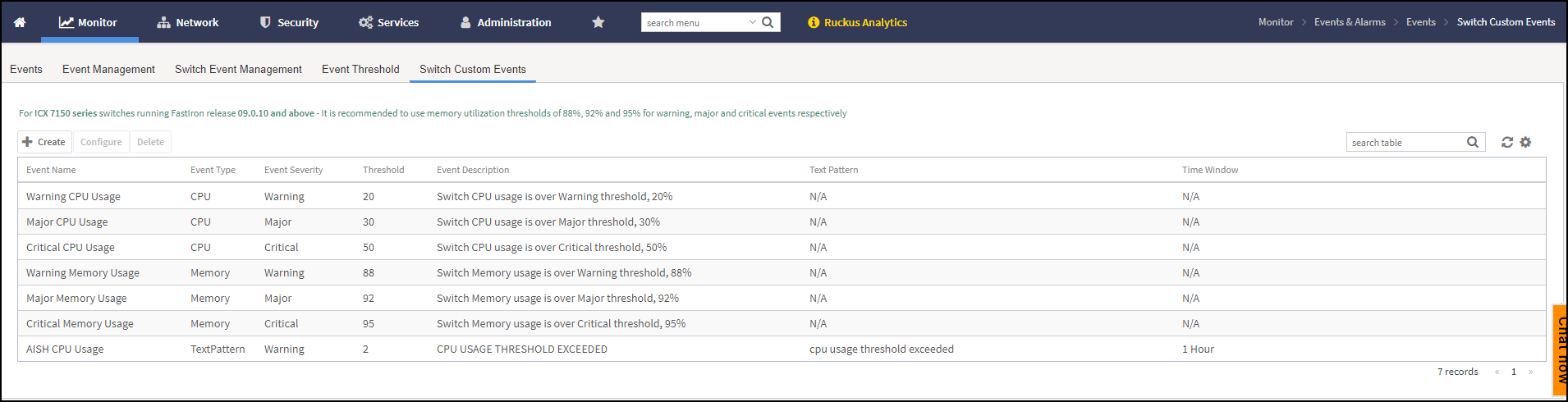
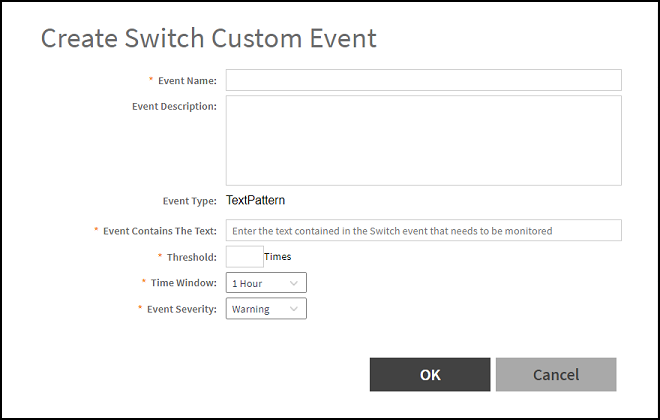
For example, you can create a "system is unusable" event with the following settings. Based on this event definition and configuration, if any switch sends this message thrice in one hour, the controller triggers a Custom Event. You can view the "system unavailable" event from the Switch Custom Events page. For more information on custom events, refer the topic Creating Custom Events for ICX Switches in the Troubleshooting and Diagnostics Guide.
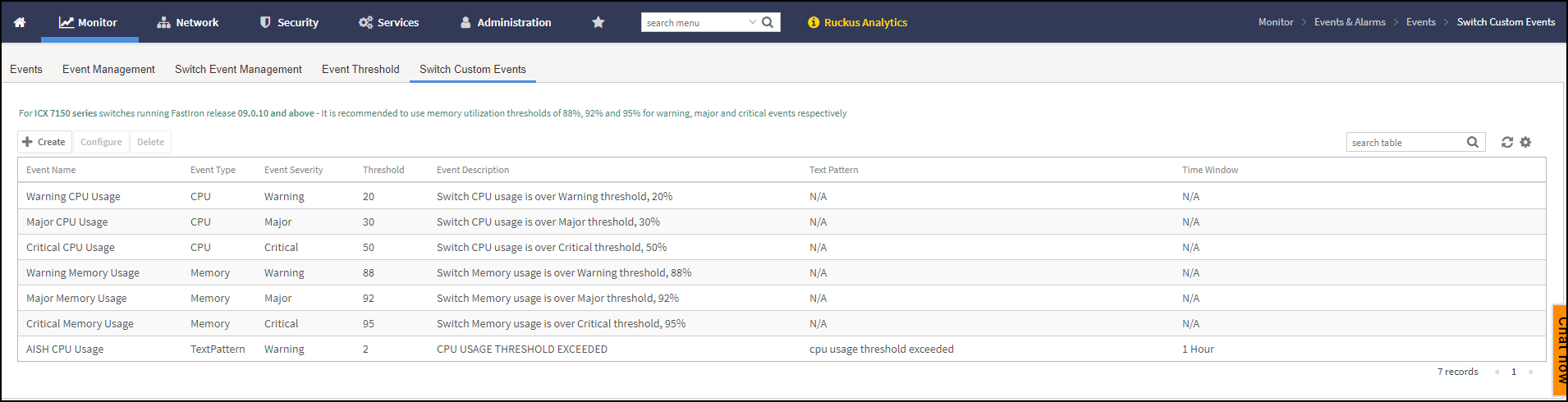
Note: It is quite common that entry level switches
use upto 70-80% of the available memory. You can modify the thresholds for memory
usage
custom events to a higher limit in such cases.