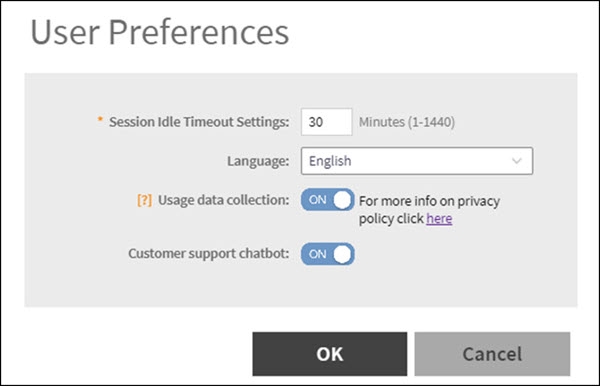
Chatbot
The key task of the Chatbot is to help
users by providing answers to their queries. The Chatbot communicates in human like
conversation with users through text messages on the chat.
Note: The Chatbot feature
in SmartZone is available only for an account with an Administrator
permission.
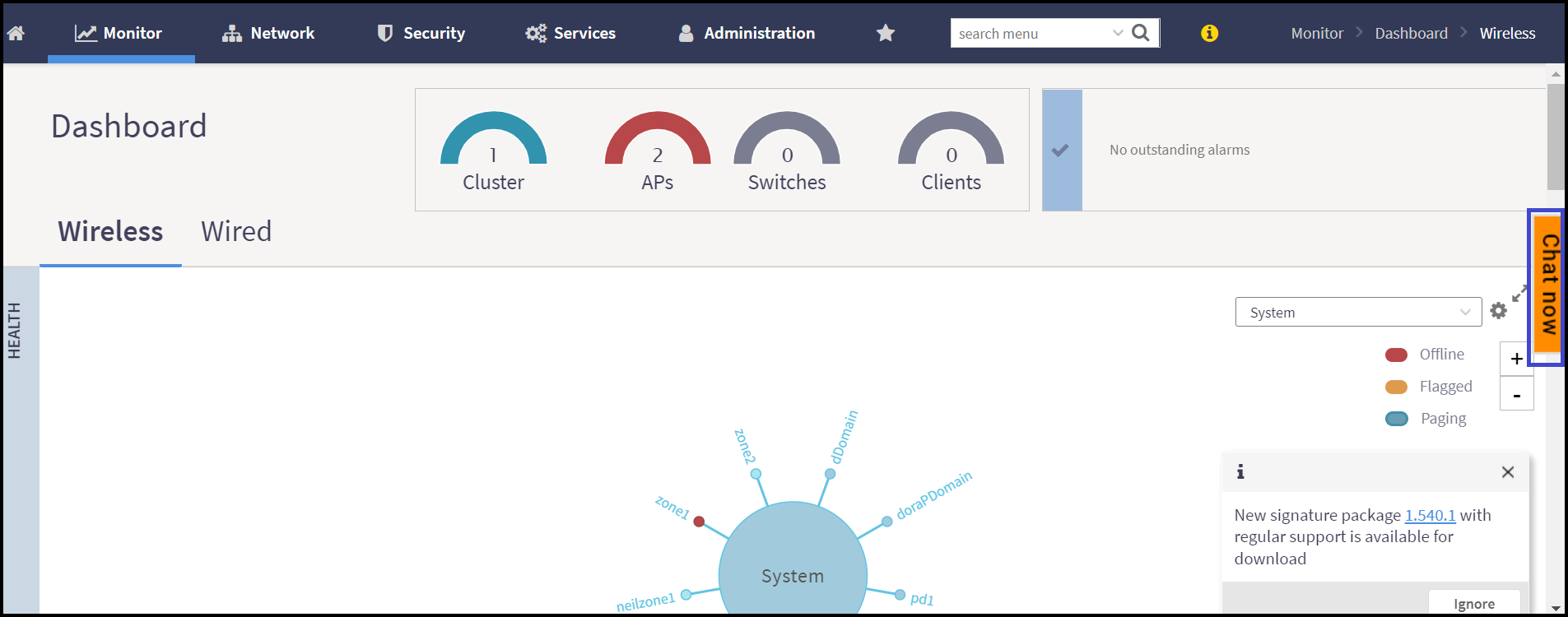
The Chatbot helps to create a support ticket in case of any issues with the application.
Any user with a RUCKUS account has complete access to the Chatbot. However, a user without a RUCKUS account has limited access and can access only the knowledge base.
Logging in to Chatbot
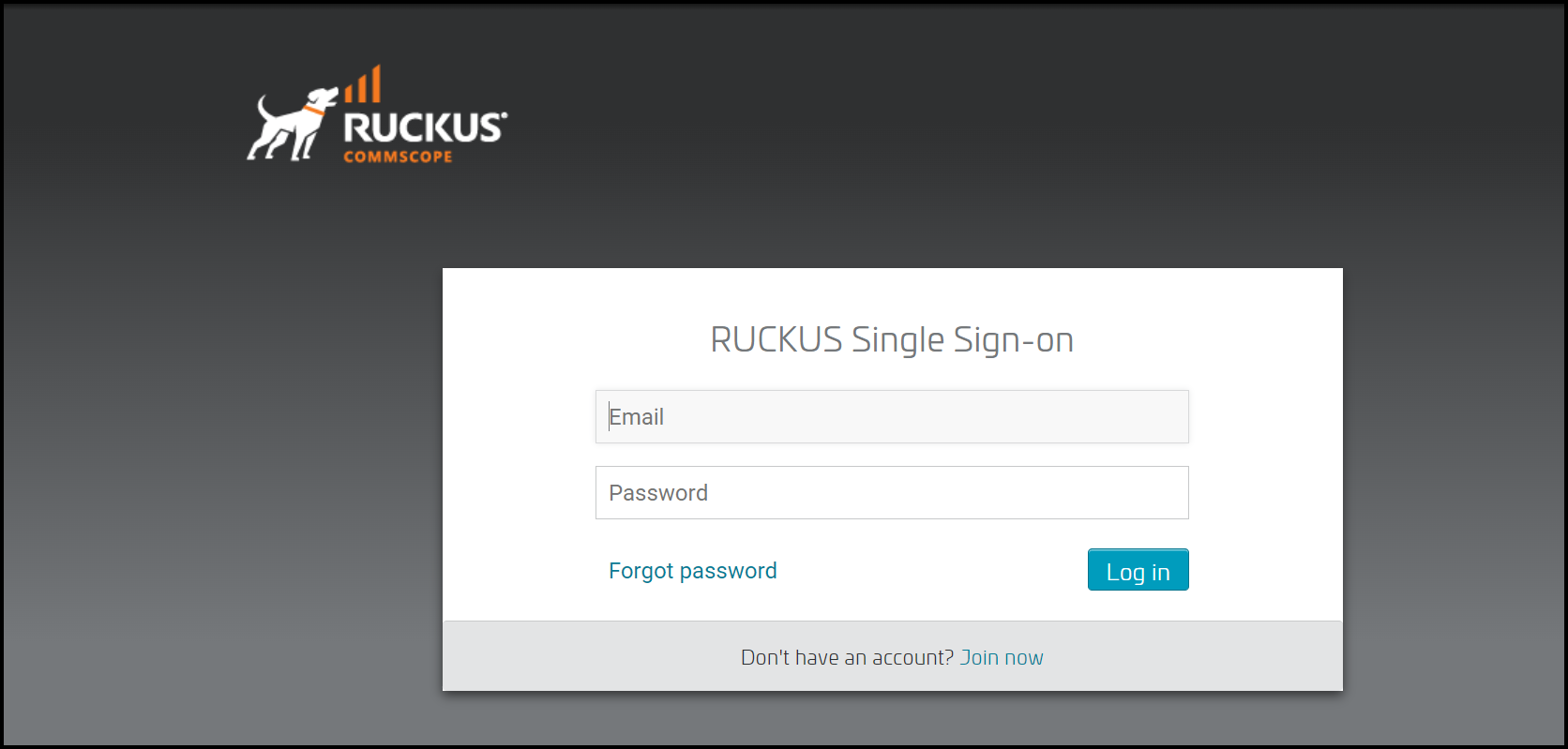
To access the Chatbot, a user must log in to the RUCKUS Support account and authenticate the credentials.
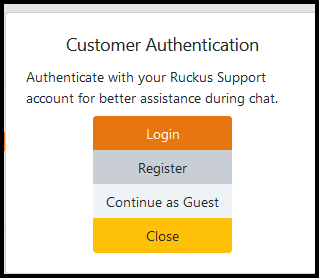
Login by RUCKUS account
- Click . This displays the RUCKUS authentication page.
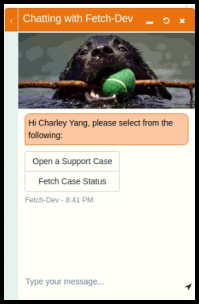
- After authentication, a user can create or track a Support ticket. The Chatbot sends the data with the RUCKUS account authorization information.
- To create a new support ticket, click Open a Support Case and provide the following information:
- To track a Support ticket, click Fetch Case Status and provide the case number.