Cable Testing on ICX Ports
- From the main menu, click to display the Switches window.
- From the system tree, select a or Switch Group and select the Switch.
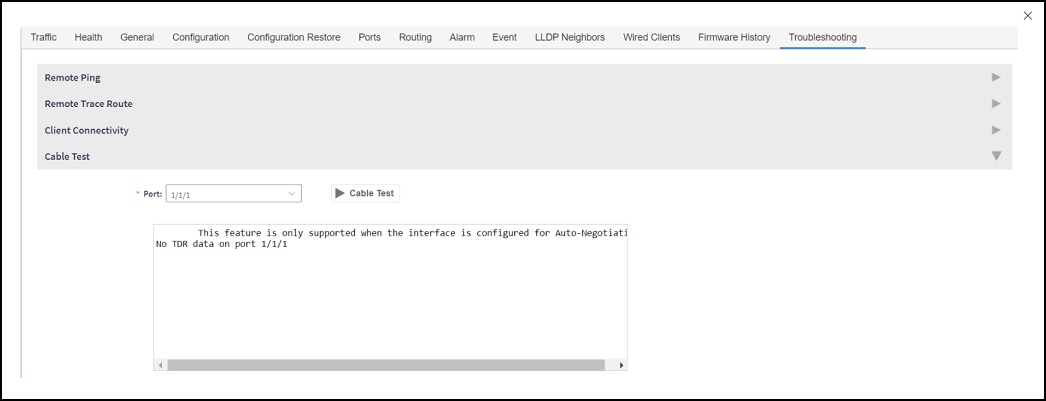
- In the Details pane, click the Troubleshooting tab.
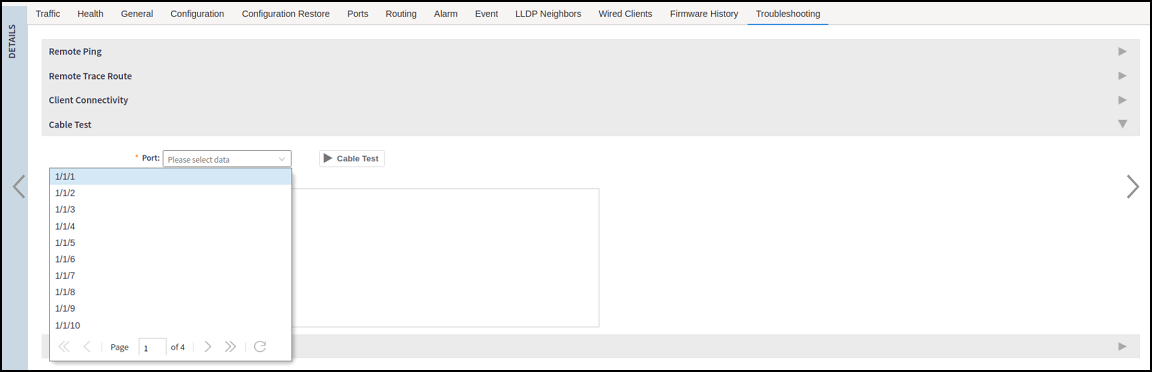
- Navigate to the Cable Test
section, click the
 icon to view the Cable Test
fields.
- Select a port from the Port list.
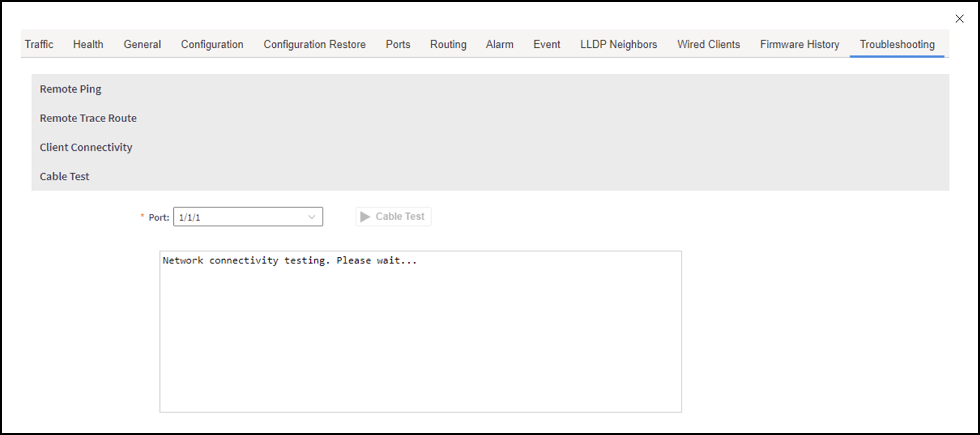
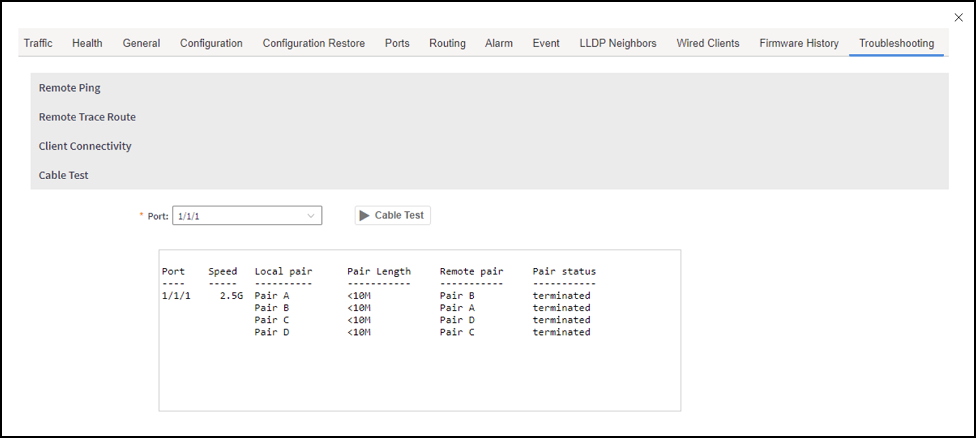
- Click on Cable Test to begin the test.
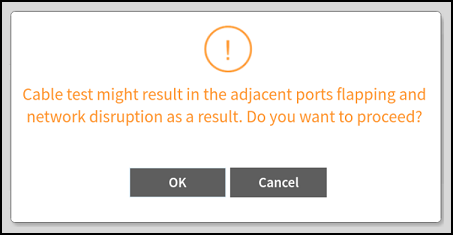
- A Cable Test Message dialog box is displayed, click OK.
- If the selected port has the port speed set to Fixed, then an error message is shown as below.