Creating Custom Events for ICX Switches
You can create custom events by specifying that a particular switch status, for example
a particular CPU utilization, memory utilization, or text pattern, generates an alarm
or an event. Therefore, there are 3 types of custom events - CPU, Memory and TextPattern.
To create a customer event, perform the following steps.
Note: DB Persistence must be enabled to generate custom events.
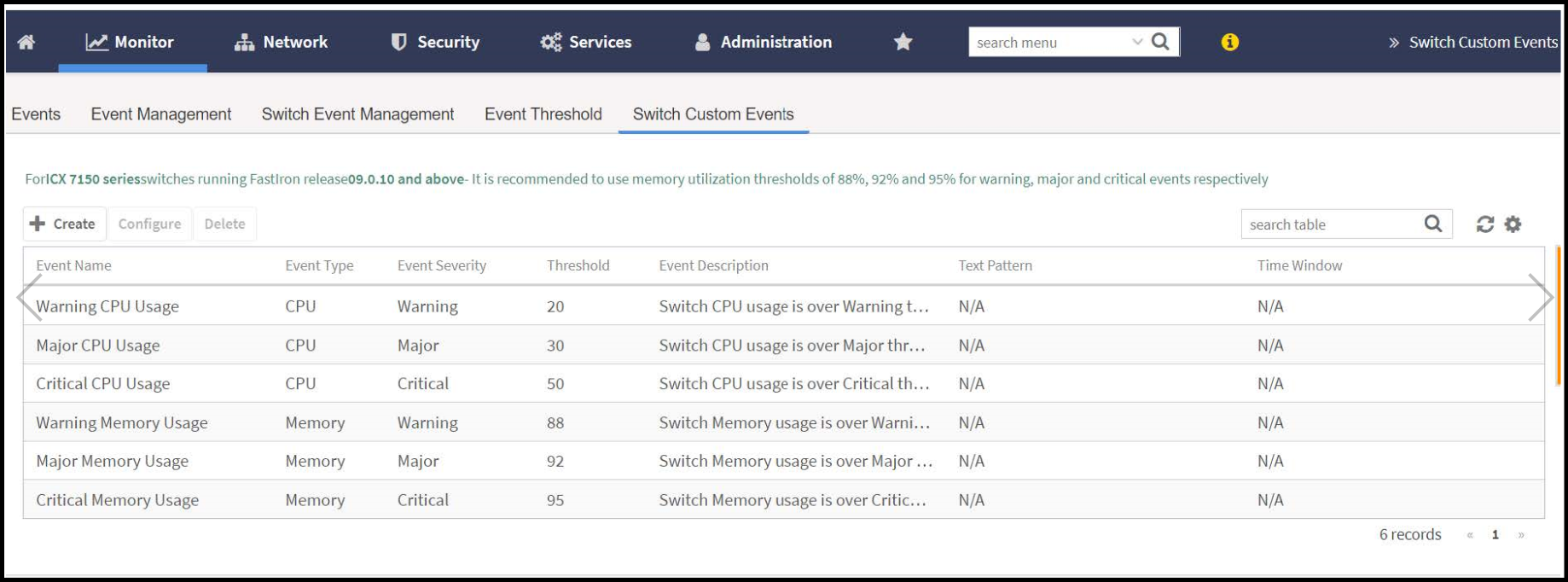
- In the main menu, click Monitor and hover mouse on Events from the Events & Alarms menu. In the Events drop-down list select Switch Custom Events.
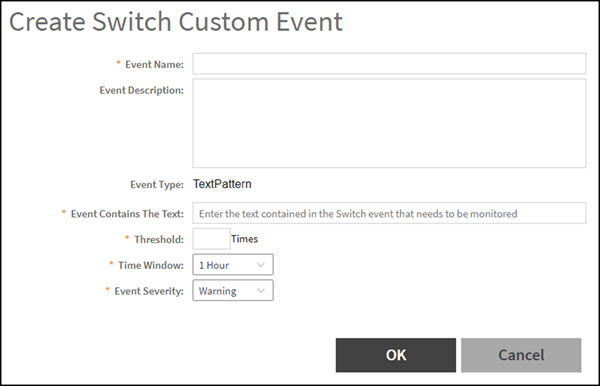
- Click Create. The Create Switch Custom Events page is displayed as shown in the following example.Note: You can only create new TextPattern custom events. Custom events of CPU or Memory type can only be edited or configured, and cannot be created.Configure the following:
- Event Name: Enter the name of the event. For example, you can provide a name to identify the text pattern to be displayed in the event description.
- Event Description: Enter a detailed description of the event.
- Event Type: Displays the type of event. Here, Text Pattern.
- Event Contains The Text: Enter the text used in the event to be monitored.
- Threshold: Enter the number of times the user-defined status is achieved.
- Time Window: Select the time frame within which the threshold is achieved. You can select from a few hours to two days.
- Event Severity: Select the severity level of the custom event. Options include Warning, MAJOR, Critical.
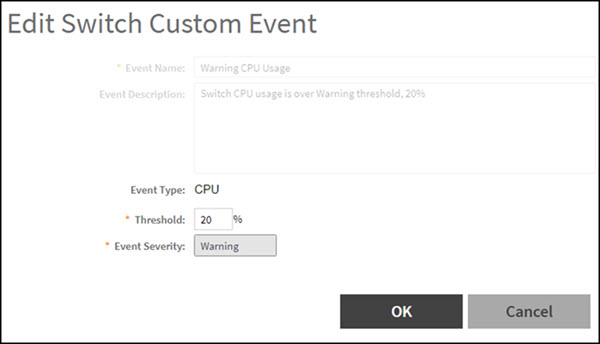
- Event Name: Displays the name of the event.
- Event Description: Displays a detailed description of the event.
- Event Type: Displays te type of event. Here, CPU.
- Threshold: Enter the percentage of times the user-defined status is achieved.
- Event Severity: Displays the severity level of the custom event. Options include Warning, Major, and Critical.
- Click OK.