Viewing Individual Cluster Details
Complete the following steps to view cluster details.
- On the menu, click
Inventory.
The Inventory window is displayed.
- In the
Clusters tab, click the name of a cluster.
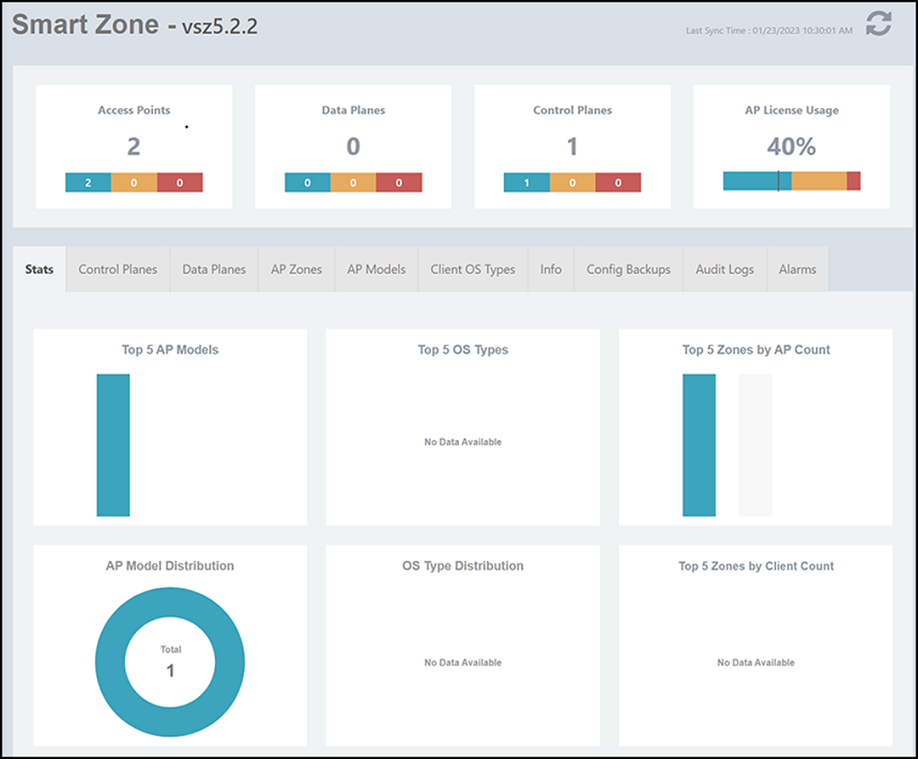
A window specific to the selected cluster is displayed with the following information.
Cluster details
Field Description Access Points Total number of APs associated with the cluster. It also displays the breakup of the AP count based on the operational status. Data Planes Total number of data planes. Control Planes Total number of control planes. AP License Usage Percentage of AP license usage level on the controller based on which the AP Management license can be increased. 
Syncs the cluster with respect to its SmartZone (SZ) configuration. Stats Top 5 AP models Top 5 AP models that have the most number of clients. Top 5 OS Types Top 5 operating systems used by the associated clients. Top 5 Zones by AP Count Top 5 Zones that have the most number of APs. AP Model Distribution Statistics of the AP model distribution OS Type Distribution Statistics of operating system distribution. Top 5 Zones by Client Count Top 5 zones that have the most number of clients. Control Planes Name Name of the interface Status Status of the control plane MAC MAC address of the interface Version Version of the control plane IP IP address of the interface Cluster Role Role of the cluster Disk Used Percentage of disk usage Up Time Duration for which the interface is up Data Planes Name Name of the interface Status Status of the data plane MAC MAC address of the interface Version Version of the data plane IP IP address of the interface Up Time Duration for which the interface is up AP Zones Zone Name Name of the zone Online Number of APs that are online Offline Number of APs that are offline Flagged Number of APs that are flagged AP Models AP Model Name of the AP model Zone Name of the zone Online Status Offline Status Flagged Status Client OS Types Type Operating systems used by the associated clients. Count Total number of OS used. Info Model Version detail of the controller Software Version Supported software version Configured Mgmt IP Management IP of the cluster Clients Number of associated clients OS Types Number of the operating systems used by the associated clients AP Models Number of AP models Config Backups You can perform the following actions: - Refresh: Click the
 icon to refresh the
configuration backup table.
icon to refresh the
configuration backup table. - Delete: Click the
 icon to delete the
selected backup files.
icon to delete the
selected backup files. - Download File: Click the
 icon to download the
selected configuration backup files.
icon to download the
selected configuration backup files. - Download Config: Click the
 icon to initiate manual
configuration backup. Upon successful manual
download, the file will be available in the backup
list and can be downloaded.
icon to initiate manual
configuration backup. Upon successful manual
download, the file will be available in the backup
list and can be downloaded. - Restore Backup: Click the
 icon to upload the
selected configuration backups on the SZ controller.
icon to upload the
selected configuration backups on the SZ controller. - Mark as Gold Copy: Select a
configuration backup file and click the
 icon to mark it as "Gold
Copy". The backup file which is marked as Gold Copy
will not be removed during the automatic backup
schedule. Only one backup file can be configured as
Gold Copy at a time.
icon to mark it as "Gold
Copy". The backup file which is marked as Gold Copy
will not be removed during the automatic backup
schedule. Only one backup file can be configured as
Gold Copy at a time. - Define configuration Backup limit:
Allows you to override the configuration backup file
limit defined at the global level.
Refer to Managing SZ Configuration Backups for more details about configuration backup settings.
To change the configuration backup limit, perform the following actions:
- Click the
 icon. The Allow Config Backup window
is displayed.
icon. The Allow Config Backup window
is displayed. - Complete the following fields:
- Overwrite global config backup settings: Select the checkbox to change the configuration backup limit.
- Number of Backup: From the list,
select the maximum number of configuration backup
files that need to be retained for each cluster.
If the number of backup files exceeds the defined backup file limit during the automatic backup schedule, the oldest file is removed and replaced by the latest file. You can define the backup file limit to a maximum of 21 per SZ cluster.
- Click Yes! to apply the change.
- Click the
Timestamp Time when configuration backup file is generated. Result Result of the configuration backup action. File Name Name of the configuration backup file File Size Size of the file Storage Location Location where the configuration backup files are stored. Error Message Description of the error Audit Logs Time Frame Filter the user activity log for the user actions performed within a specific time frame. You can view the activity log of: Search Filter the activity log by entering a keyword or phrase corresponding to each parameter. Timestamp Time of user actions. User The user who has executed the action. Action The management or administration action executed by the user. Resource The feature module on which the action is executed. Description Summary of the completed action. Alarms Time Frame Filter the alarms that are triggered within a specific time frame such as the following: Timestamp Date and time at which the alarm is triggered. Notified Indicates alarm notification status. Severity Severity level of the alarm indicating the importance of the event that triggered the alarm. Cleared Number of alarms that are cleared. Description Description of the event that triggered the alarm. - Refresh: Click the