Configuring Registration Rules based on IP/Subnet
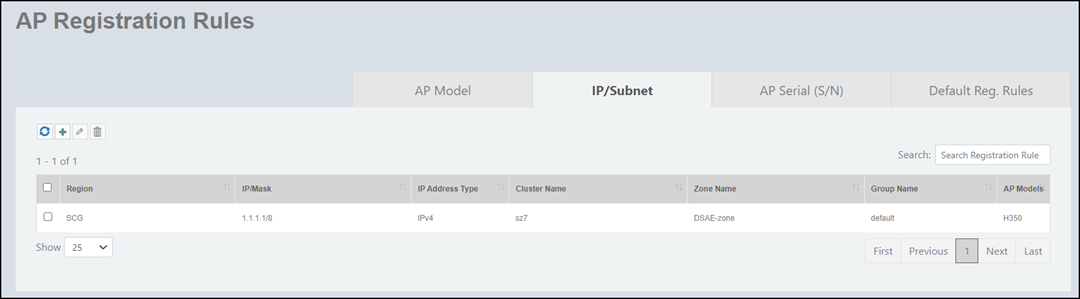
- On the menu, go to Inventory > AP Reg. Rules.
- In the IP/Subnet tab,
click the
 icon.
icon.
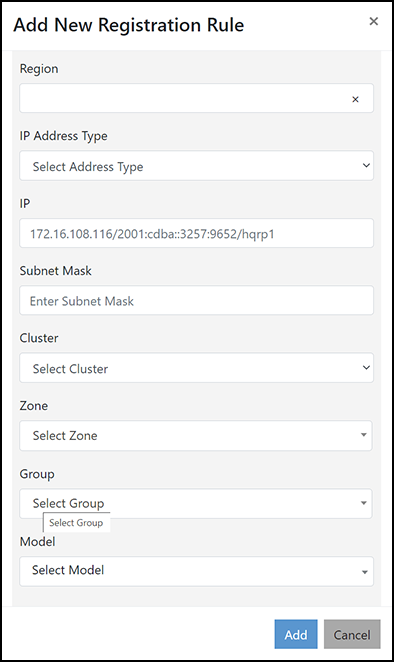
- Complete the following fields to
add a registration rule.
- Region: Add a region or select a region from the list.
- IP Address Type: From the list, select IPv4 or IPv6.
- IP: Enter the starting IP address.
- Subnet Mask: Enter the subnet mask.
- Cluster: From the list, select a cluster to which you want to add the AP.
- Zone:
From the list, select an AP zone.
The domain hierarchy is displayed in the list. You can select a zone under a specific domain and it helps you to route APs to the right controller and zone within that cluster.
- Group:
From the list, select a group to which you want to add the AP.
Note: Adding a new AP to the Group level through configuring registration rules based on IP/Subnet is supported in SmartZone 3.6.2 and later versions.
- Model:
From the list, select one or more AP models. By adding the AP model, the
scope of the registration rule is extended to a combination of the IP
address range using subnet and AP models for AP discovery. During AP
discovery, if RUCKUS Network Director finds a match that satisfies both criteria (matching
IP address on subnet and AP model) defined in the registration rule, the
AP will be redirected to the specified SZ cluster and zone.
If the AP matches the AP model but does not match the subnet ID defined in the nested registration rule, the AP will be redirected to the default cluster or staging zone as expected (provided no other registration rules are configured).
If the AP matches only the subnet ID and does not match the AP model defined in the nested registration rule, the AP redirection will be based on the following IP/Subnet registration rule configuration scenarios:
- If two
IP/Subnet registration rules are configured as shown in the
following example, the AP gets redirected to the specified
cluster or zone.
IP/Subnet Cluster Zone AP Models 172.16.112.100/20 521-SZ 521-zone-1 172.16.112.100/20 521-SZ 521-zone-1 C110, E510, FZM300, FZP300 - If only one
IP/Subnet registration rule is configured as shown in the
following example, the AP will be redirected to the default
cluster or staging zone.
IP/Subnet Cluster Zone AP Models 172.16.112.100/20 521-SZ 521-zone-1 C110, E510, FZM300, FZP300 Note: There can be multiple identical IP/Subnet, but the AP models in the IP/Subnet cannot be the same.
- If two
IP/Subnet registration rules are configured as shown in the
following example, the AP gets redirected to the specified
cluster or zone.
- Click
Add to add the registration rule.
An information dialog box is displayed indicating that the registration rule is successfully added.
- Click Ok.