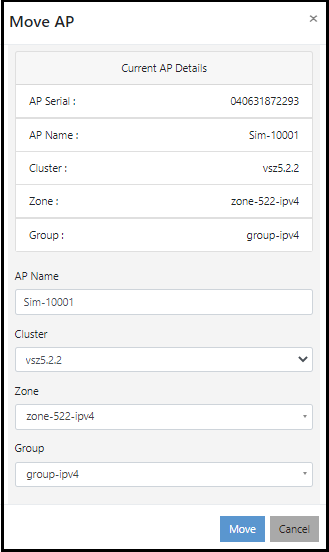
Moving an AP to a Different Cluster and Zone
Based on the network requirement, APs can be moved to different clusters and zones.
Complete the following steps to change the cluster and zone of an AP.
Note: The Move AP functionality is not supported on APs with R3.1.2 and R3.2.1 firmware
versions.
- On the menu, go to
Inventory >
AP Reg. Rules.
The AP Registration Rules window is displayed.
- In the AP Serial (S/N)
tab, select an AP that needs to be redirected to a different cluster and click
the
 icon.
icon.
- From the Cluster list, select the required cluster to which you want to redirect the AP.
- From the Zone list, select
the required AP zone to which you want to redirect the AP. The Domain hierarchy is displayed in the list. You can select a zone under a specific domain and it helps you to route APs to the right controller and zone within that cluster.
- From the Group list,
select a group to which you want to redirect the AP.Note: Moving an AP to the Group level on Different Cluster and Zone is supported in SmartZone 3.6.2 and later versions.
- Click
Move to change the cluster and zone of the AP.
An information dialog box is displayed indicating that the AP is successfully moved to the specified cluster.
- Click Ok to complete the action.