Configuring Registration Rules Based on AP Serial Number
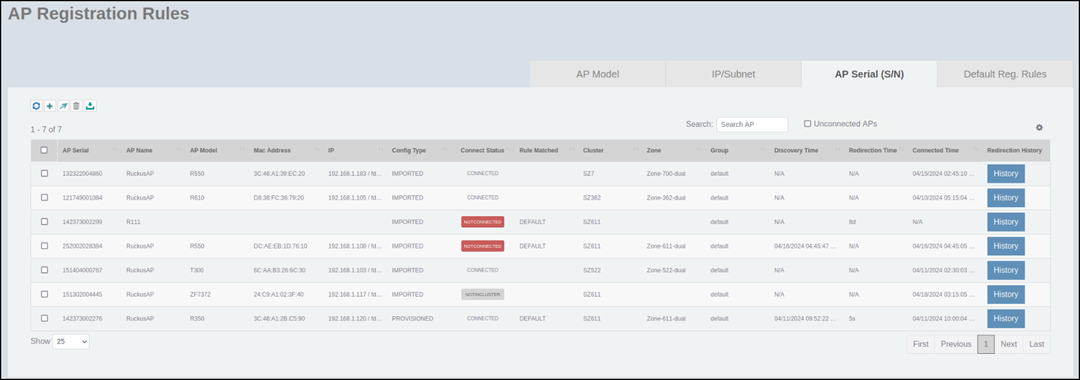
Complete the following steps to add APs to a cluster based on AP serial number.
- On the menu, go to Inventory > AP Reg. Rules.
- In the AP Serial (S/N)
tab, click the
 icon.
icon.
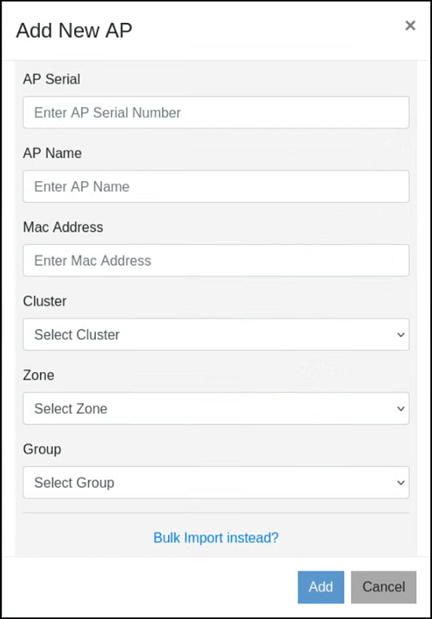
- Complete the following fields to
add an AP:
- AP Serial: Enter the serial number of the AP.
- AP Name: Enter a name for the AP.
- Mac Address: Enter the MAC address of the AP.
- Cluster: From the list, select a cluster to which you want to add the AP.
- Zone: From the list, select an AP zone.
- Group: From the list,
select a group to which you want to add the AP.
Note: Adding a new AP to the Group level through Configuring Registration Rules Based on AP Serial Number is supported in SmartZone 3.6.2 and later versions.
- Click
Add to add the AP to the specified cluster.
An information dialog box is displayed indicating that the AP is successfully added to the cluster.
- Click
Ok.
Alternatively, you can add APs to RUCKUS Network Director by importing APs in bulk. Click Bulk Import instead? and upload the CSV file to import APs in bulk. For complete instructions on how to import APs by uploading a CSV file, refer to Importing APs in Bulk.