Viewing Information of a Configured Unit
Once you have configured a unit, there is
a lot of information about the unit that you can find useful.
added since previous review
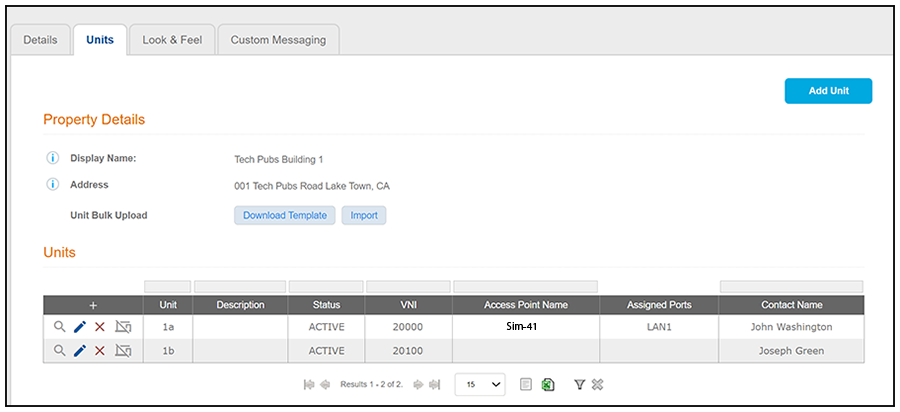
If you go to the main Properties page (Managed Access > Properties) in the Cloudpath UI, click the wrench icon for the desired property, then click the Units tab, you get a view such as the one below:
Then, you can click the magnifying glass icon to view all the settings of one of the units. The example below shows the information for the unit called 1a:
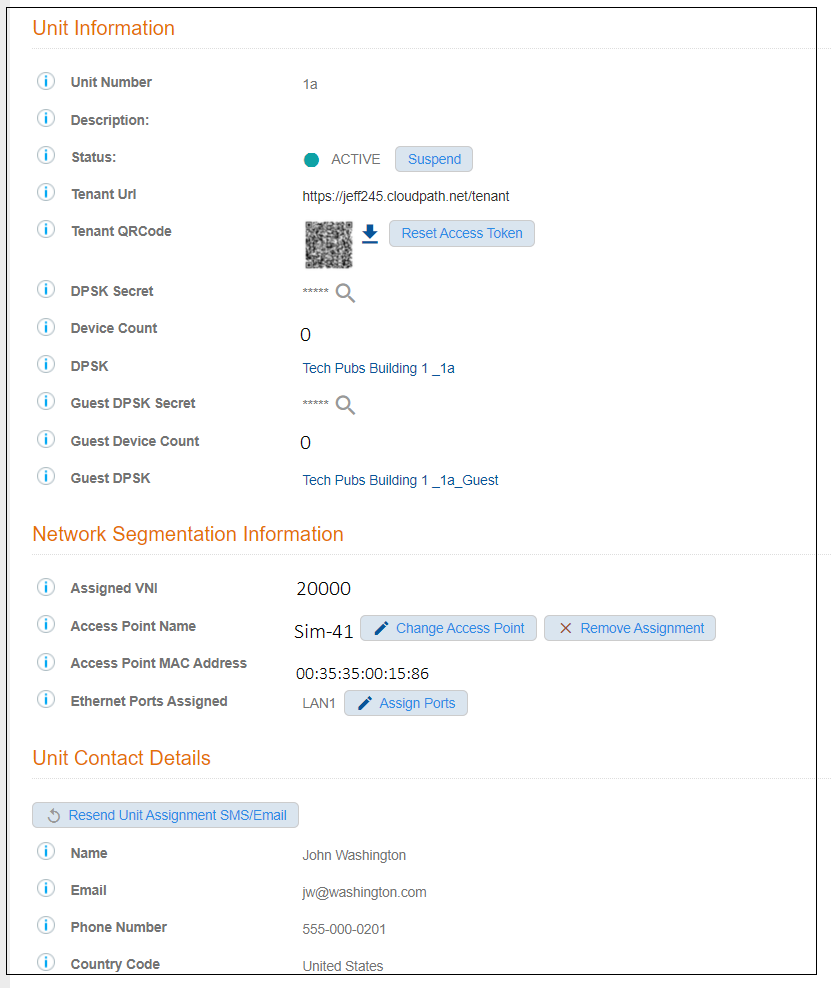
Some fields of interest include:
- Status: If for any reason you want to suspend this unit, you can do so from this field. This would revoke its associated DPSKs and prevent it from accessing the tenant portal and wi-fi network. You can re-activate the unit at anytime.
- Tenant URL: This is a live link that will take you directly to the tenant portal for this unit. For more information of using tenant portals, refer to the Cloudpath Enrollment System Property Management Administration Guide.
- Tenant QRCode: You can download the
code and give it to the tenant as another option to provide them with access to the
portal if they have QRCode-compatible devices. You can also reset the access token
for any reason if you want to prevent the original code from working. Once you reset
the code, the tenant receives a notification with the new access information.
Note: The tenant also has the ability to reset the access code from the tenant portal profile page if he or she thinks the code has been compromised. For more information, refer to Cloudpath Enrollment System Property Management Administration Guide. In this case too, the tenant receives a notification with the new access information as soon as the code has been reset.
- DPSK Secret: You can view the secret from here by clicking the magnifying glass. You can also change the secret from the UI by editing the unit configuration. This is described in more detail later.
- DPSK: The name of the DPSK is formed as: name of the property_name of the unit
- Guest DPSK Secret: You can view the secret from here by clicking the magnifying glass. You can also change the secret from the UI by editing the unit configuration. This is described in more detail later.
- Guest DPSK: The name of the Guest DPSK is formed as: name of the property_name of the unit_Guest
- Network Segmentation area: You can use the buttons to make changes to APs and ports, as desired.
- Resend Unit Assignment SMS/Email: Clicking this button resends the assignment SMS/Email to the phone number and/or email defined for this unit, provided that sending SMS/Email has been enabled in the configuration of the applicable property.