Troubleshooting
There are some basic troubleshooting steps
you can try if the tenant of a unit that belongs to a network segmentation group is
having
difficulty connecting to the network.
Here are some steps to follow:
- Make sure that the tenant's unit still exists in the Cloudpath UI property
configuration (for illustrative purposes, the tenant is named John Washington and
lives in unit 1a):
- In the Cloudpath UI, go to Managed Access > Network Segmentation.
- Click the wrench icon for the network segmentation group in which the unit belongs.
- Under "Assigned Properties," click on the name of the property in which the unit belongs.
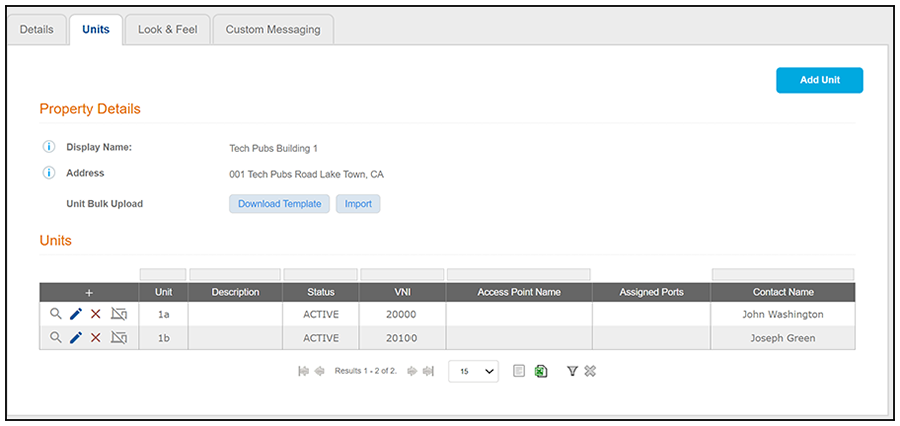
- On the ensuing screen, click the Units tab to display all units that belong to this property, as shown in the screen below:
- The tenant in question and his unit are shown in the above screen, as expected.
- Check the wireless configuration.
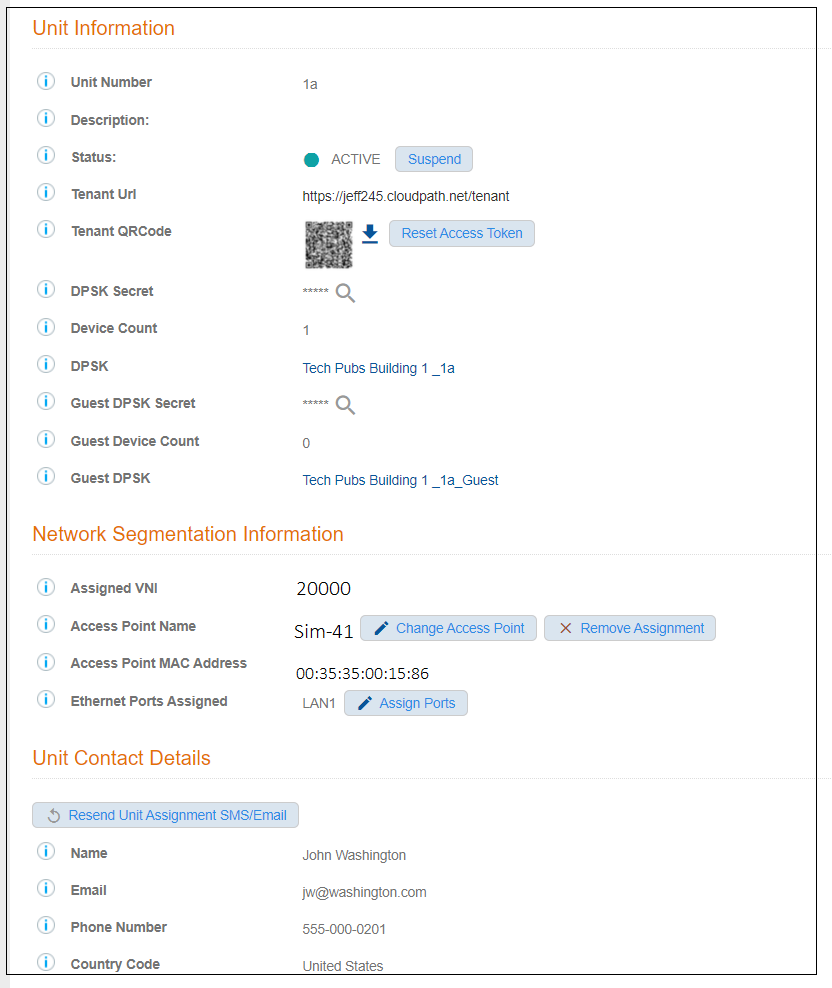
Click on the magnifying glass for the unit to invoke the following screen:
- Check that the "Status" field is ACTIVE.
- Click the "DPSK Secret" magnifying glass to view the secret, then confirm with the tenant that the proper secret was entered. You could also change the secret or resend it by clicking the Resend Unit Assignment SMS/Email button in the Unit Contact Details section of the screen.
- Make sure there is a VNI assigned to the unit (Network Segmentation Information section of the screen).
- Click on the link of the
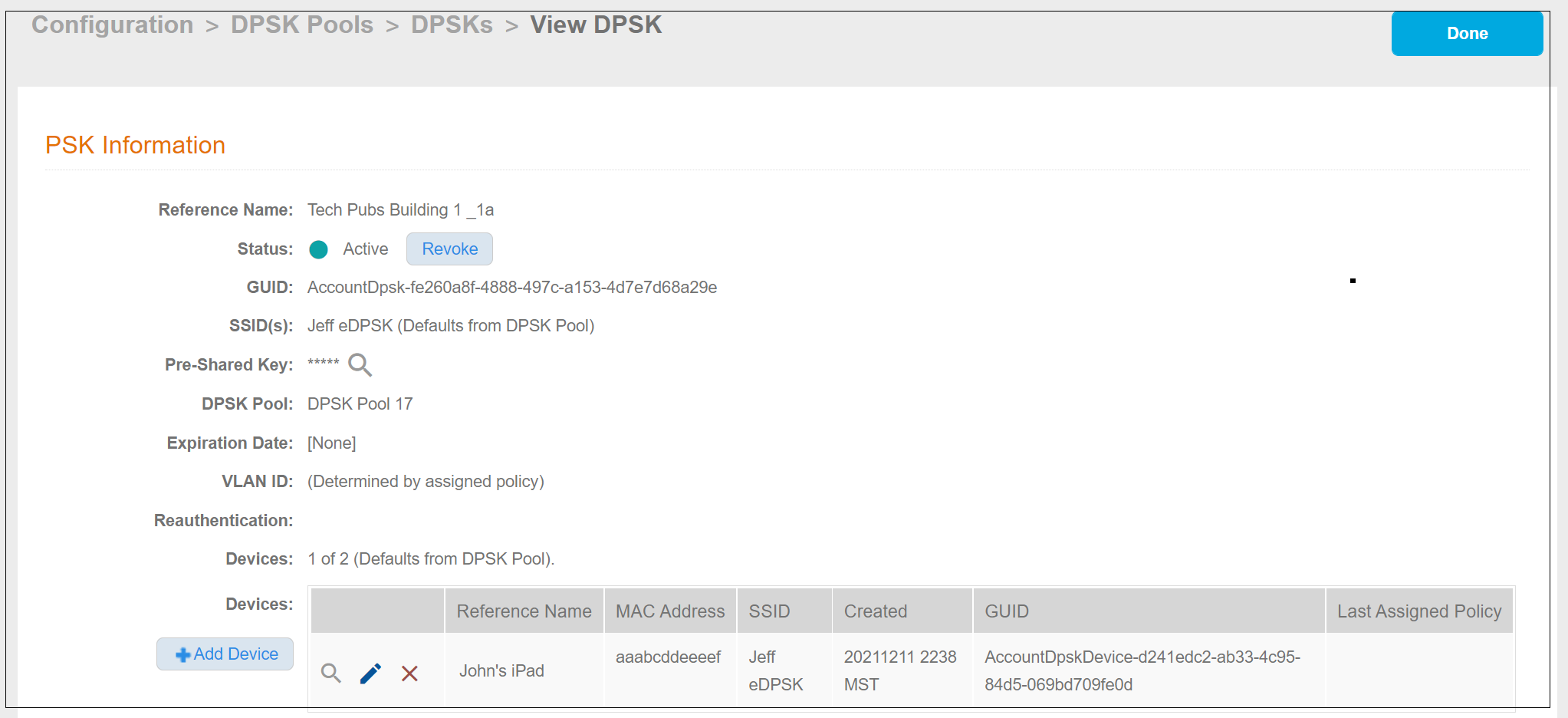
currently assigned DPSK (Tech Pubs Building 1 _1a in the screen example above). This invokes
the PSK Information screen:
In the PSK information, you can check to see if any devices have connected to the network. In the example above, the device called "John's iPad" has successfully connected.
- Check the wired configuration. Return to the unit-specific information screen for unit 1a and scroll down to the Network Segmentation Information area.
- Check RADIUS logs and AUTH Logs. In the Cloudpath UI, go to Configuration > RADIUS Server > Status tab, scroll down to the RADIUS Logs section, and set the Log Level to Debug. When you check the log files, check for items such as the following:
- If none of the preceding steps uncover the connection issue, the next steps would be for the vSmartZone administrator to perform troubleshooting steps on the vSmartZone controller that is being used in this network segmentation group.