Step 2: Obtaining the Serial Number
You can get the serial number of the device using the following methods:
- From the sticker label at the bottom of the device: Manually copy the serial number that follows SN or scan the barcode using the RUCKUS One mobile app on a mobile device.
- Using the CLI command:
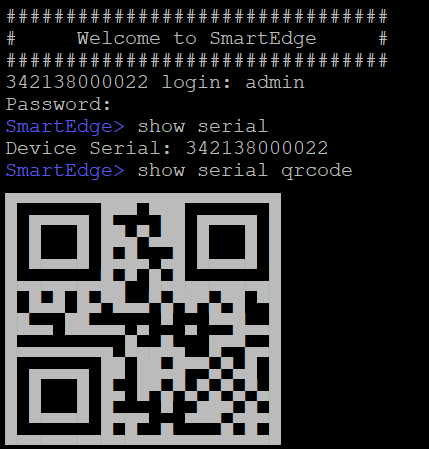
Accessing the RUCKUS Edge CLI
You can access the Edge device CLI using one of the following methods.
- Connecting Through the Serial Console
- Connecting Through
SSH
Before connecting remotely through SSH, you must determine the management IP address of the Edge device from a local console session.
- Connect to the RUCKUS Edge device through the serial console port.
- At the prompt, enter
show
                              manager status
to retrieve the management IP address. - Record the IP address associated with the management interface.
- From a remote
terminal, enter the
ssh -p 22 admin@ip_addresscommand to initiate the connection on port 22 (the default SSH port). - When prompted, enter the administrative password.
Optional: SSH Cryptographic Settings
If your SSH client requires manual configuration of cryptographic parameters, configure it to use one of the following supported algorithms.
- chacha20-poly1305@openssh.com
- aes128-ctr
- aes192-ctr
- aes256-ctr
- aes128-gcm@openssh.com
- aes256-gcm@openssh.com