Adding RUCKUS Edge through the Mobile Application
After downloading the RUCKUS One application on your mobile device, perform the following:
- Log in to the RUCKUS One application with your credentials and select the region from the drop-down menu.
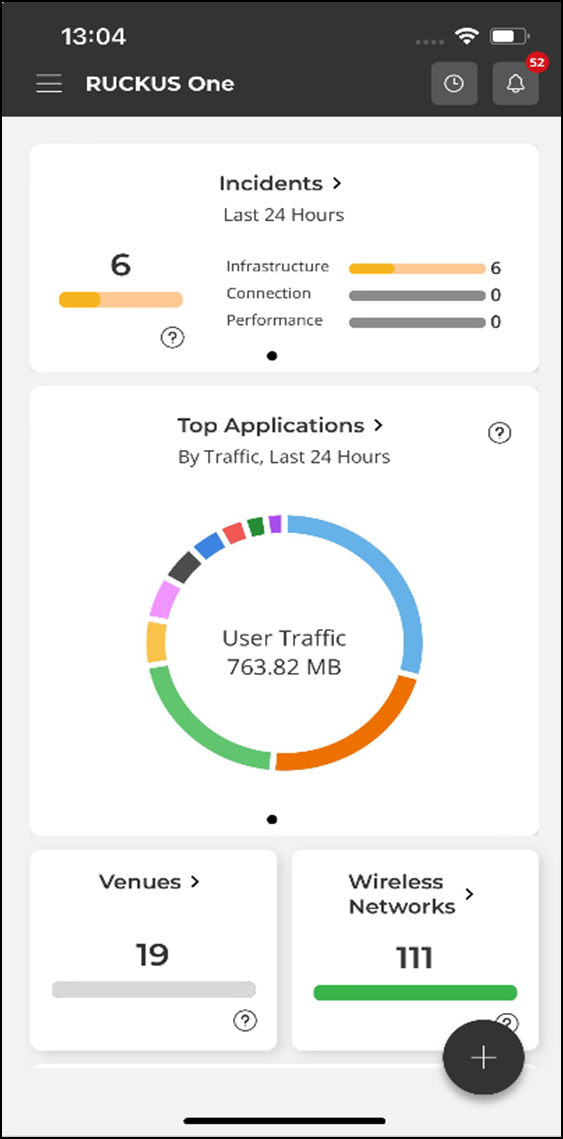
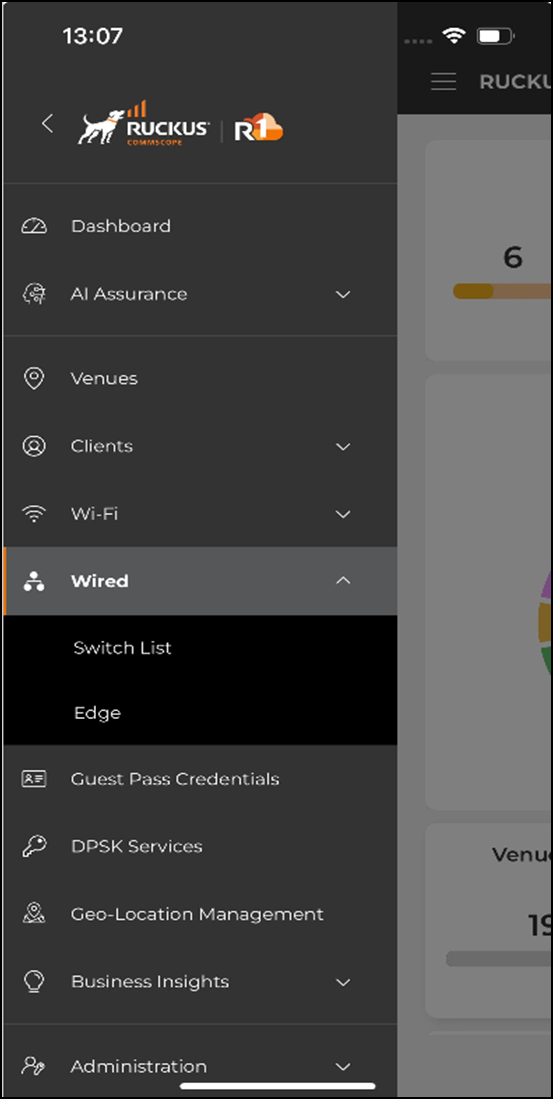
- In the Dashboard, locate
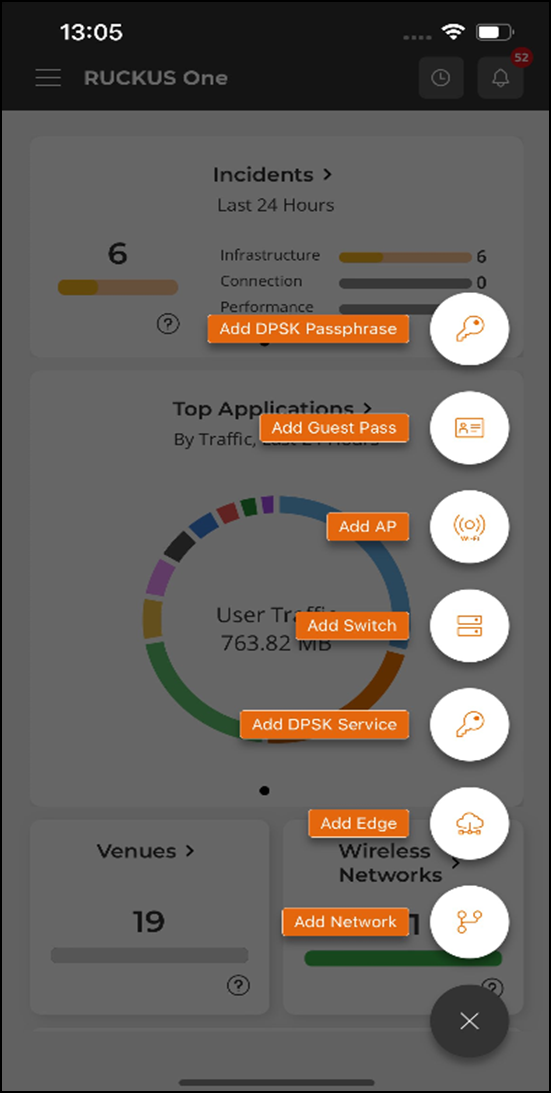
and click
 .
- Click the Add Edge button or icon.
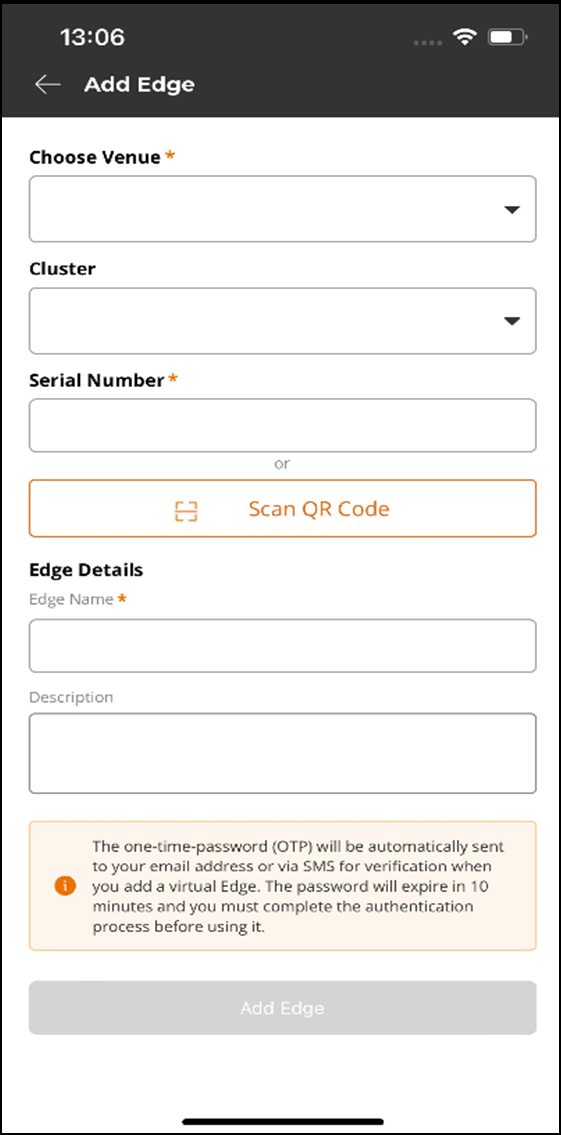
- In the Add Edge screen,
enter the following details:
- Choose Venue: Click the drop-down arrow and choose the venue. A venue represents a physical space where networking devices are deployed.
- Cluster: Click the drop-down arrow and choose the venue to which all traffic is tunneled in the specified cluster.
- Serial Number: Enter the serial number of the device or click Scan QR Code. The serial number and QR code can be obtained using the VMware ESXi console. Refer to Obtaining the RUCKUS Virtual Edge Serial Number and Interface IP Addresses for detailed instructions. If you scan the QR code, Serial Number is automatically populated in the field.
- Serial Number: Enter the serial number of the RUCKUS Edge device. Refer to Step 2: Obtaining the Serial Number for more information.
- Edge Details: Enter a meaningful name for the RUCKUS Edge device.
- Description (optional): Enter a purposeful description for the RUCKUS Edge device.
- Click Add Edge.
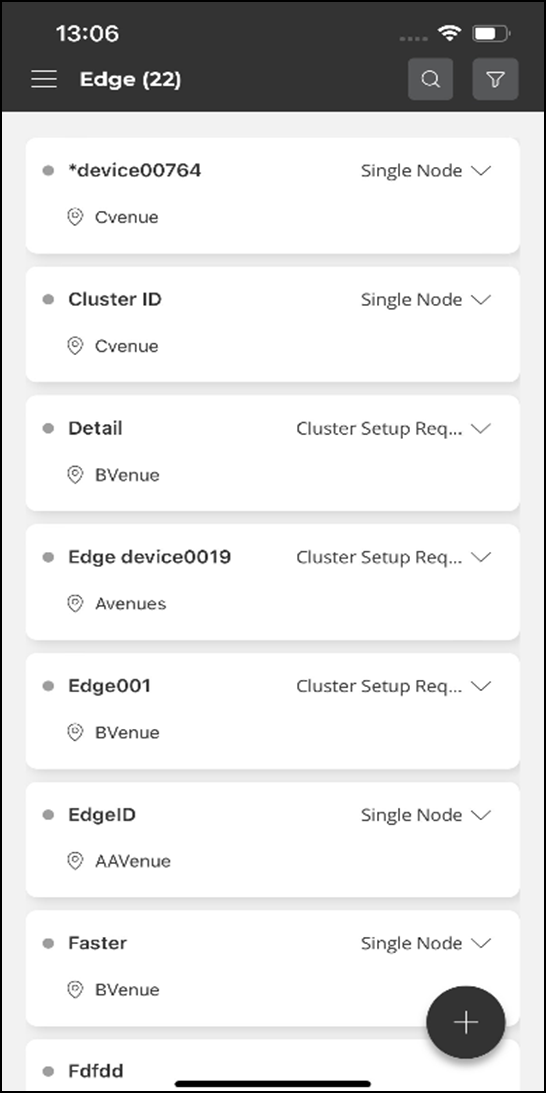
- Click on the device name to view
and monitor the RUCKUS Edge. In an
operational device, you can monitor the following types of information:
- Overview - Displays the Edge Status, Traffic by Volume, Resource Utilization, and other activities.
- Services - Displays all the service-related information.
- Troubleshooting -
- DHCP - Displays the device-related information such as Ports, Sub Interfaces, and so on.
- Timeline - Displays the Activities and Events.
- Events - Event types are defined by severity; they are classified as Critical, Major, Minor, Warning, and Informational.
Note: At any time, you can view and monitor a specific RUCKUS Edge device by navigating the sidebar menu on the RUCKUS One mobile app. Refer to RUCKUS One Mobile Application Sidebar Menu.