Configuring the Port Details
After the RUCKUS Edge device is onboarded on
the RUCKUS One
management platform, the status of the RUCKUS Edge and ports is displayed
as Needs port config and Unconfigured port type,
respectively.
- Log in to RUCKUS One.
- On the navigation bar, click .This displays the RUCKUS Edge page.
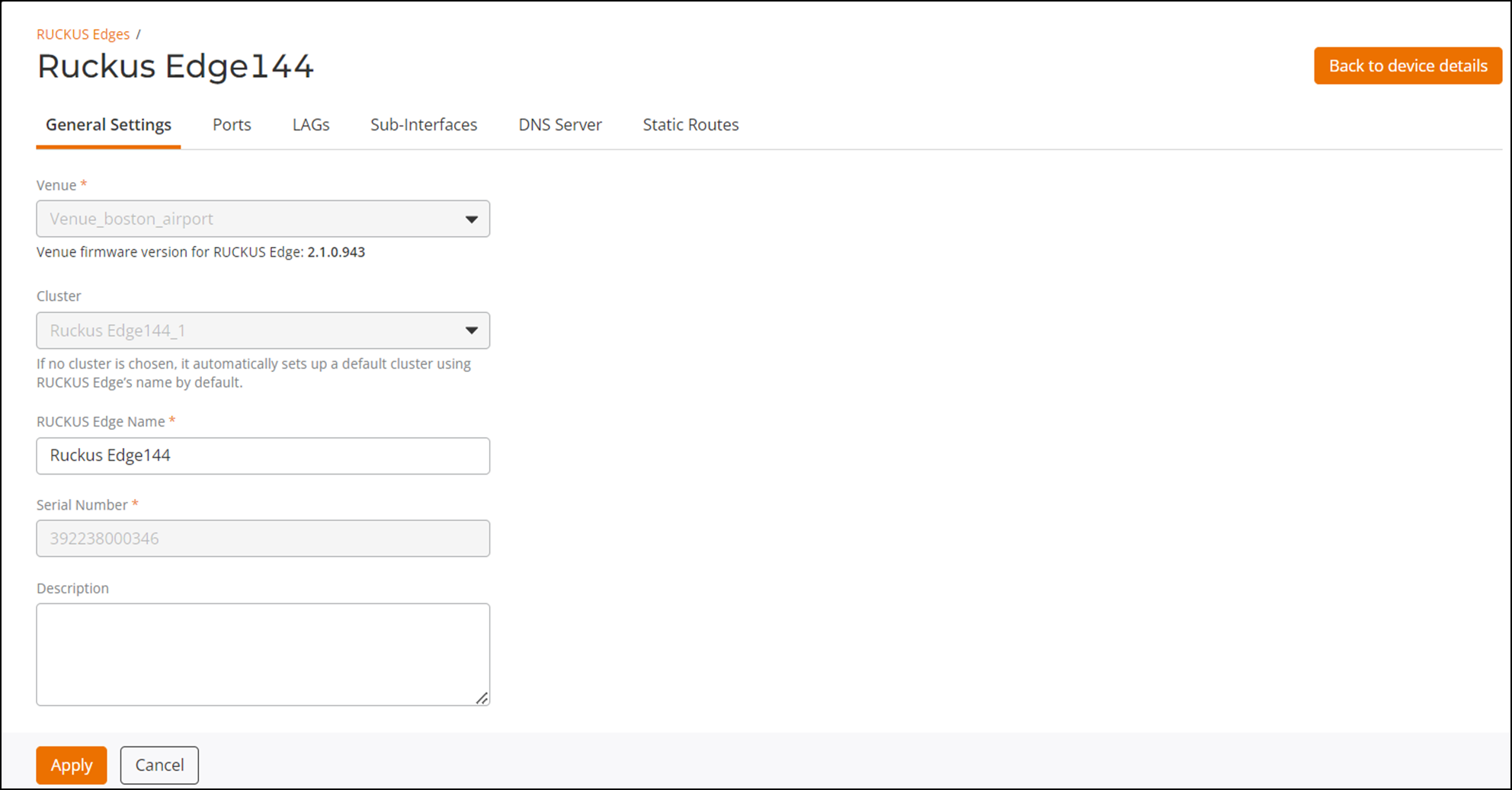
- Select a RUCKUS Edge from the list and click Configure.
- Click the Ports tab.
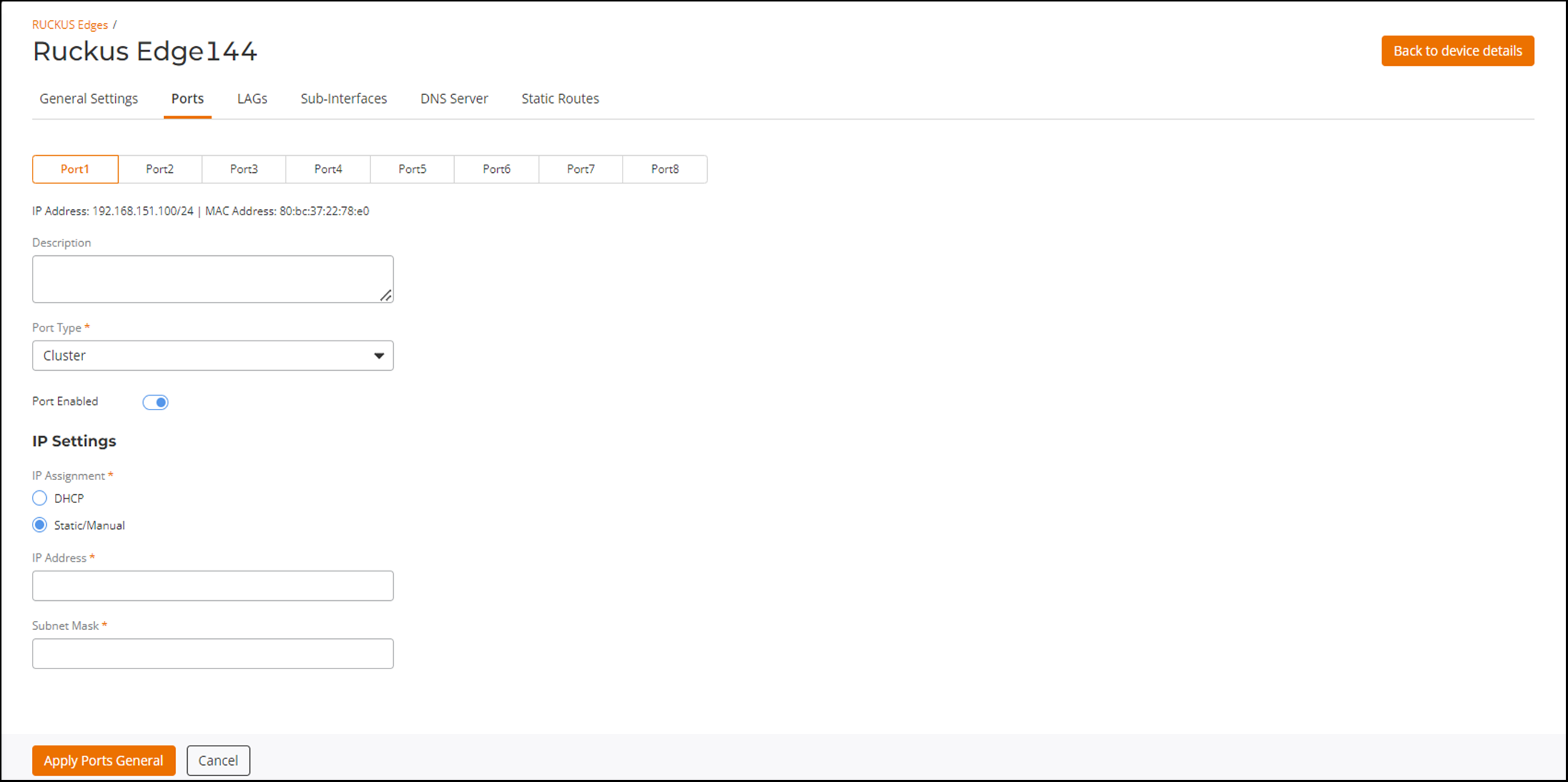
- In the Ports page,
configure the following:
- Description: Enter a purposeful statement for Port1.
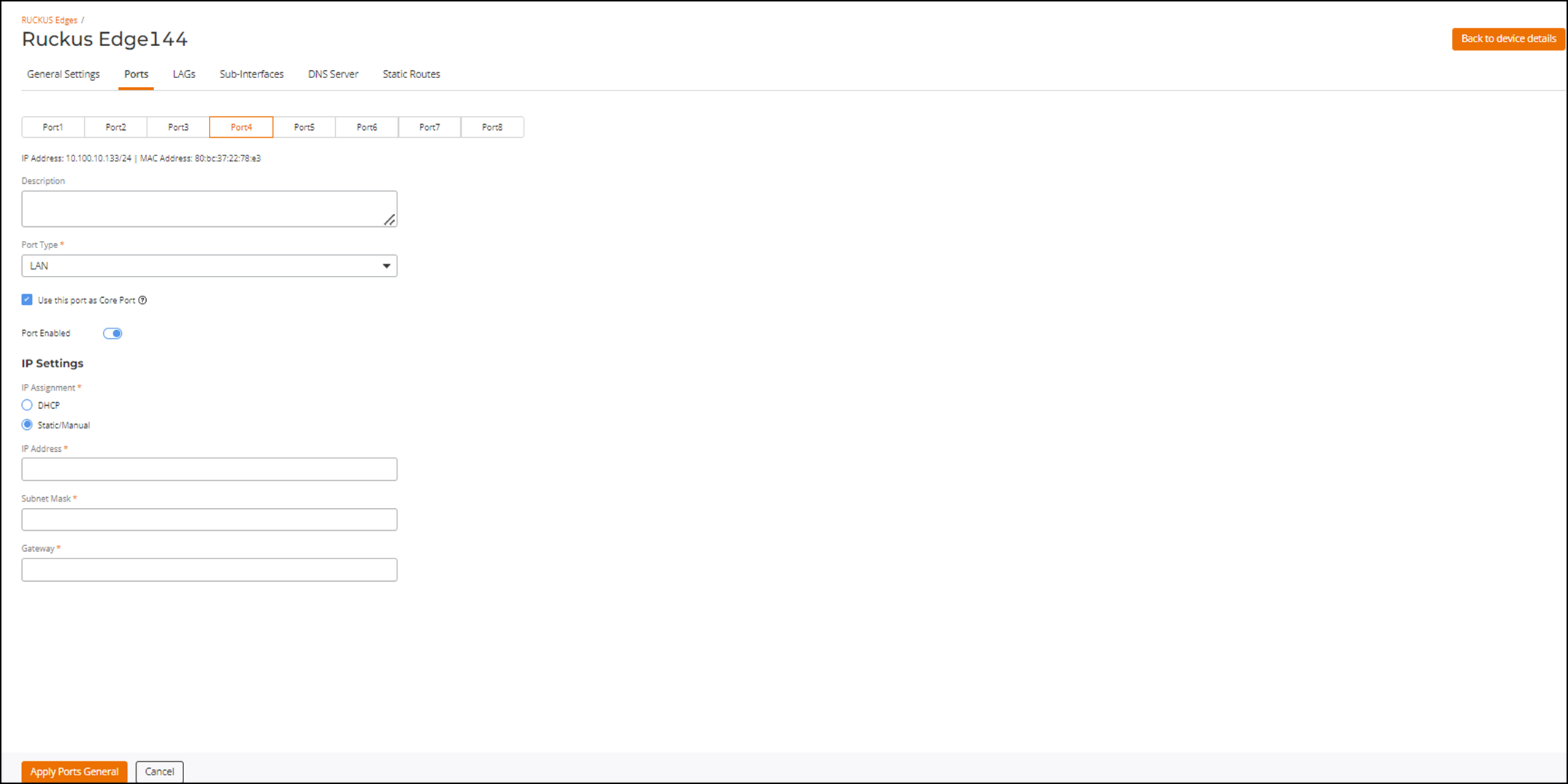
- Port Type: Select the port type as WAN, LAN, or Cluster. Select LAN from the drop-down list. This displays Use this port as Core Port option.
- Port Enabled: By default, the port is enabled. Click the toggle button to disable the port.
IP Settings
- IP
Assignment
- DHCP: Select the DHCP option to automatically provide the IP host with the device IP address and related configuration.
- Static/Manual: Select the Static/Manual option to manually define a static host IP address; enter the IP details in the fields that appear on the screen.
Note: If you are using a static IP, make sure the DNS server IP address is entered. Refer to Configuring the DNS Server for details.
- Click the Port4 sub-tab and set the required fields. Refer to for field descriptions.
- Click Apply Ports
General.The status of the device is displayed as Applying Configuration and then changes to Operational.