Viewing the Licenses for RUCKUS End Customers in the RUCKUS One Cloud Portal
You can view the REC licenses in the
RUCKUS One Cloud portal after they are activated.
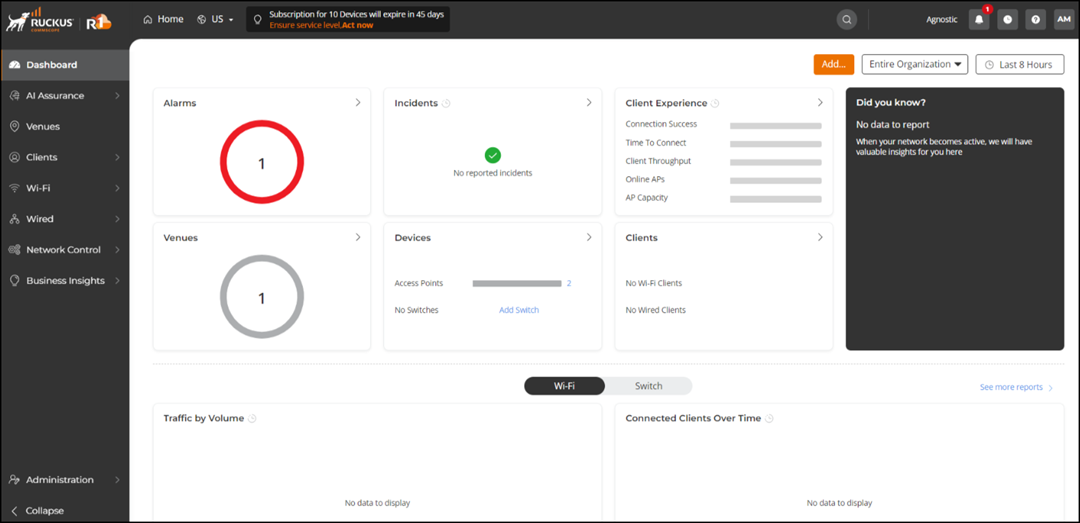
- Log in to the RUCKUS One Cloud portal.
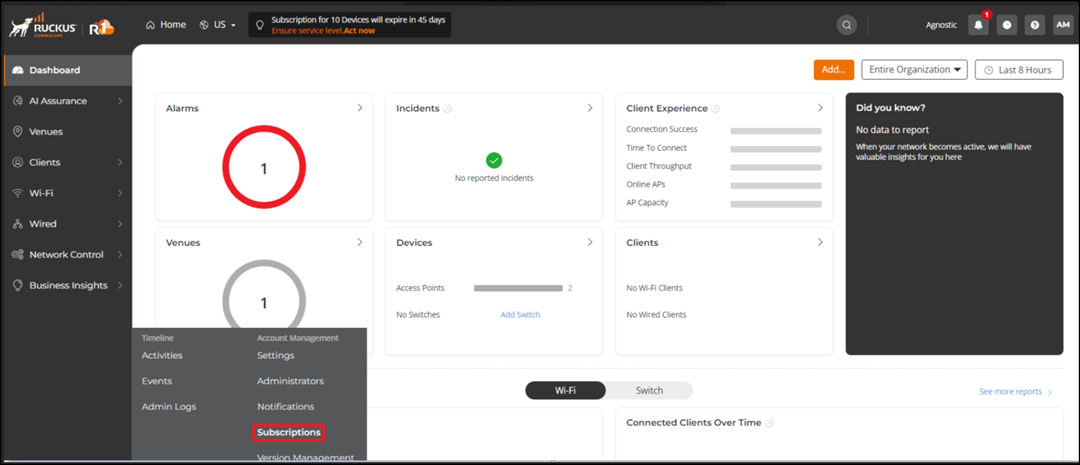
- Click .
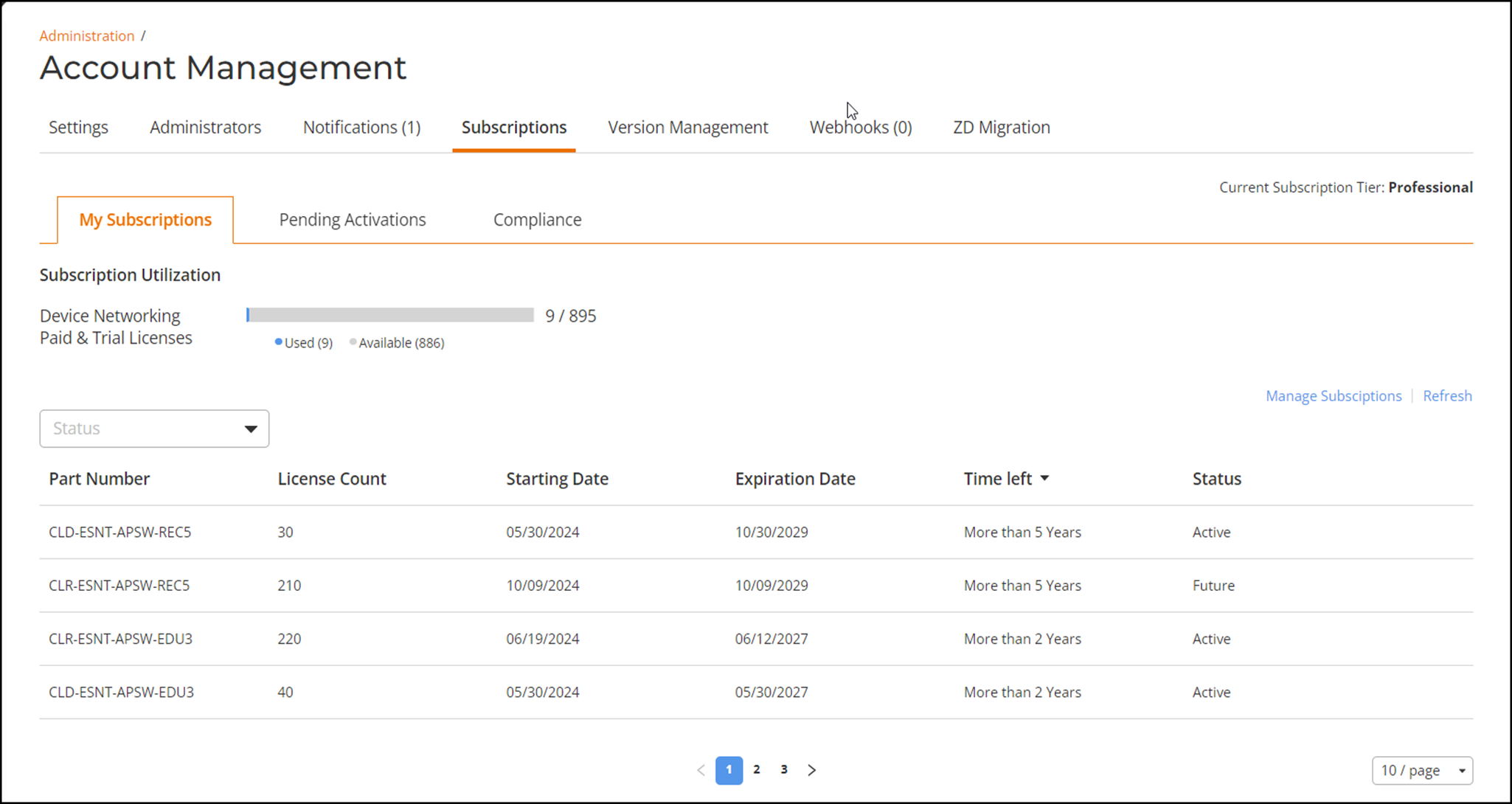
The Subscriptions page is displayed.
In the Subscriptions page, you can view the following subscription details:
- Subscription: The network device utilizing the subscription.
- Part Number: The part number of the purchased subscription.
- Device Count: The number of licenses associated with the license subscription.
- Starting Date: The starting date of the subscription.
- Expiration Date: The date the subscription expires.
- Time Left: The time remaining before the subscription expires.
- Status: The status of the license subscription (active or inactive).
- (Optional) Click Manage Subscriptions to go to the Subscription web page.
- Click Refresh to view any new licenses added in the Subscriptions page (for example, when additional licenses are activated).