Activating Licenses for RUCKUS End Customers from the RUCKUS One Web Interface
- On the RUCKUS One web
interface, navigate to .The Subscriptions page provides access to information about subscriptions already activated and those that are pending activation.
The My Subscriptions tab displays utilization of your paid, trial, and assigned subscription licenses in the context of number of licenses in use versus the total number of licenses available by the subscriptions. Subscription-specific information is displayed in table format, including the RUCKUS part number, the number of licenses, the start and expiry dates, time remaining, and status. The Manage Subscriptions option allows you to view and manage cloud subscription purchases via the RUCKUS Support website.
- Click the Pending
Activations tab.
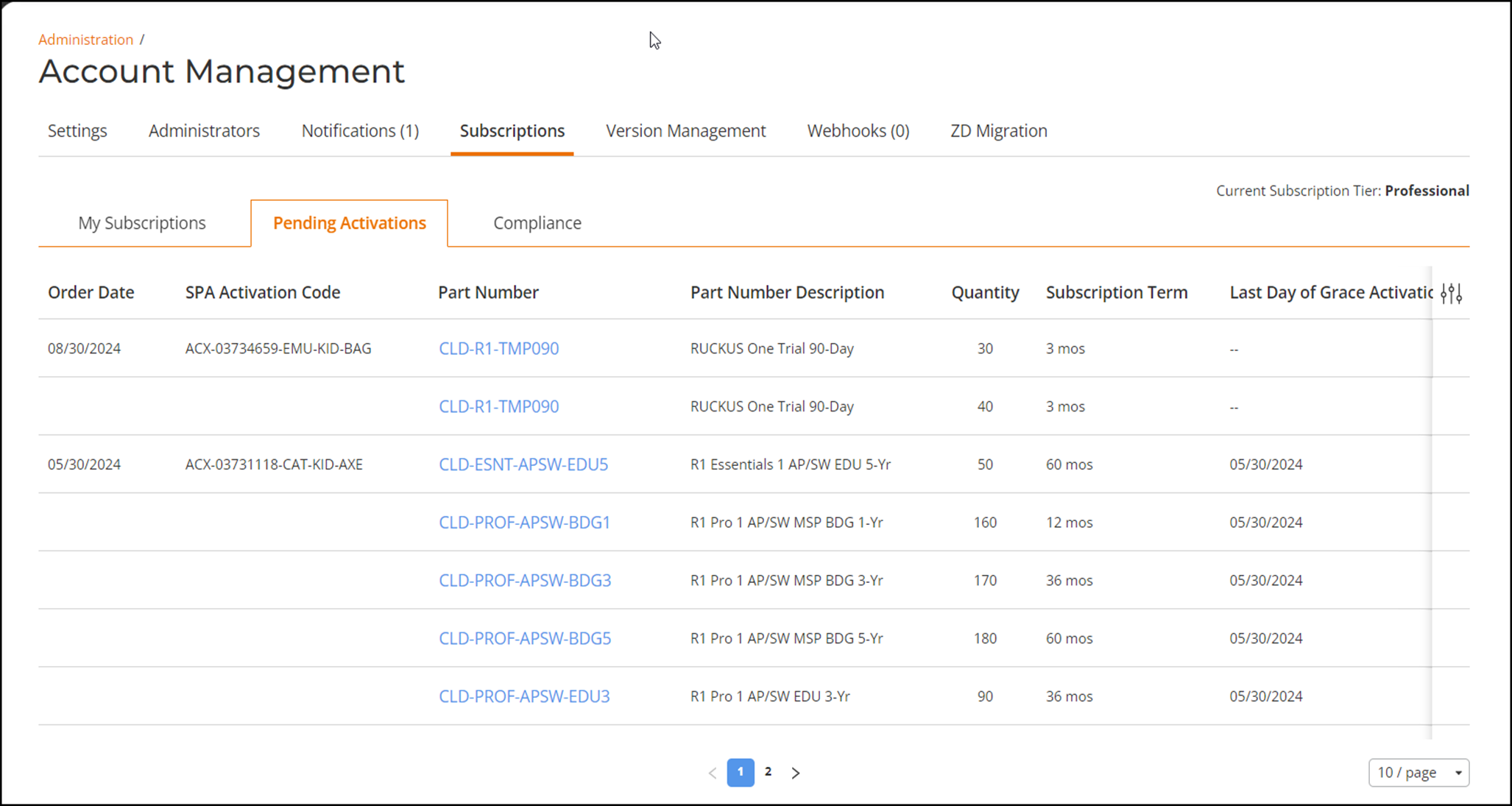
The Pending Activations tab displays information about license purchases that are pending activation. You can activate pending license subscriptions from this tab.
The following information is displayed:- Order Date: Displays the date on which the subscription was purchased.
- SPA Activation Code: Displays the RUCKUS activation code for your purchase order, which can contain one or more license Part Numbers. The activation code is an interactive link that allows you to activate the associated subscriptions through the RUCKUS Support Portal. The SPA Activation Code is unique to a Sales Order.
- Part Number: Displays the subscription SKU.
- Part Number Description: Displays a brief description that reflects the license subscription type and term length. For example, CLD-PROF-APSW-REC3 is a RUCKUS One Professional tier license for one network device (AP or switch) for a RUCKUS End Customer (REC) for three years.
- Quantity: Displays the Part Number quantity that was purchased.
- Subscription Term: Displays the duration of the purchased subscription in months.
- Last of Grace Activation Period : Displays the last date by which you can select a specific start date for your subscription. If you activate your subscription on or before this date, you may select any start date from the current date to through the Activation Period Ends date. If you activate your subscription after this date, then the start date is automatically set to the Activation Period Ends date.
- Click a specific SPA Activation Code to activate the purchased Part Numbers. You will be redirected to the RUCKUS Support portal to perform the activation.
- Click a specific Part Number to activate the purchased Part Numbers from
theRUCKUS One web interface. The Activate Purchase page is displayed.
- Select the region for the RUCKUS One hosted cloud service. Options include Asia, Europe, and North America.
- Select the start date for the service.
- Click the checkbox to accept the RUCKUS One terms and conditions.
- Click Activate.