Activating the Essentials License for RUCKUS End Customers
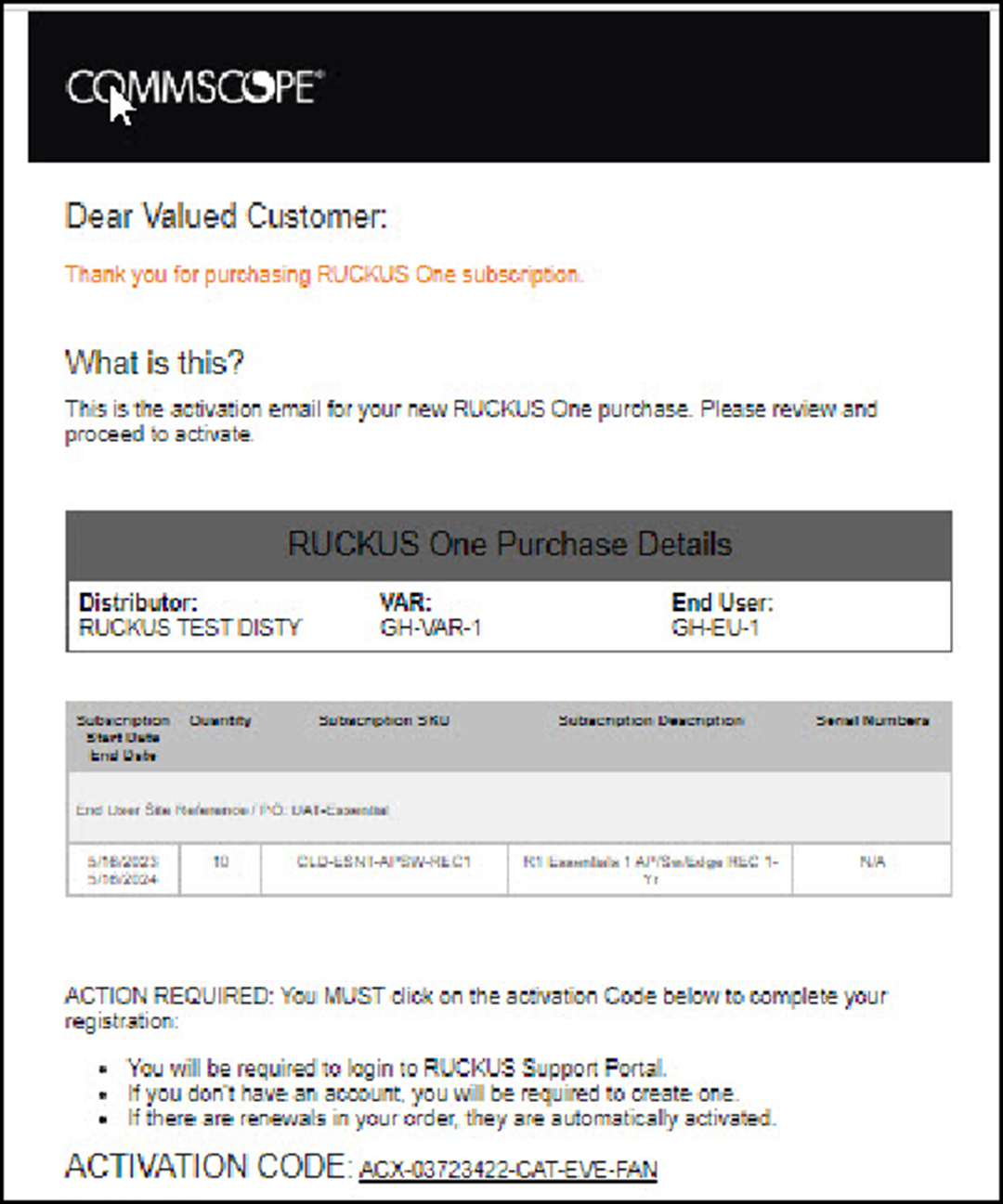
- Open the SPA email message that you received from RUCKUS, and verify the End User Account information. Only a registered user can complete the activation process.
- Click the Activation Code link
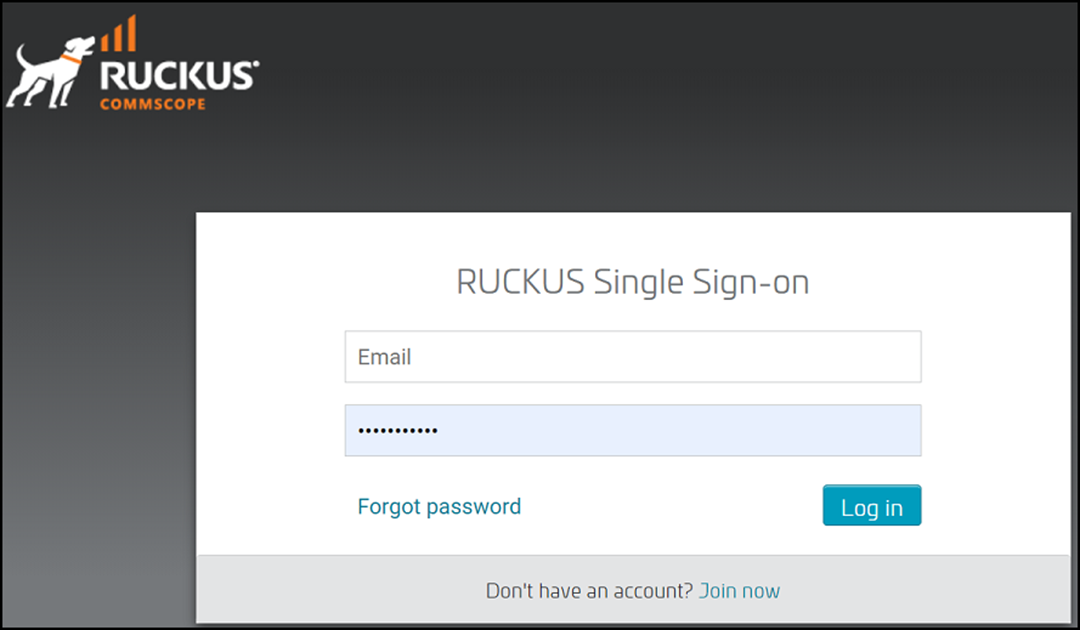
in the email message. You are redirected to the RUCKUS Support website " https://support.ruckuswireless.com". If you are not logged in to the website, the RUCKUS Single Sign-on page is displayed.
- Log in to the RUCKUS Single
Sign-on using your credentials.Note: Ensure you log in as a valid user in the End User Account. Only valid users are authorized to activate the licenses.Note: If you are unable to activate the license due to account mismatch error, contact the Support Team using https://support.ruckuswireless.com/contact-us.
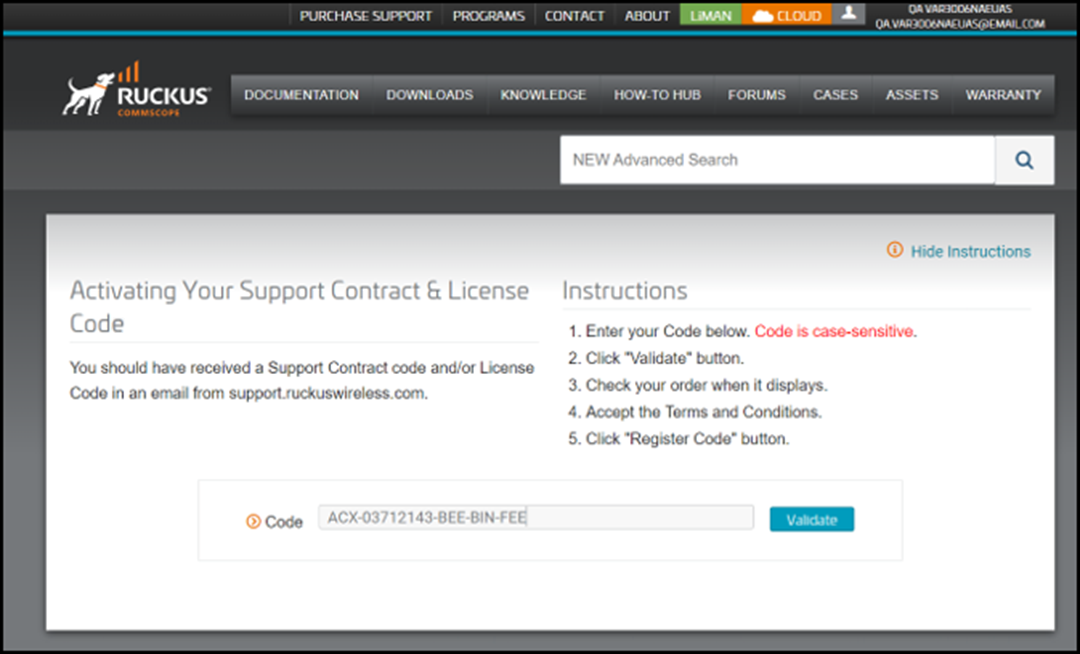
After a successful login, the Activating Your Support Contract & License Code page is displayed.
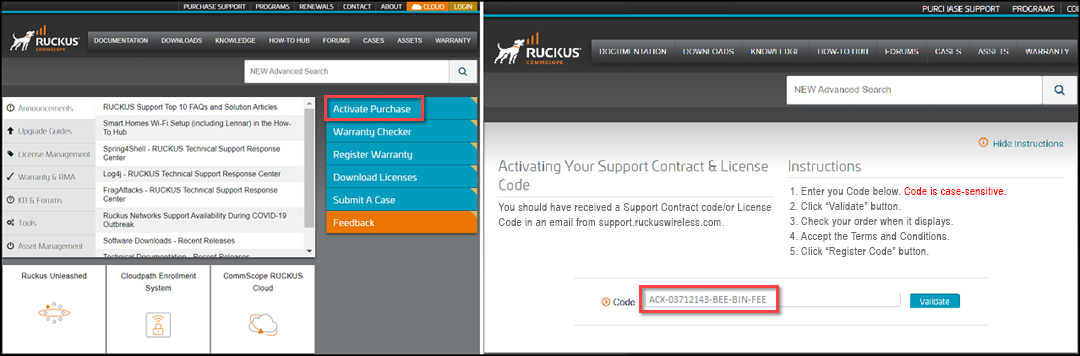
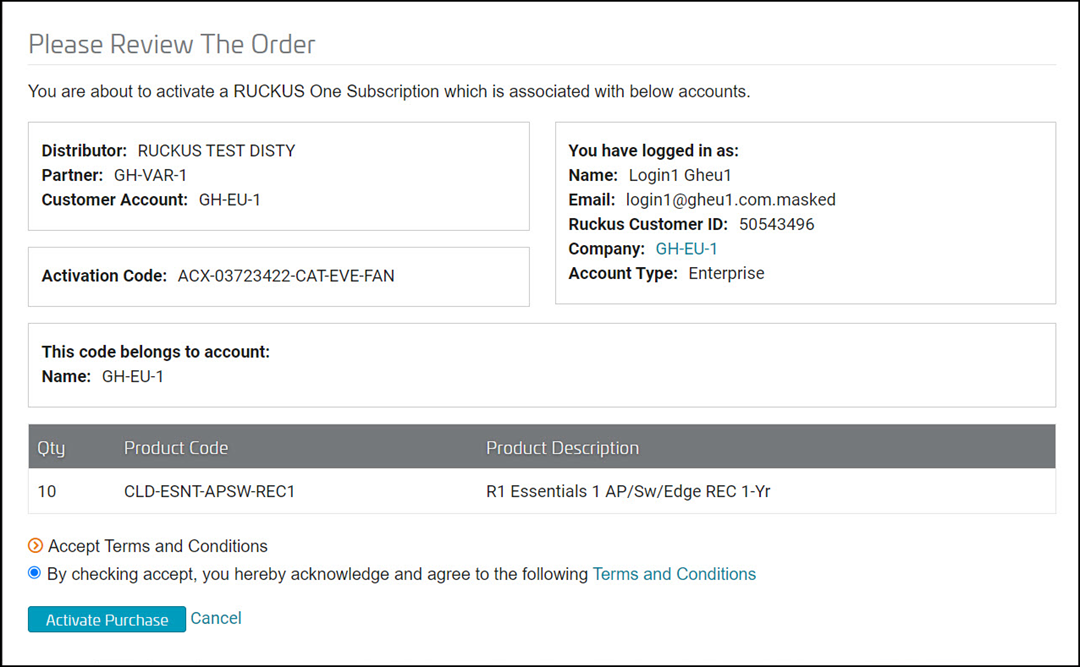
Because you have initiated the activation process by clicking the Activation Code link in the email message, the code is populated by default.If you have initiated the activation process using the Activate Purchase option on the RUCKUS Support website " https://support.ruckuswireless.com", you must manually enter the activation code received in the SPA mail. - Click Validate. After the successful validation of the license code, you can review the purchase order and user account details.
- Accept the terms and conditions and click Activate Purchase.
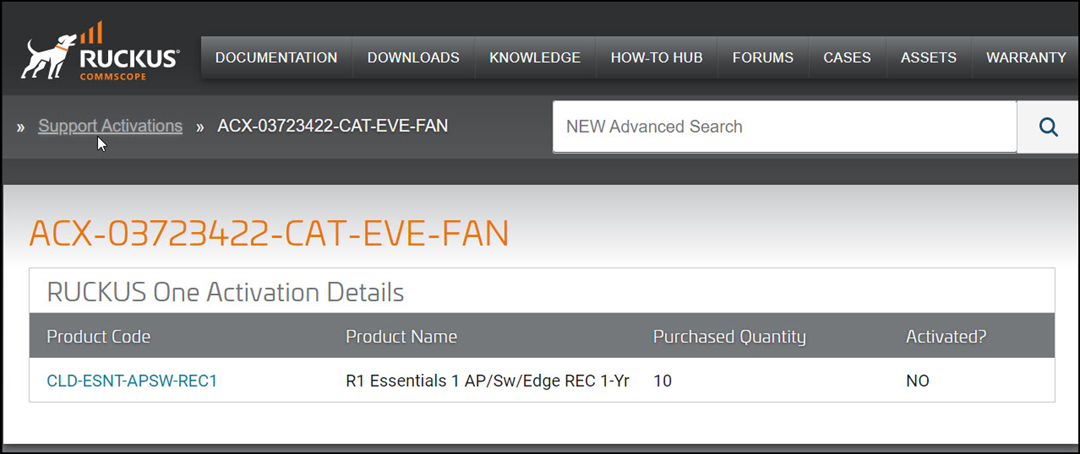
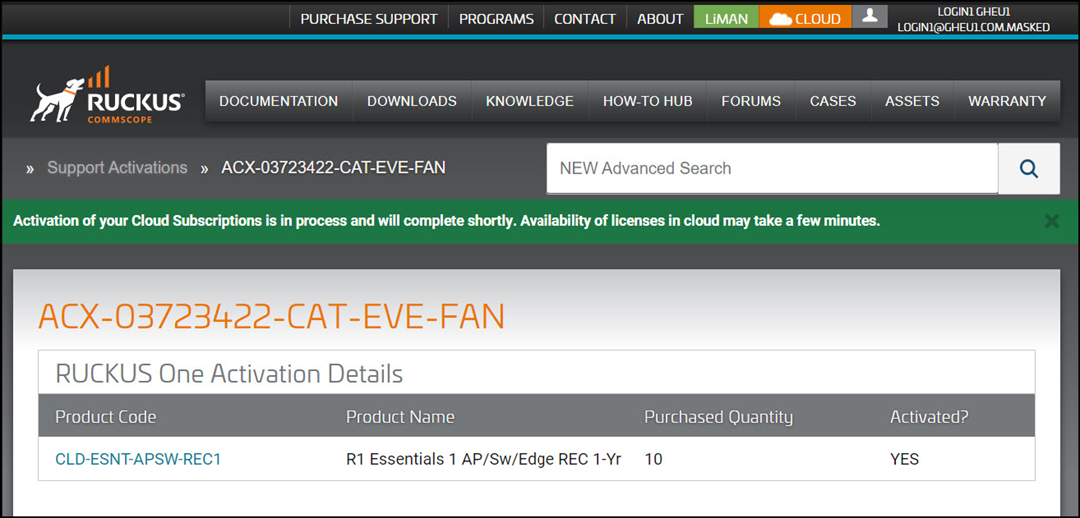
- Click the license entry for RUCKUS One (CLD-ESNT-APSW-REC1) to activate the
license.Note: A single Activation Code can carry multiple assets that are part of the original purchase order and sales order. Therefore, there may be multiple line items within one Activation Code. Each line item must be activated. For example, if you have Cloud Wi-Fi, Cloud Switching, and RUCKUS One purchased under the same purchase order, you will see three entries, and each must be activated separately.The Entitling Your Asset For Support page is displayed.
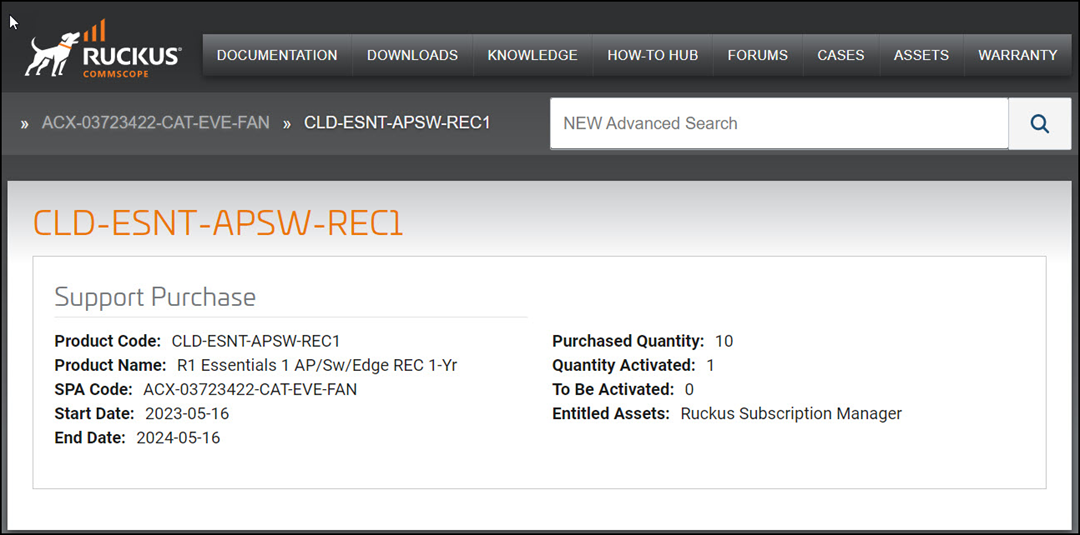
- In the Entitling Your Asset For Support page, select the following
options:
- The region where you want to maintain your RUCKUS One data. Currently, the supported regions are Asia, Europe, and North America.
- The subscription start date. You can select any date
within a 180-day activation grace period as the subscription start date.
The dates beyond the activation grace period are disabled in the
calendar.
Note: Once the start date is selected, the subscription end date is automatically calculated by adding the purchased subscription duration to the selected start date; thereby ensuring the full term of the subscription to the customer.
- Click Submit Activation
to activate the license. A confirmation dialog box is displayed.
- Click Continue with
Activation to proceed with the selected options.If the asset is successfully activated, a green banner with a confirmation message "Support added to serial number" is displayed.