Viewing the Licenses for MSP Customers in the RUCKUS One Cloud Portal
You can view the MSP licenses in the RUCKUS One Cloud portal after they are activated.
Complete the following steps to view the activated MSP licenses in the RUCKUS One Cloud portal.
- Log in to the RUCKUS One Cloud portal for an MSP account.
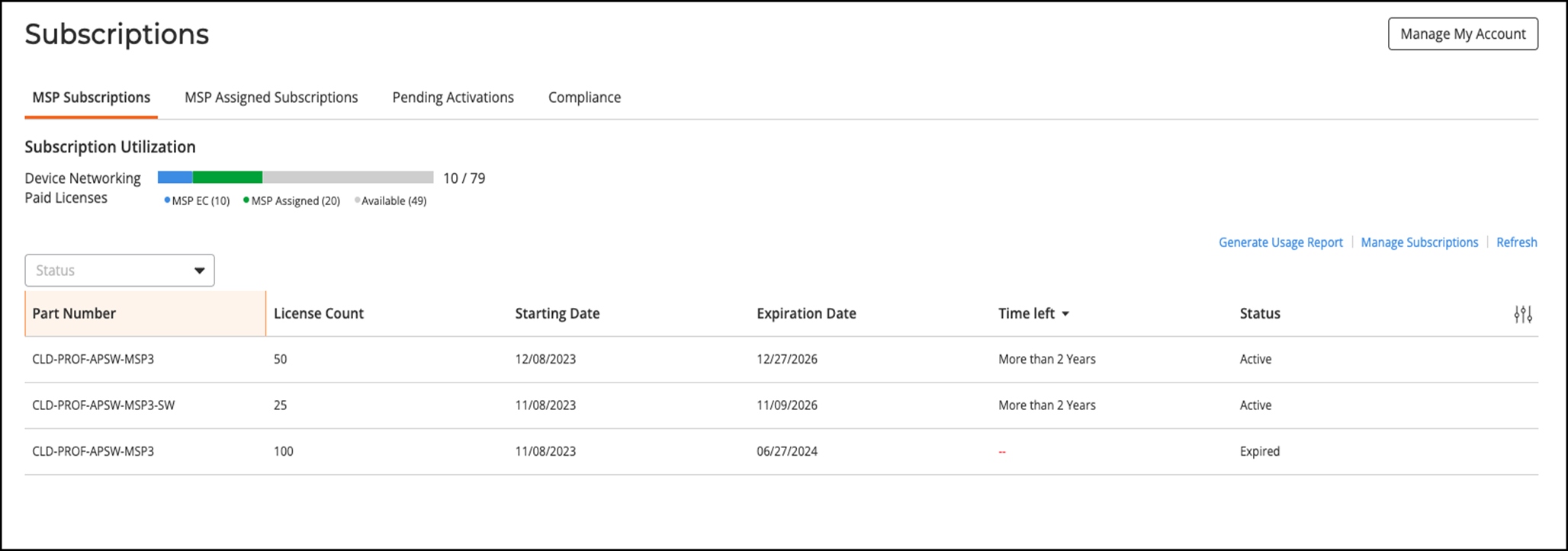
- From the navigation bar, click Subscriptions to view the MSP subscriptions.
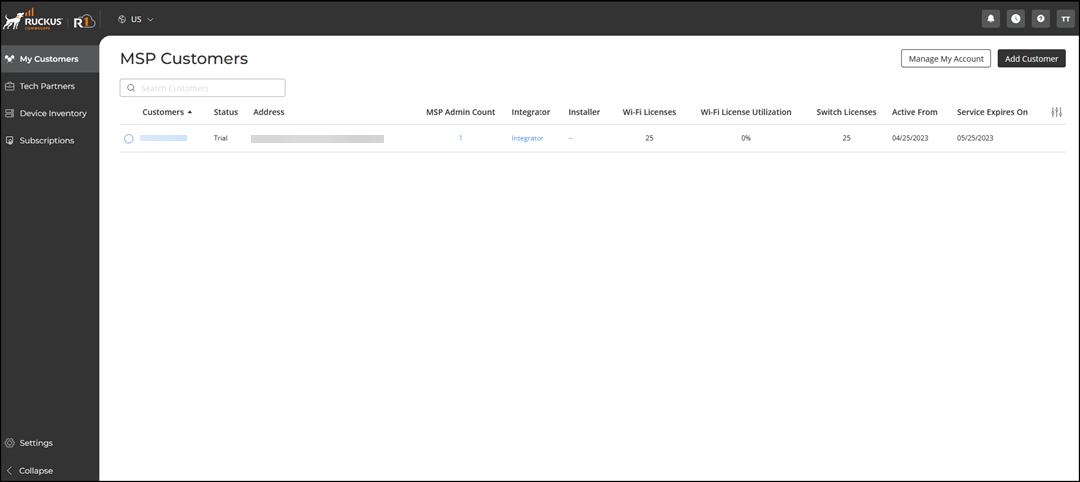
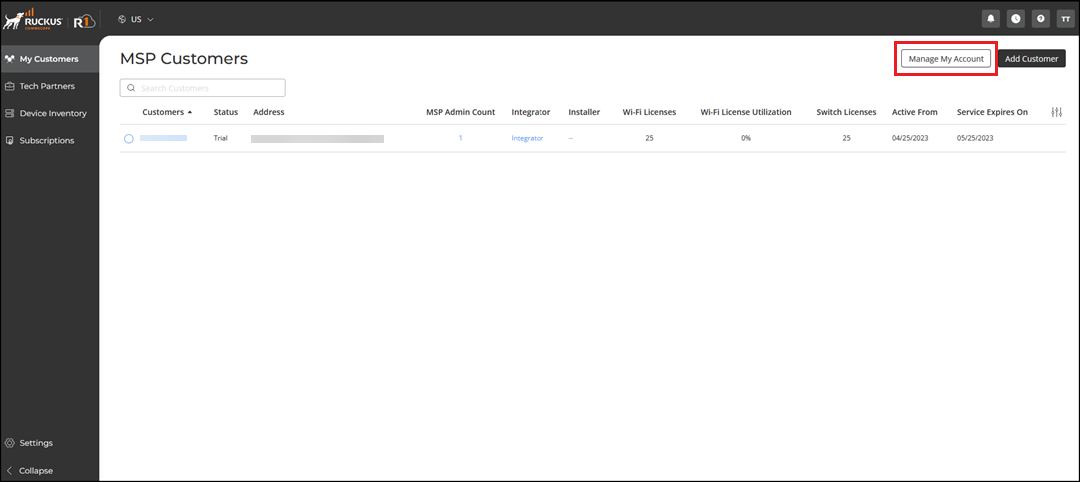
- To add an MSP customer account, from the navigation bar, select . In the MSP Customers page, click Add Customer.
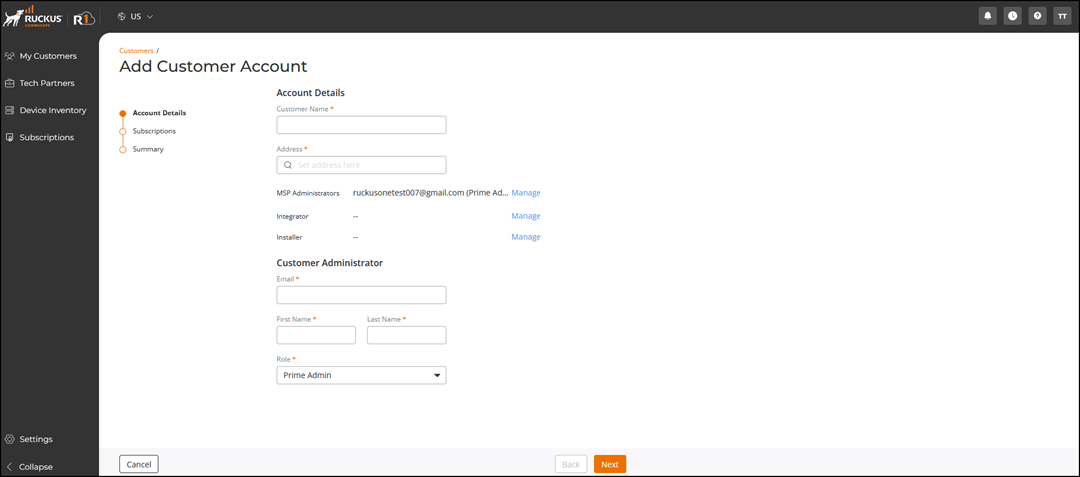
- In the Customer Name field, enter the name of the customer.
- In the Address field, enter the customer address.
- For MSP Administrators, click Manage and select an MSP administrator.
- (Optional) Toggle the Customer Administrator option to add a customer administrator
- Under the Customer Administrator section, enter the email address in the Email field.
- In the First Name and Last Name fields, enter the first and the last name of the administrator.
- In the Role list, select a role and click Next.
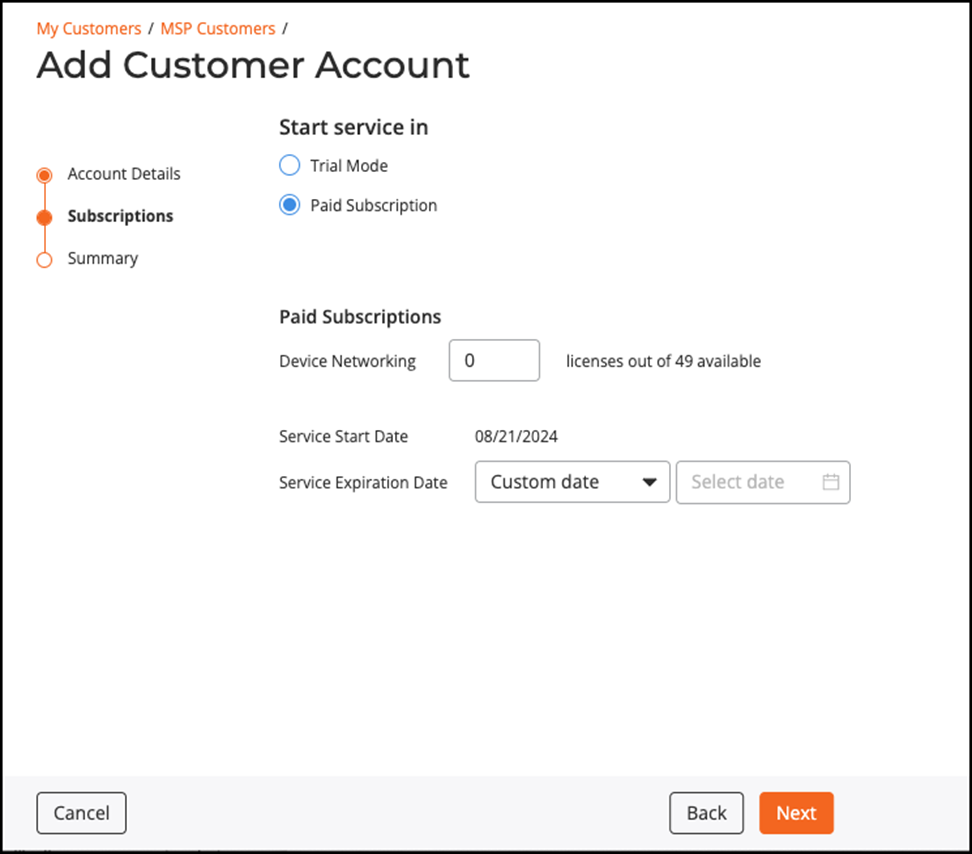
- In the Subscriptions page, by default, Trial Mode is selected. The Trial Mode subscription is valid for 30 days from the date of activation. You can upgrade from Trial Mode to Paid Subscription.
- For Paid Subscription, specify the number of devices and service expiration date and click Next.
- On the Summary page, review the customer information and click Add Customer.
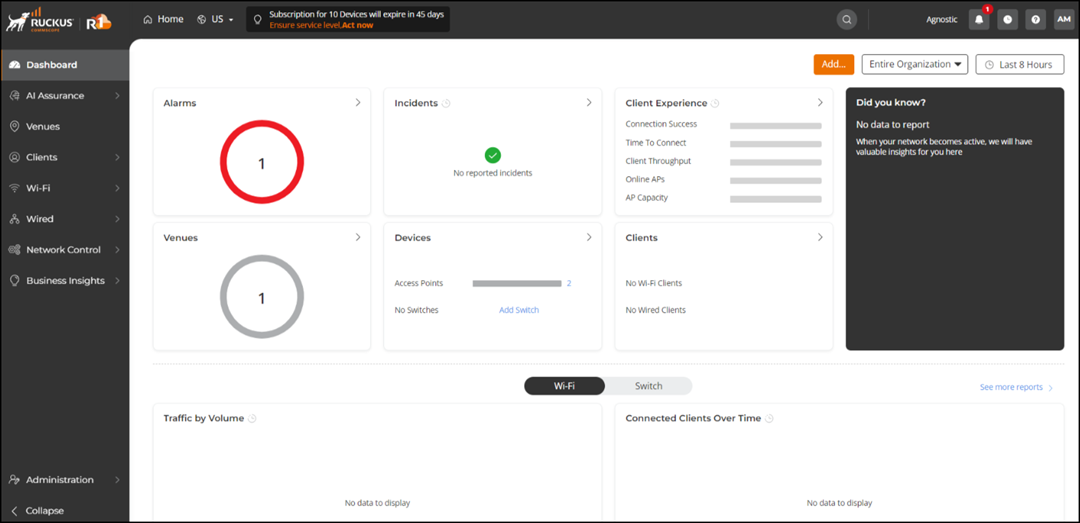
- To view the RUCKUS One Cloud dashboard, click .
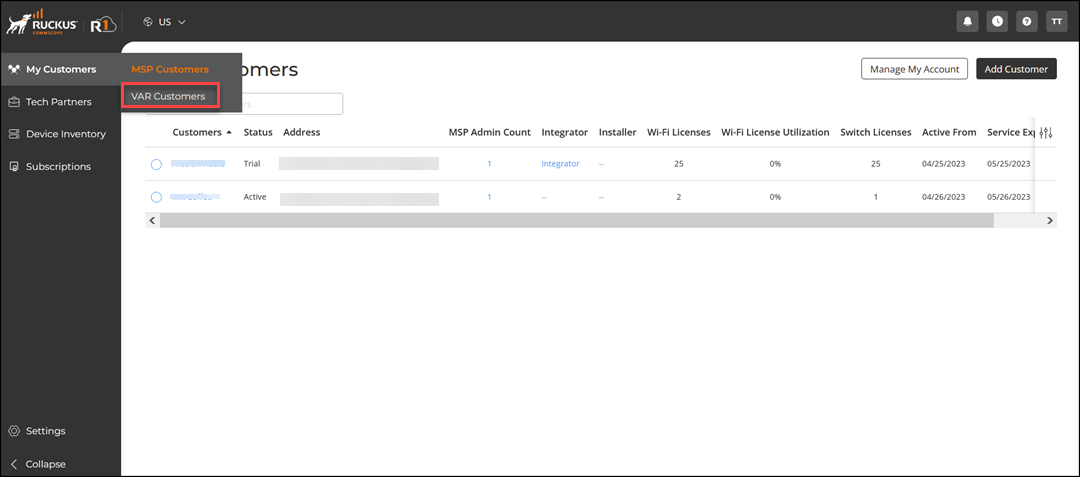
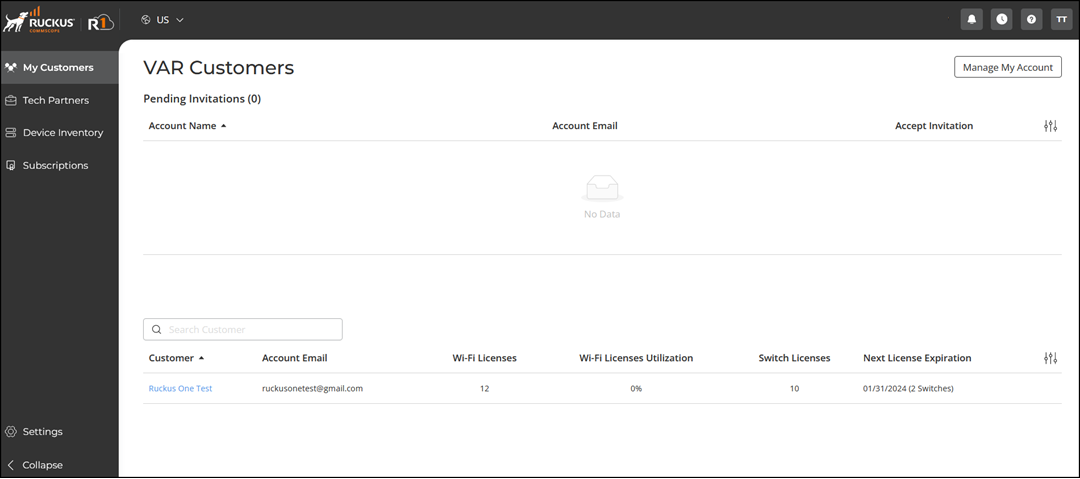
- Click to view the information about VAR customers.