License Assignment
The term "assign" refers to the transfer of licenses to an AP or a
network.
- After you log in to the Remote Management Services for Unleashed Domain portal, select Networks from the main menu. The Networks page appears, listing all the networks managed by the RMS.
- From the list of networks, select the network for which you want to assign the
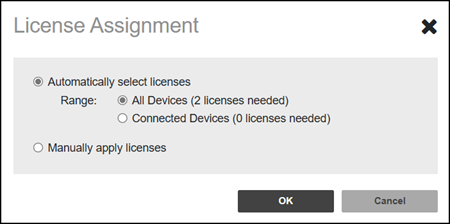
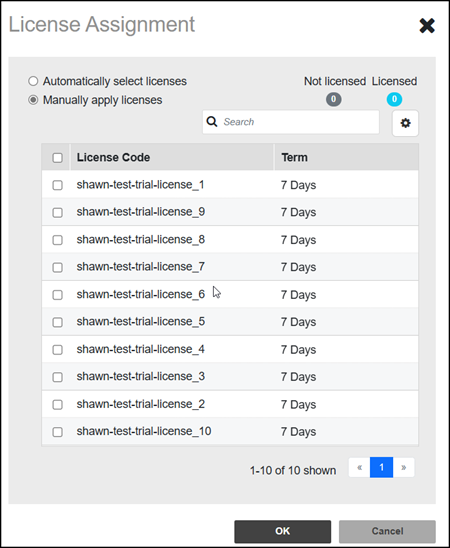
license and click License Assignment. You have two
options: you can allow the system to automatically assign licenses from the
domain license pool, or you can choose to assign the licenses manually by
selecting the specific license you want to use.Note: Trial licenses do not accept automatic license assignment. They must be applied manually.
If a network has two APs connected to it, you need to assign a license for each AP. Once a license has been assigned to an AP, it cannot be transferred back, even if the AP is deleted, unless it is a trial license. Additionally, if a network does not have enough licenses, options like upgrades will be disabled, and a warning message will be displayed.