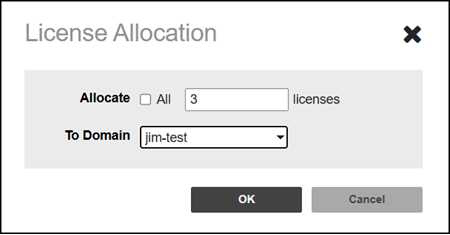
Allocating and Recycling the Licenses
The Brand Admin can allocate the
licenses from the Brand Admin license pool to Domains, while a Domain Admin can allocate
licenses from Domain Admin license pool to Groups.
There are three types of license pools:
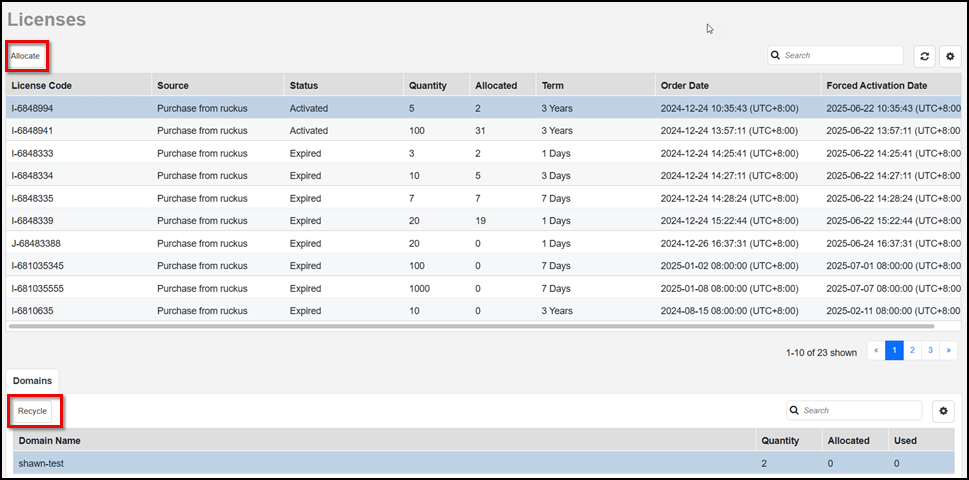
- Log in to the Brand Admin web interface, then select Licenses from the main menu.
- To allocate the licenses to another Domain select an unexpired license code that has a non-zero quantity, then, click Allocate.
- You can allocate either all of the licenses or a specific number of licenses to a specific Domain.
- Click OK. A success message appears, showing the new license allocated to another Domain under the Domains tab.
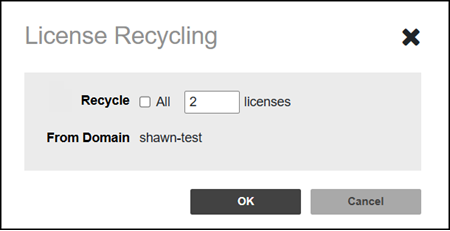
- To recycle licenses that have not been allocated in a Domain, in the Domains tab, select the Domain name, then click Recycle. The License Recycling pop-up is displayed. From the selected Domain, you can choose to recycle all unallocated licenses or a certain number of unallocated licenses, regardless of how many licenses are actually being used. For example, if a Domain has a total quantity of 12 licenses, but only 4 licenses are allocated, then you may recycle from 1 to all 8 of the remaining licenses.
-
Where do we see this info?Click OK. A success message appears, showing the license has been recycled.