OAuth Setup Procedure for LinkedIn Social Media Login
Complete the following steps to configure
an application on the LinkedIn developers apps website.
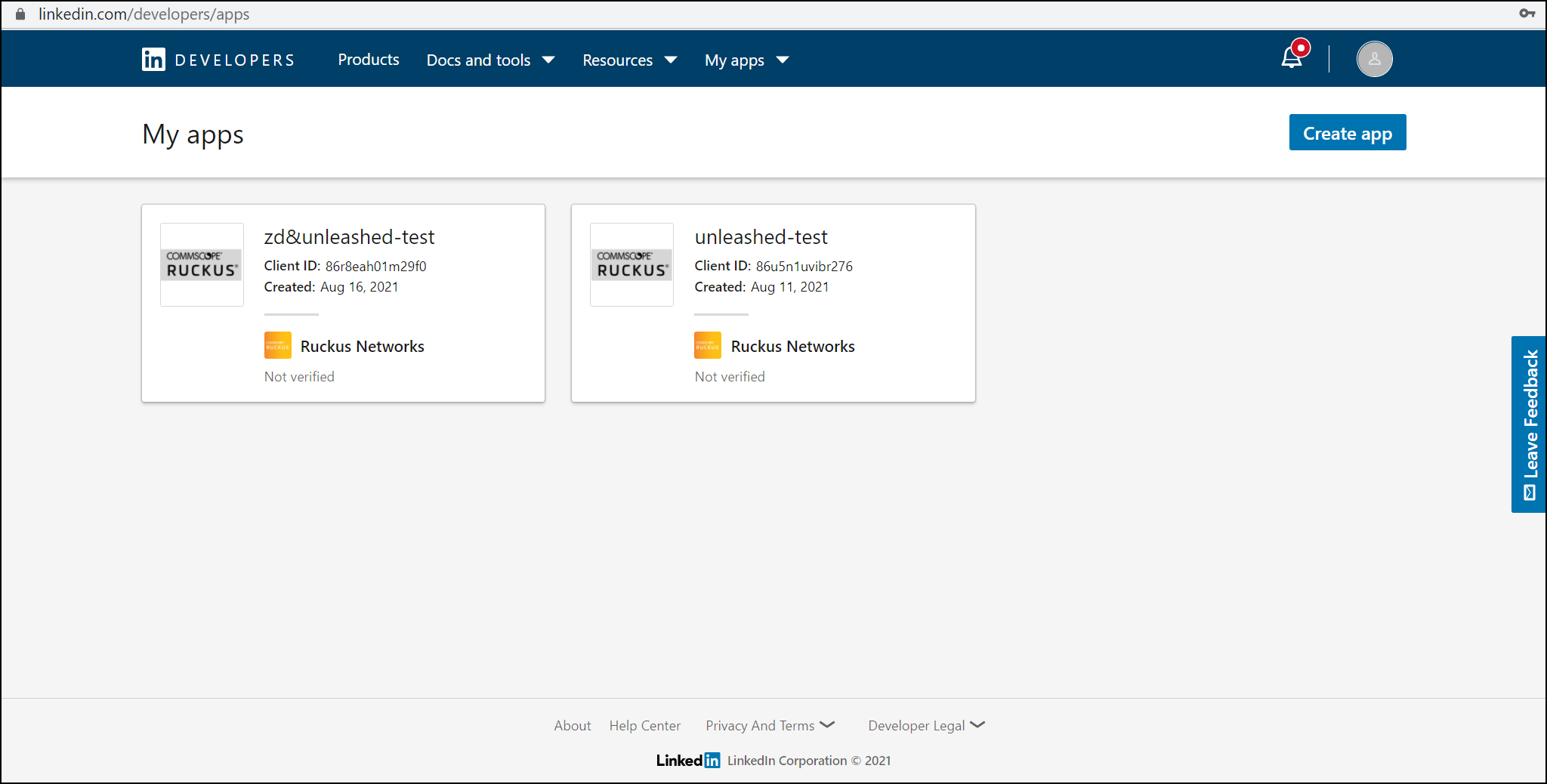
- Go to the LinkedIn My Applications page (https://www.linkedin.com/developer/apps) and click Create App.
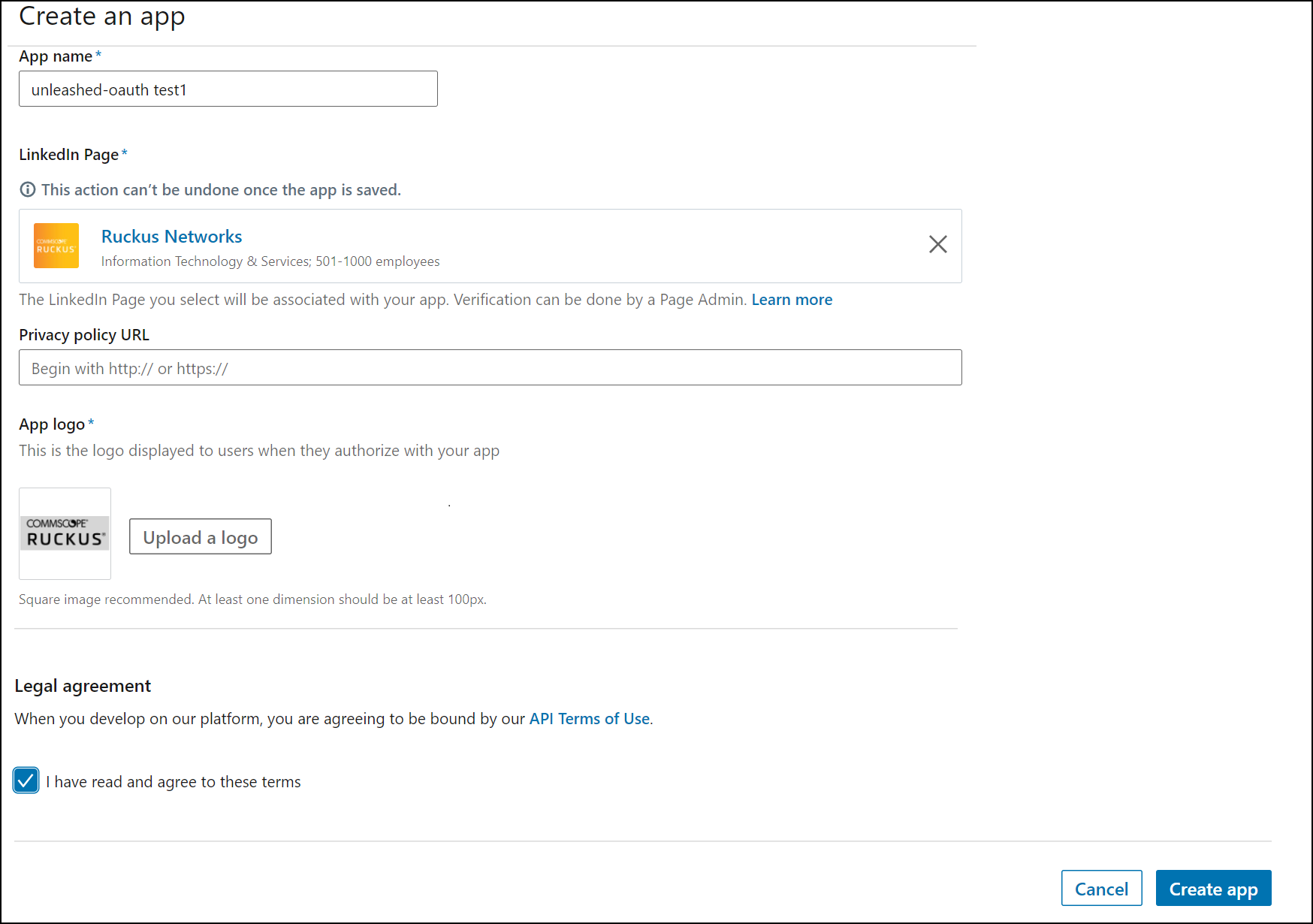
- On the Create an app page, enter the required information and click Create app.
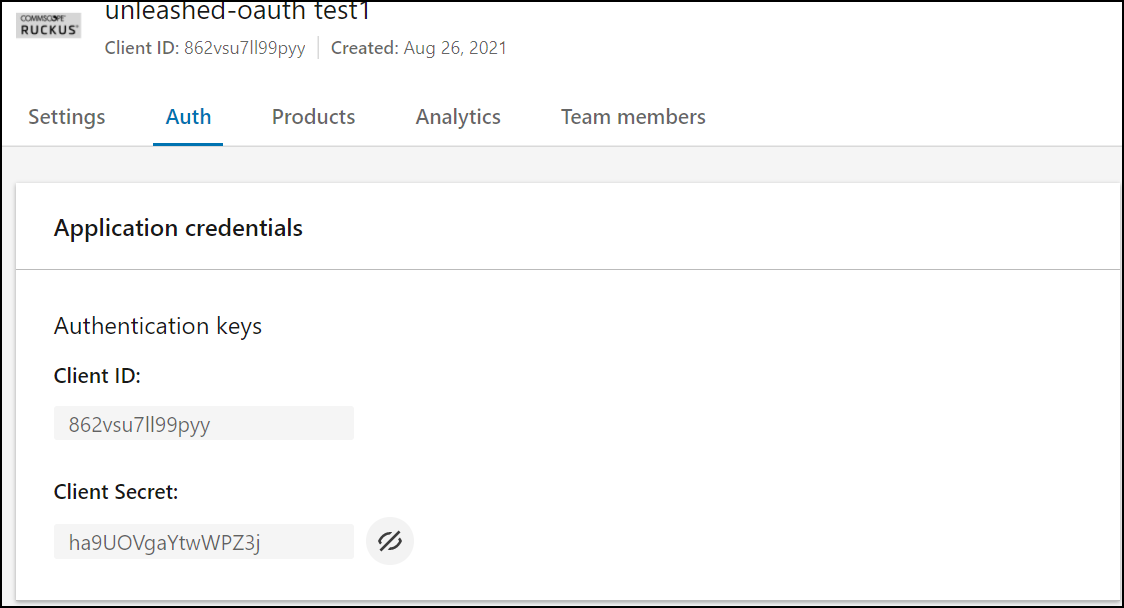
- Under the Auth tab, LinkedIn displays the client ID and client secret.
-
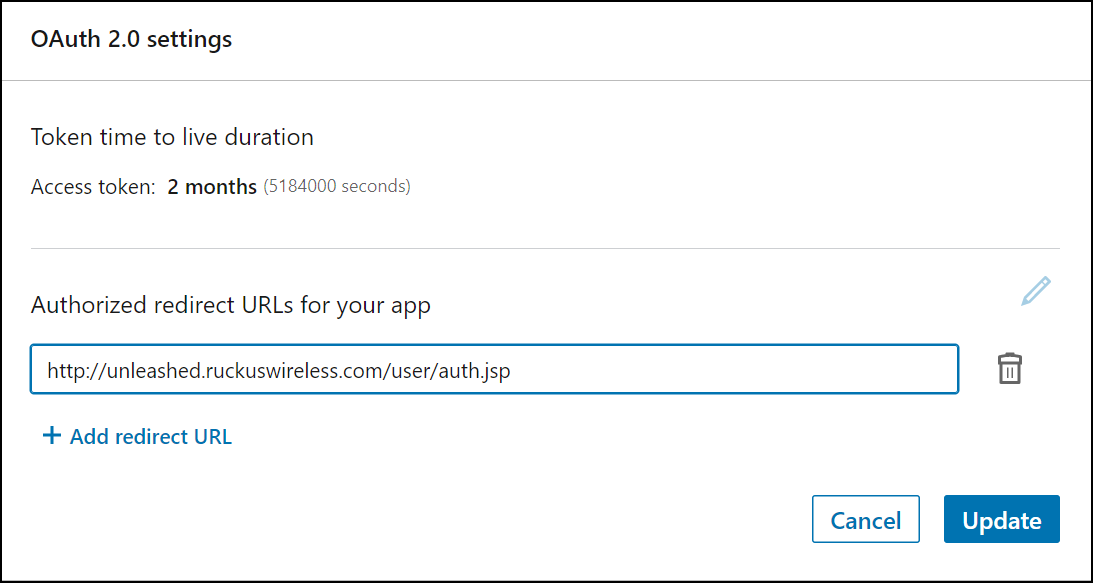
Reuse content for UnleashedUnder OAuth 2.0 settings, in Authorized Redirect URLs, enter a valid redirect callback URL and click Update.Note: If you have imported a certificate with a fully qualified domain name (FQDN) to RUCKUS Unleashed, you must use the real FQDN. For example, if the FQDN is “mydomain.com”, the Authorized redirect URLs will be “http://mydomain.com/user/auth.jsp”.
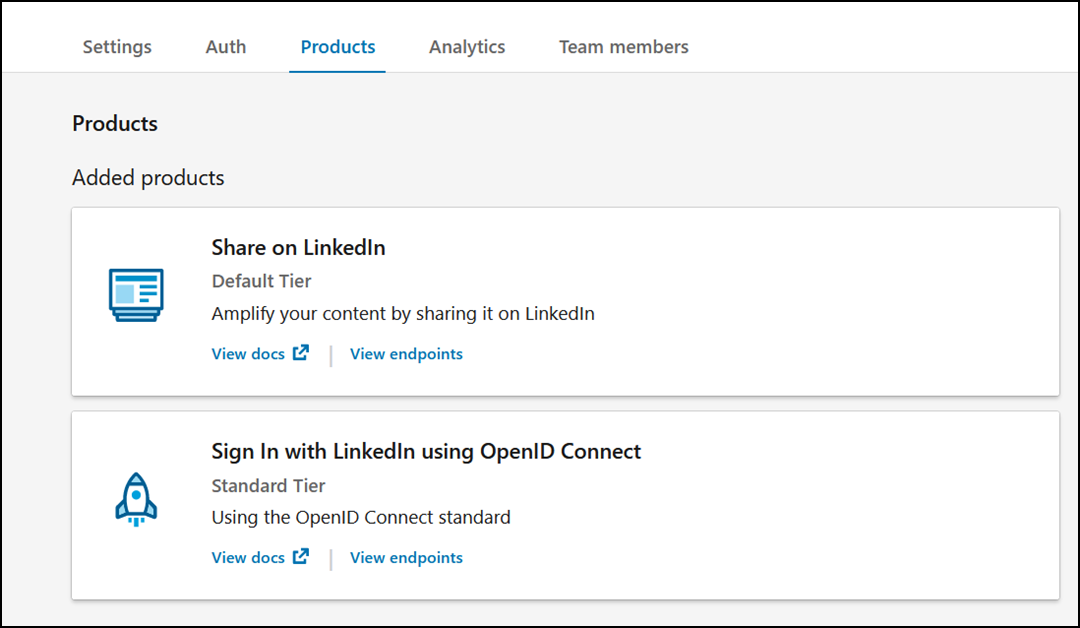
- Under Product tab, select the options Share on LinkedIn and Sign In with LinkedIn using OpenID Connect.
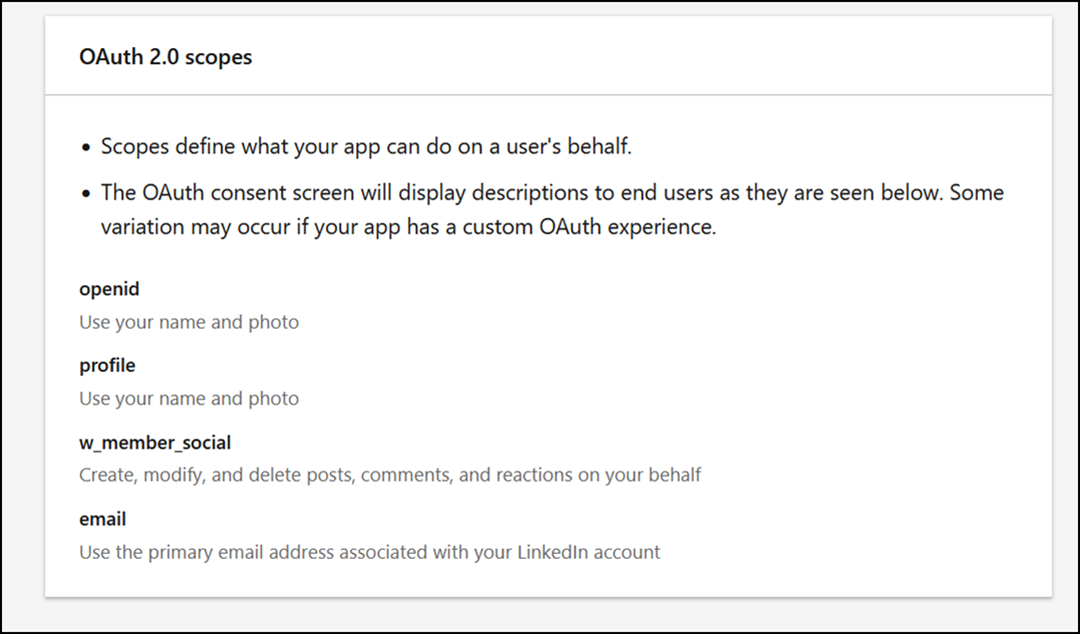
- Under Auth tab, check if the following permissions are added successfully to use the app for LinkedIn login.