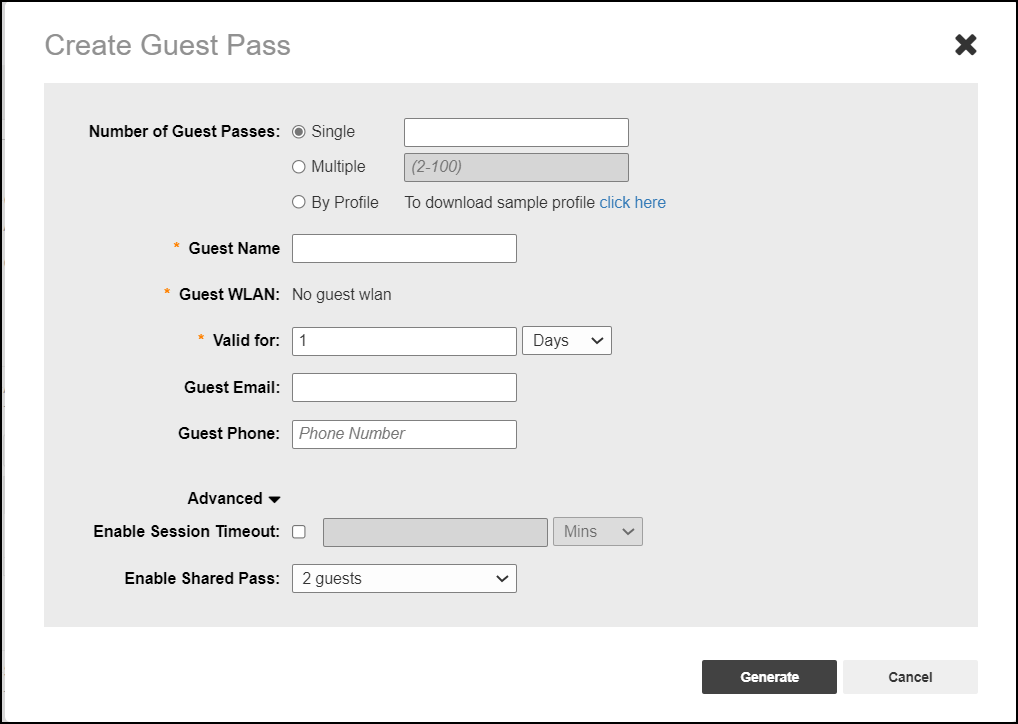
Generating a Guest Pass
Using the Guest Access Service >
Admin Generated Guest Passes page, Unleashed administrators can create guest
passes from within the UI.
- From the dashboard, select Admin & Services > Services > Guest Access Service.
- Under Admin Generated Guest Passes, click Create to create a guest pass.
- For Number of Guest
Passes, select one of the following options:
- Single: Generate a single guest pass. Refer to Generating and Delivering a Single Guest Pass.
- Multiple: Generate multiple guest passes. Refer to Generating and Printing Multiple Guest Passes at Once.
- By Profile: Import a guest pass profile. Refer to Creating a Guest Pass Profile.
- Enter the guest name.
- For Guest WLAN, select the WLAN for which the guest pass will be issued. To create a guest WLAN, refer to Deploying a Guest WLAN.
- In Valid For, enter a number and select a time interval (Hours, Days, or Weeks) for which the guest pass will remain valid.
- (Optional) Enter a guest email address and guest phone number. If these options are entered, and the email server and SMS delivery method have been configured (from Admin & Services > System > System Info), you can deliver the guest pass to the guest using email or SMS.
- (Optional) Under Advanced Options,
configure the following options:
- Enable Session Timeout: Select the check box and select a time interval (Minutes, Hours, Days, or Weeks) after which guests are required to log in again. If Session Timeout is disabled, the connected users are not required to log in again until the guest pass expires.
- Enable Shared Pass: Allow multiple users to share a single guest pass.
- Click Generate to create the guest pass.
- On the Create Guest Pass page, select a delivery method: