Creating a Guest Pass Profile
- Log in to the guest pass generation page.
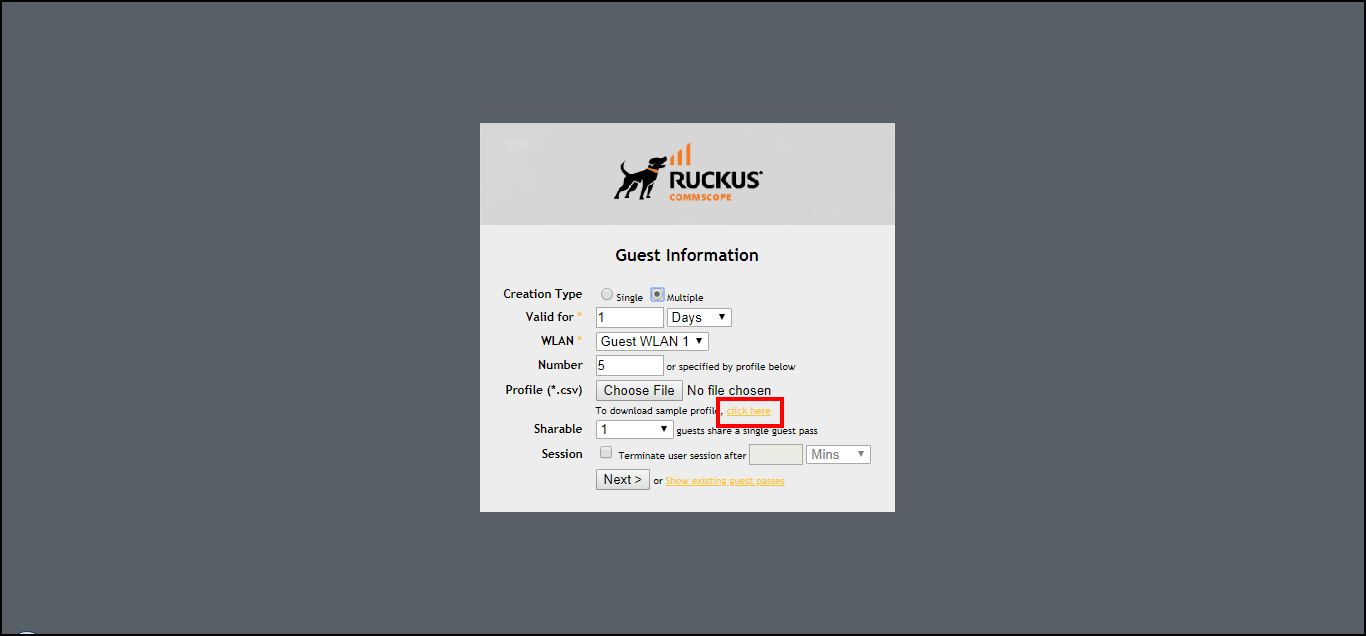
- For Creation Type, click Multiple.
- For Profile (*.csv), click the click here link in To download a profile sample, click here.
- Save the sample guest pass profile (in CSV format) to your computer.
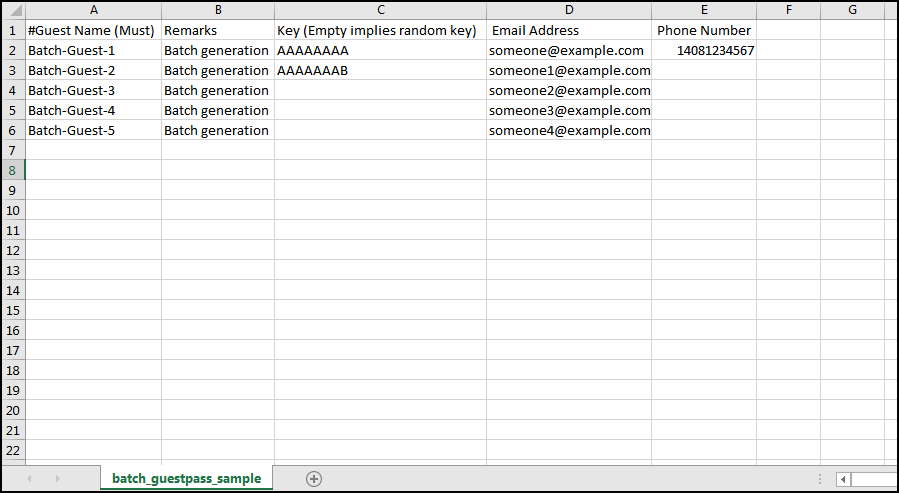
- Using a spreadsheet application, open the CSV file and edit the guest pass profile
by filling out the following columns:
- #Guest Name: Enter the name of the guest user (one name per row).
- Remarks: (Optional) Enter any note or remarks about the guest pass.
- Key: Enter a guest pass key consisting from 1 through 16 alphanumeric characters. If you want RUCKUS Unleashed to generate the guest pass key automatically, leave this column blank.
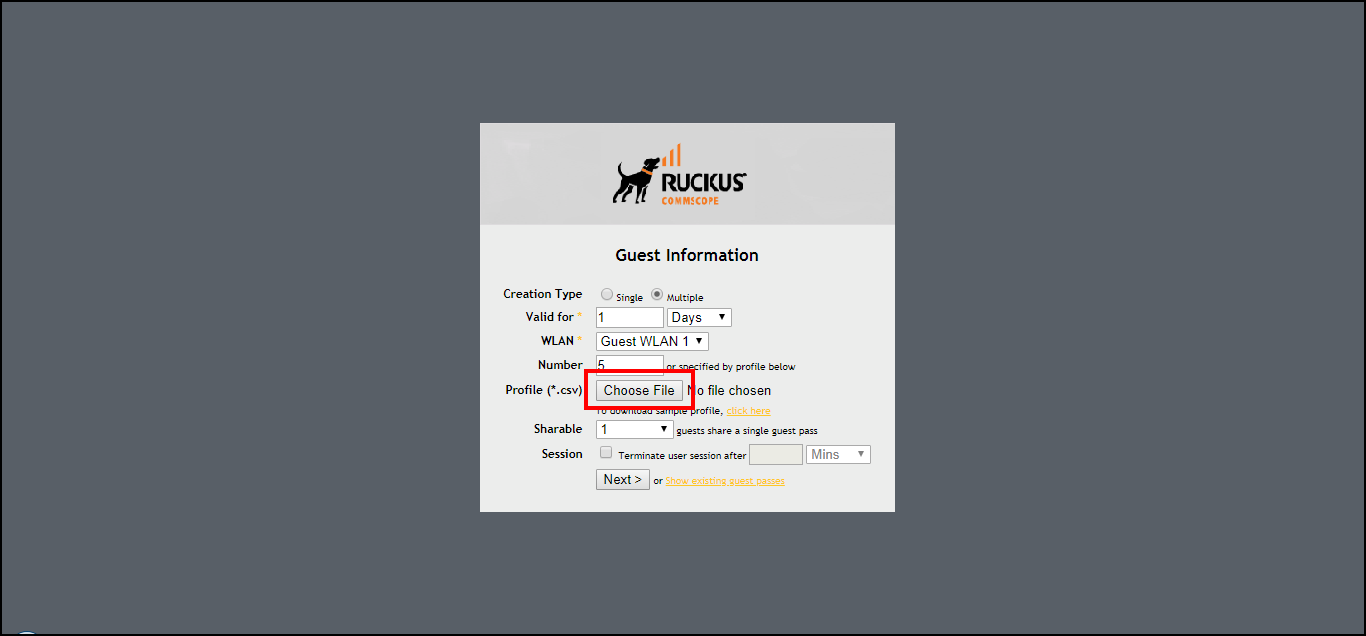
- Return to the Guest Information page, and complete step 3 through step 7 in Generating and Printing Multiple Guest Passes at Once to upload the guest pass profile and generate multiple guest passes.