Configuring Global WLAN Settings
Complete the following steps to
configure global settings for all WLANS.
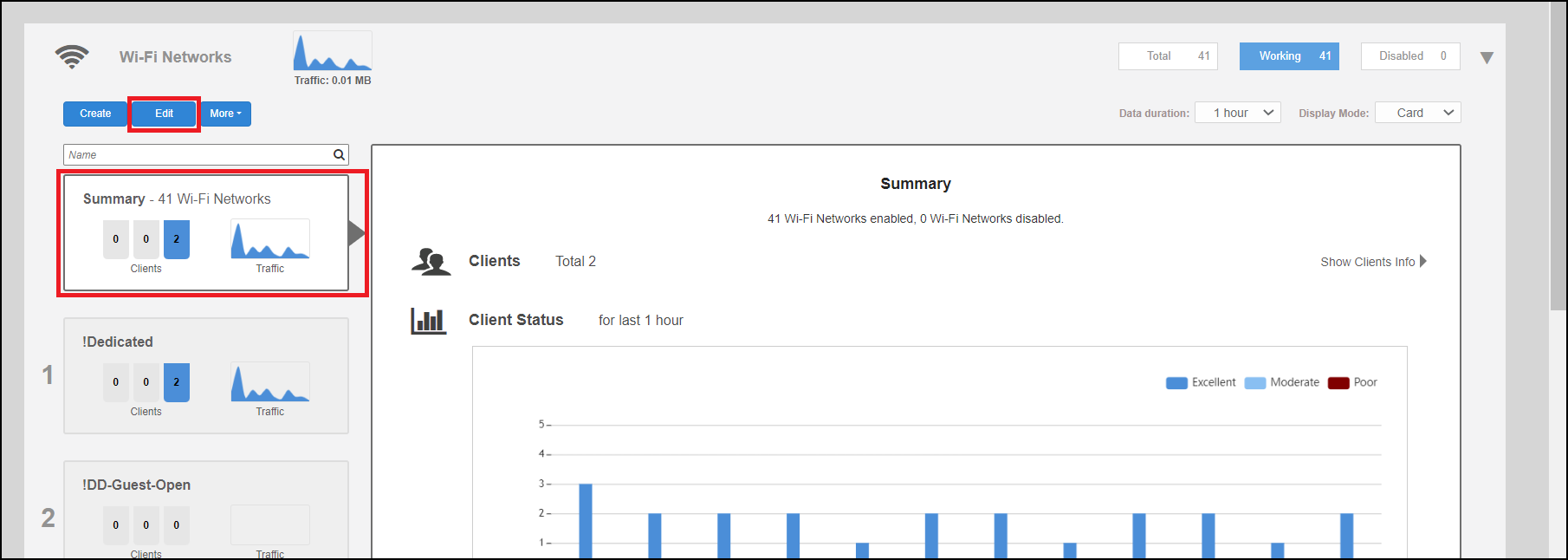
- In the Wi-Fi Networks section, select the Summary WLAN box, and click Edit.
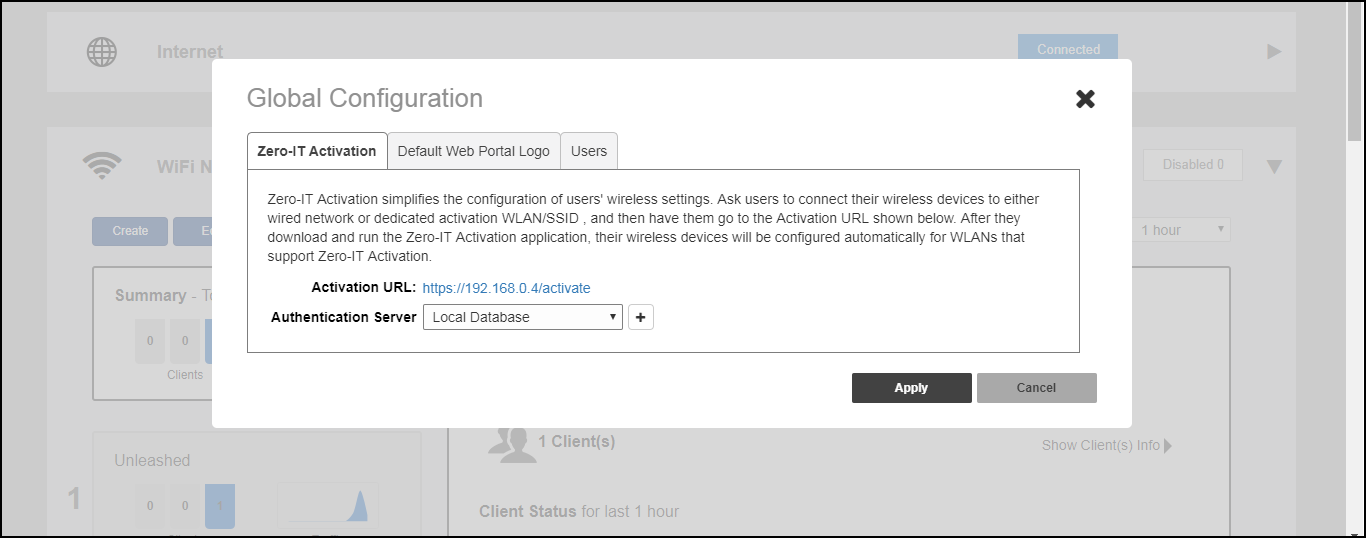
- From the Global Configuration dialog box, select one of the following
tabs to configure settings for all WLANs:
- Zero-IT Activation: Select an Authentication Server from the list, or click Create Service to create a new one.
- Default Web Portal
Logo: Replace the RUCKUS logo with your own logo to be
displayed on the login page when clients connect to a Web Auth WLAN.
Note: The recommended image size is 138 x 40 pixels. The maximum file size is 20 KB.
- Users: Create new users on the internal database.
- Click Apply to save your changes.