Beginning with UMM 2.8 release, the End
User Settings and End Users in the UMM System Settings menu can be used to view
and manage the Unleashed devices. The Wi-Fi service providers or the UMM admin allow
the end
users to register accounts in UMM to link the Unleashed devices. With this feature,
the end
users can view or manage the Unleashed devices in UMM.
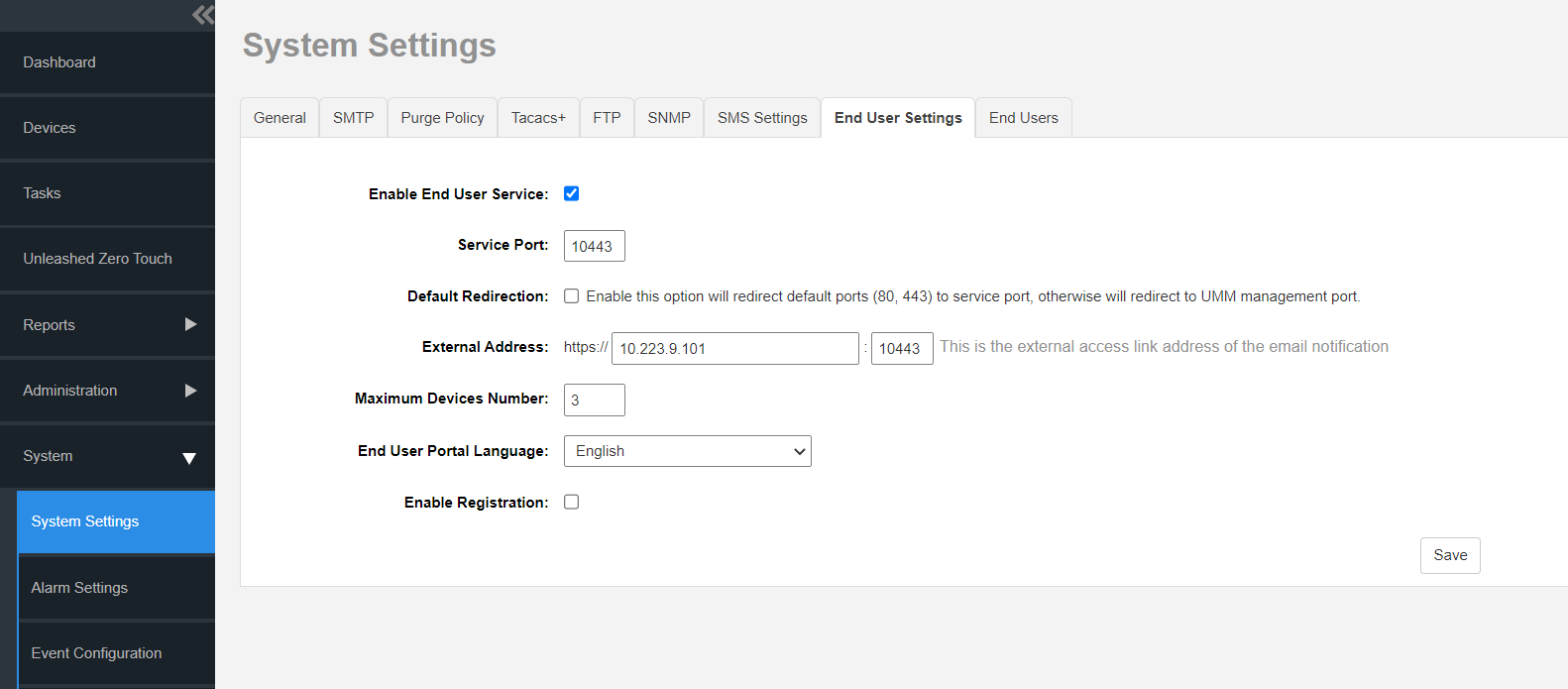
On the System Settings page, click the End User Settings tab, and check the
Enable End User Service field to enable this feature. A link to the end user login
page is then issued to the user by the UMM admin.
End User Settings (part 1 of 2)
End User Settings and Management
| Element |
Description |
| Service Port |
The port address for the end user login page (default is 10443). |
| Default Redirection |
Enable this option to redirect deafult ports (80 and 443) to the end user service
port. |
| Maximum Devices Number |
To limit the maximum number of devices an end user can manage. By default, the
maximum number of devices is 3. |
| End User Portal Language |
Select the language to be displayed on the web interface. |
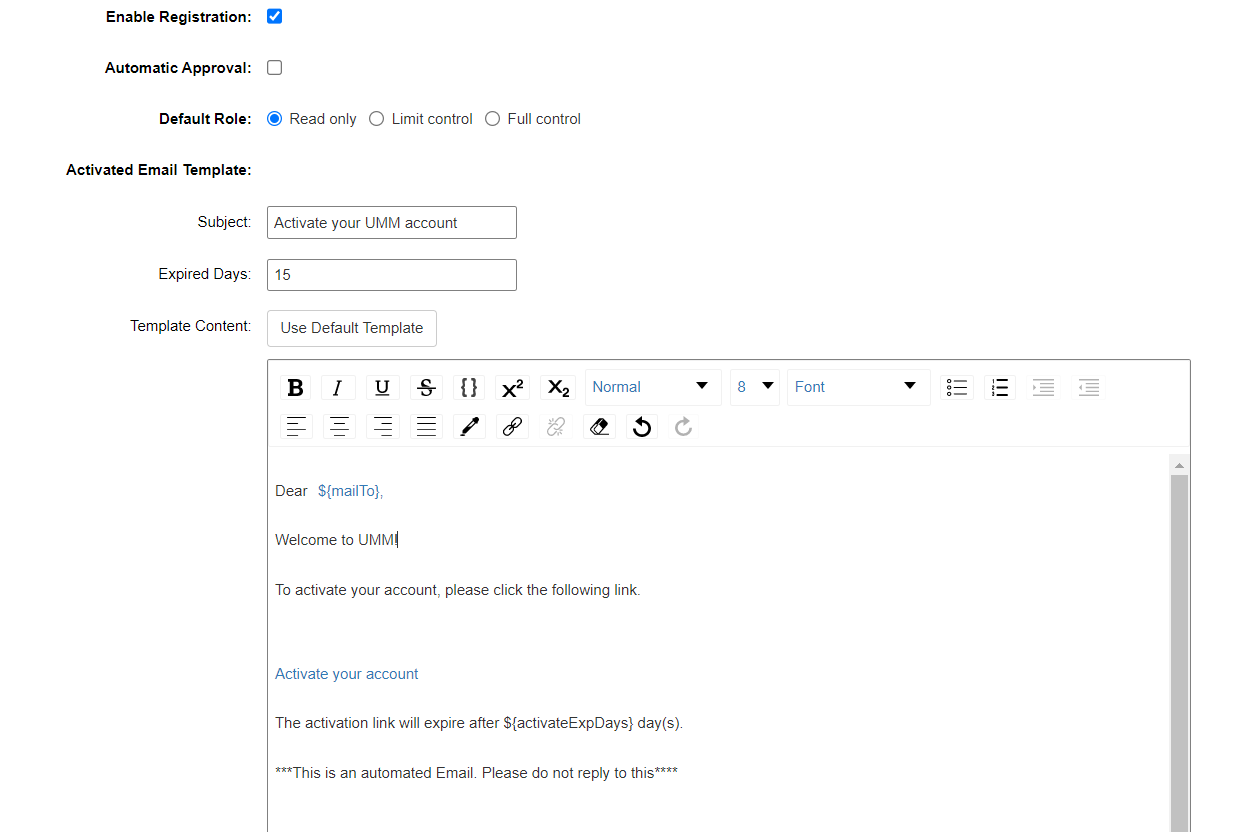
| Enable Registration |
Allow the end user to register new account. |
| Default Role |
There are three options to manage the devices. Read-only - To view the
Unleashed devices. Limit control- To view and edit WLAN password. Full
control - The administrator privilege to manage the Unleashed devices.
|
| Automatic Approval |
By enabling, the newly registered accounts gets approved automatically. |
| Activated Email Template |
An email is sent to the end user to activate the registered account. |
End User Settings (part 2 of 2)