Creating and Managing Groups
Unleashed Multi-Site Manager allows you to create and edit device groups, and to assign devices to existing device
groups. You can also create an empty group. Each device can be assigned to a single
device group at a time, and can be moved to a different device group at any time.
There are two types of groups-one is for ZoneDirector and Unleashed, and the other for ICX switches. Devices can not be moved between these groups. The default group Wireless Network lists all the ZoneDirector and Unleashed devices, and the default group Switches lists all the ICX switches.
- After you to log in to the Web interface, select
Devices from the menu in the left.
The Devices page appears listing all the devices managed by the software.
- From the device group hierarchy, select device under which you want to create the
group and click the
 icon.
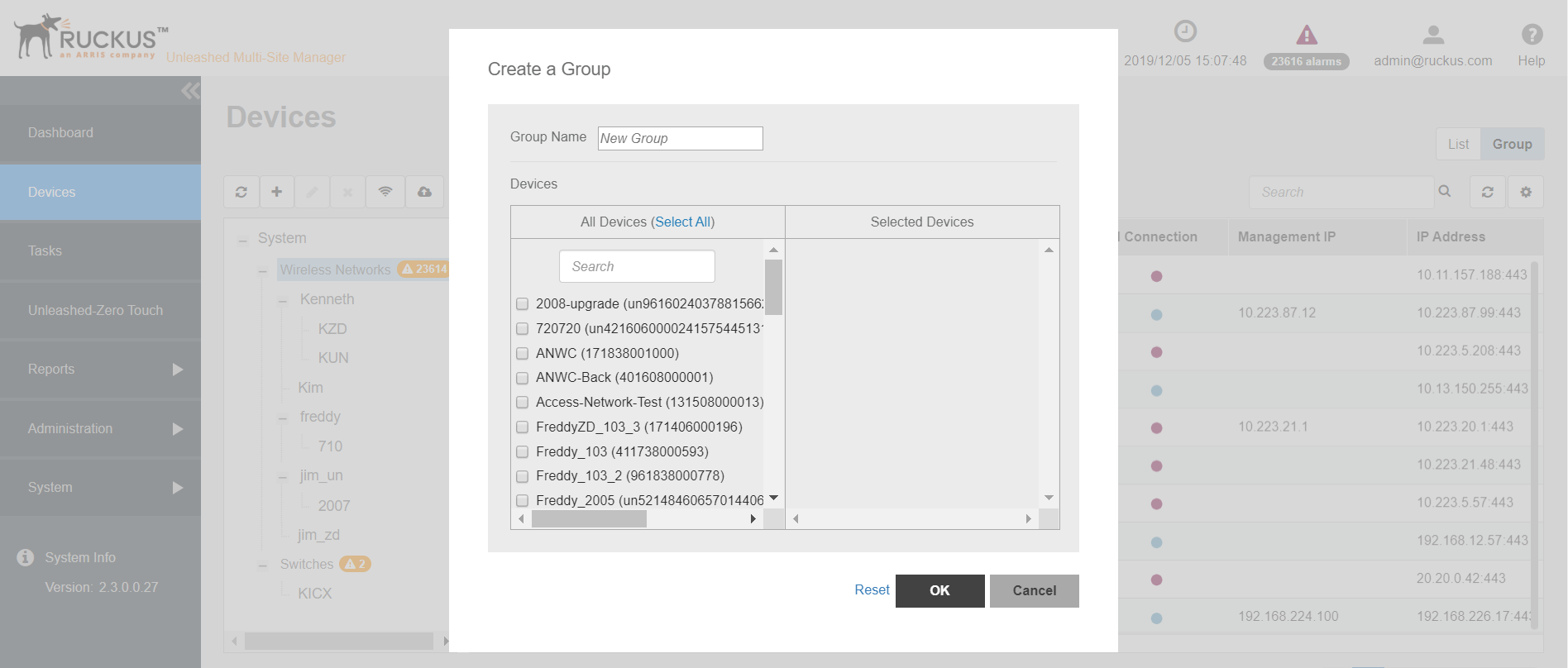
- In Group Name, type the name of the group you want to create.
- In Devices, under the Unselected Devices section, select the devices that you want to group by checking the box against the device. Those selected are populated under the Selected Devices section.
- Click
Save to confirm the grouping.
A success message is displayed after the group is created.
- Click
OK.
The newly created group is listed under the device hierarchy.
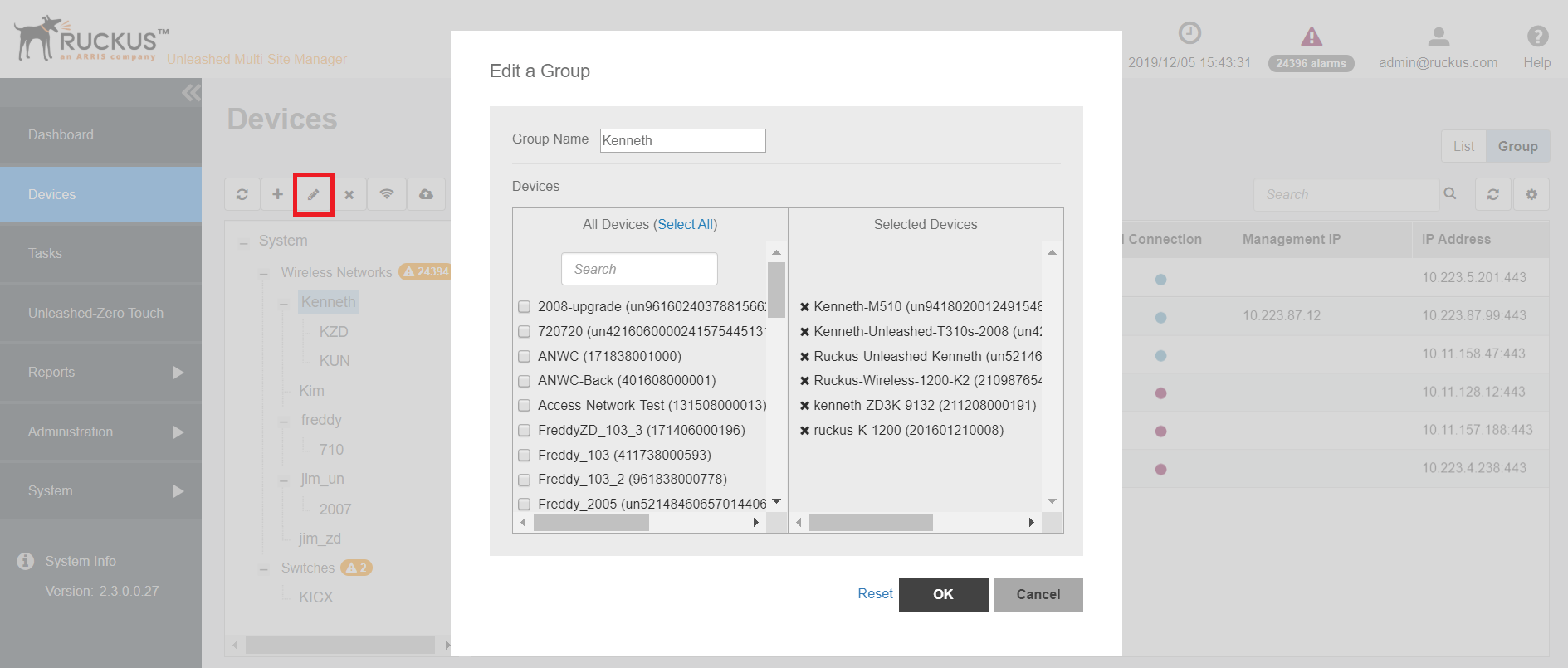
- Select the group and click the
 icon.
- Make the necessary changes and click Save.You have successfully edited the group.
 icon above the device hierarchy tree.