Configuring DHCP Service on RUCKUS Edge
The DHCP server assigns IP addresses to
the hosts along configuration details.
- Pool One - (Optional) Configure IP addresses for switches or devices in the network.
- Pool Two - Webauth VLAN
- Pool Three - PIN Service
Note: The maximum PAN size is 253, so a larger DHCP pool is necessary.
To configure DHCP internally, perform the following steps.
- On the RUCKUS One navigation bar, hover on Network Control and click My Services.
- Click DHCP for RUCKUS
Edge.This displays DHCP for RUCKUS Edge page.
- In the DHCP for RUCKUS
Edge page, click Add DHCP Service
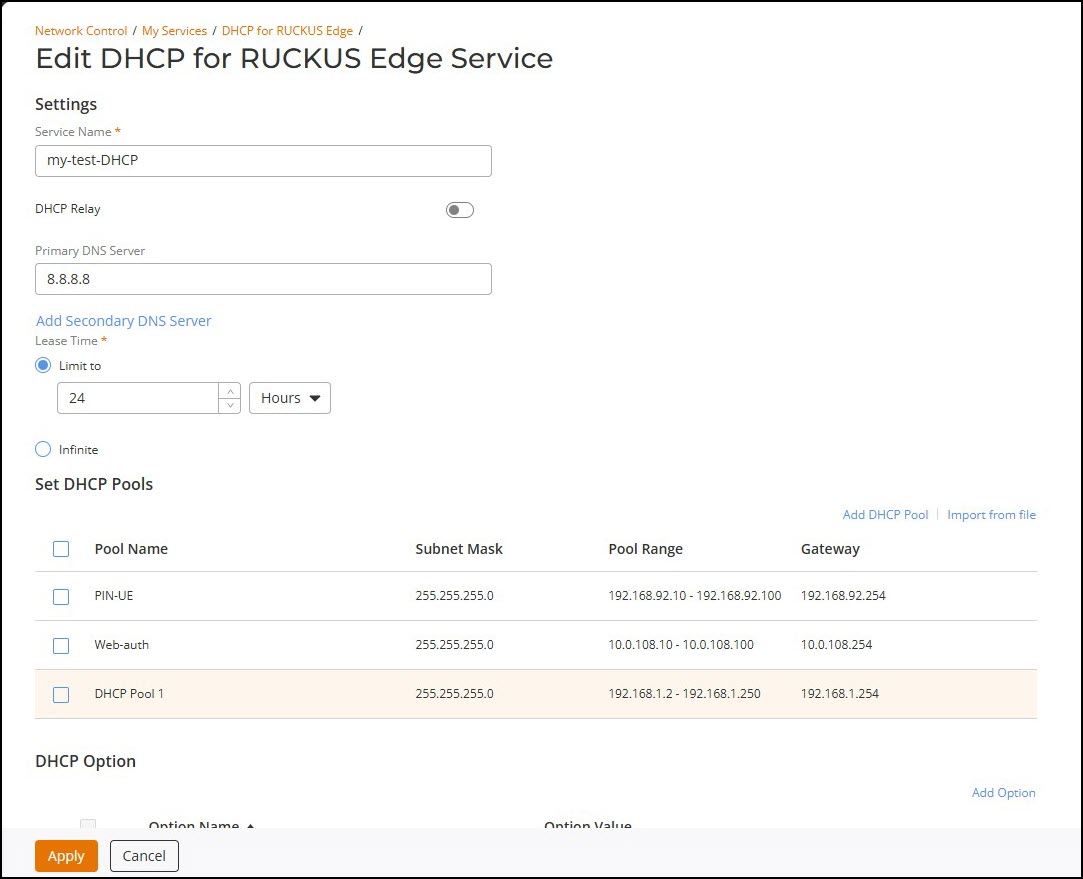
and enter the following details -
- Service Name - Enter service name.
- Primary DNS Server - Primary DNS server is the main name server. This server stores IP address. Enter the IP address of the primary DNS server.
- Lease Time - Select the Lease Time.
- Set DHCP Pool -
As described above, set three DHCP pools. To set DHCP pools, click
Add DHCP
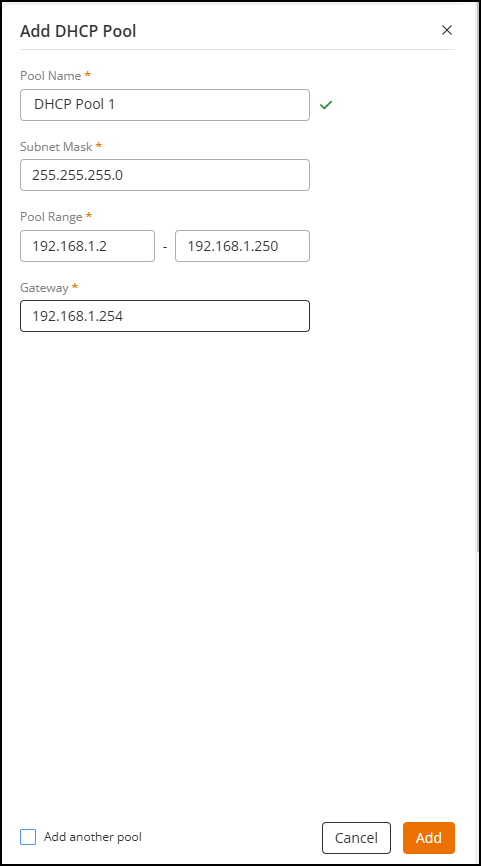
Pool, this displays Add DHCP
Pool window. Enter the following details -
- Pool Name - Add a pool name.
- Subnet Mask - Defines the range of IP addresses, it has two parts network bits and host bits. Enter a valid subnet mask.
- Pool Range - Is a sequential range of IP addresses within a network. Enter a valid pool range.
- Gateway - Is a
node that connects one protocol to another protocol. Enter a
valid gateway IP address.
After entering the above details, click Add. The newly added DCHP pools are displayed in the list.
- After creating the DHCP pools, click Add, the newly created DHCP service is displayed the list.
- On the RUCKUS One navigation bar, hover on Network Control and click My Services.
- Click DHCP for RUCKUS
Edge.This displays DHCP for RUCKUS Edge page.
- In the DHCP
for RUCKUS Edge page, click Add DHCP
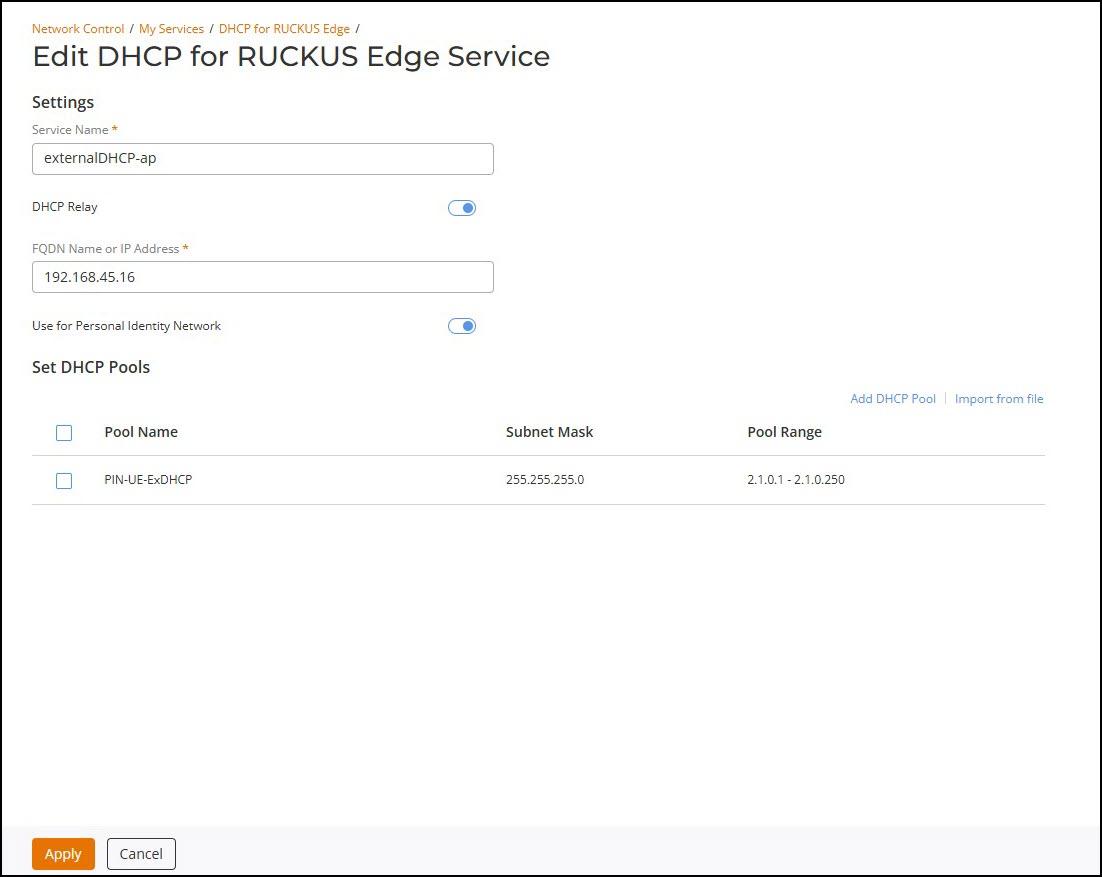
Service and enter the following details - Note: This pool is used only for PIN service.
- Service Name - Enter a service name.
- DHCP Relay - By default, this option is disabled, enable DHCP Relay to setup external DHCP.
- FQDN Name or IP Address - Fully Qualified Name or Address of the internet host.
- Use for Personal Identity Network - By default, this option is disabled, enable this option to use in PIN.
- Set DHCP Pools - As described above, follow the instructions to set the DHCP Pool