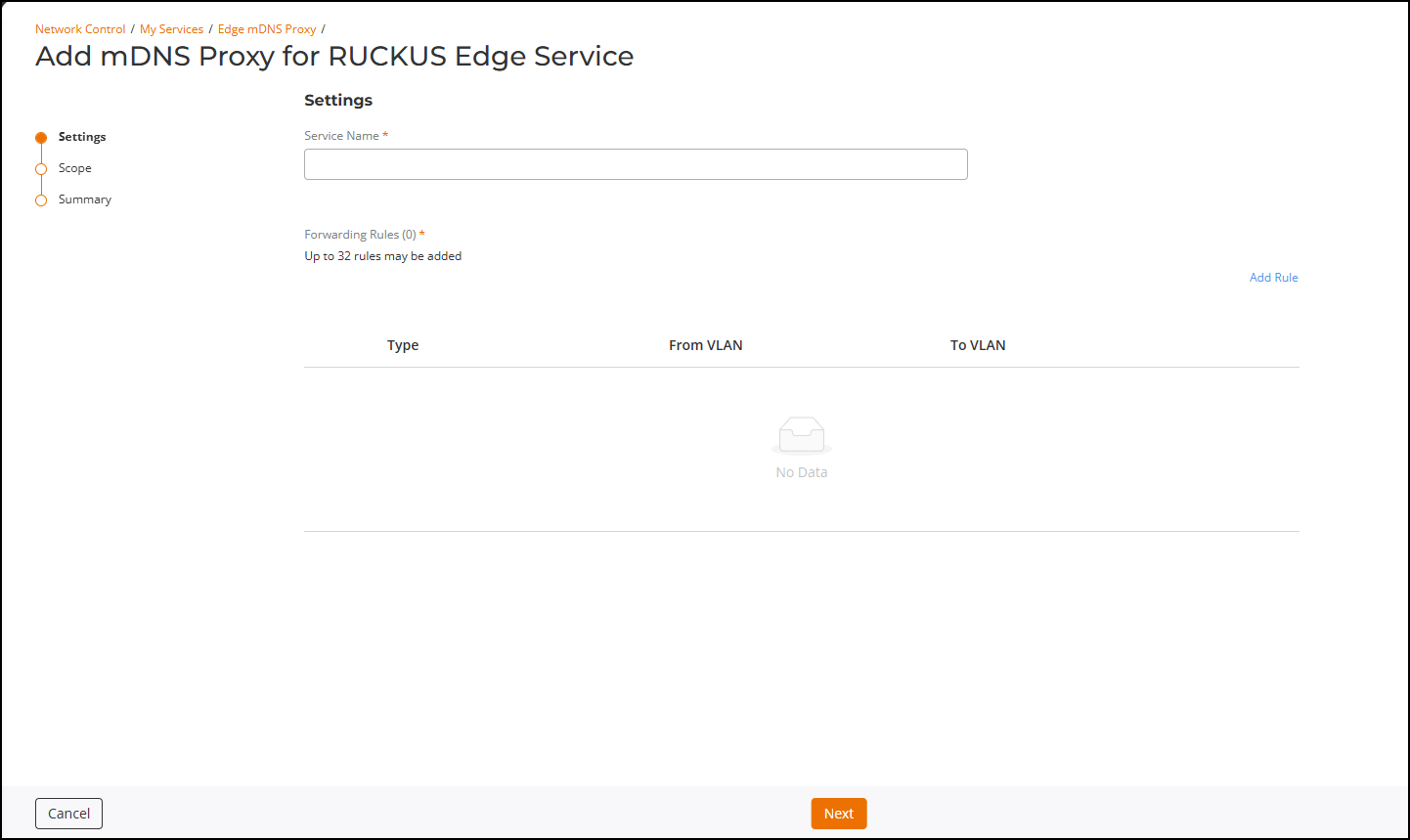
Adding an mDNS Proxy Service
From the RUCKUS One web interface, you can
add an mDNS Proxy service to allow devices to discover and access services across
network
segments (VLANs).
- On the RUCKUS One navigation
bar, hover over Network Control and My
Services or Service
Catalog.This displays the My Services or Service Catalog menu, respectively.
- Access the Add mDNS Proxy for RUCKUS Edge Service page using one of the following methods:
- Complete the Settings page and click Next.
- In the
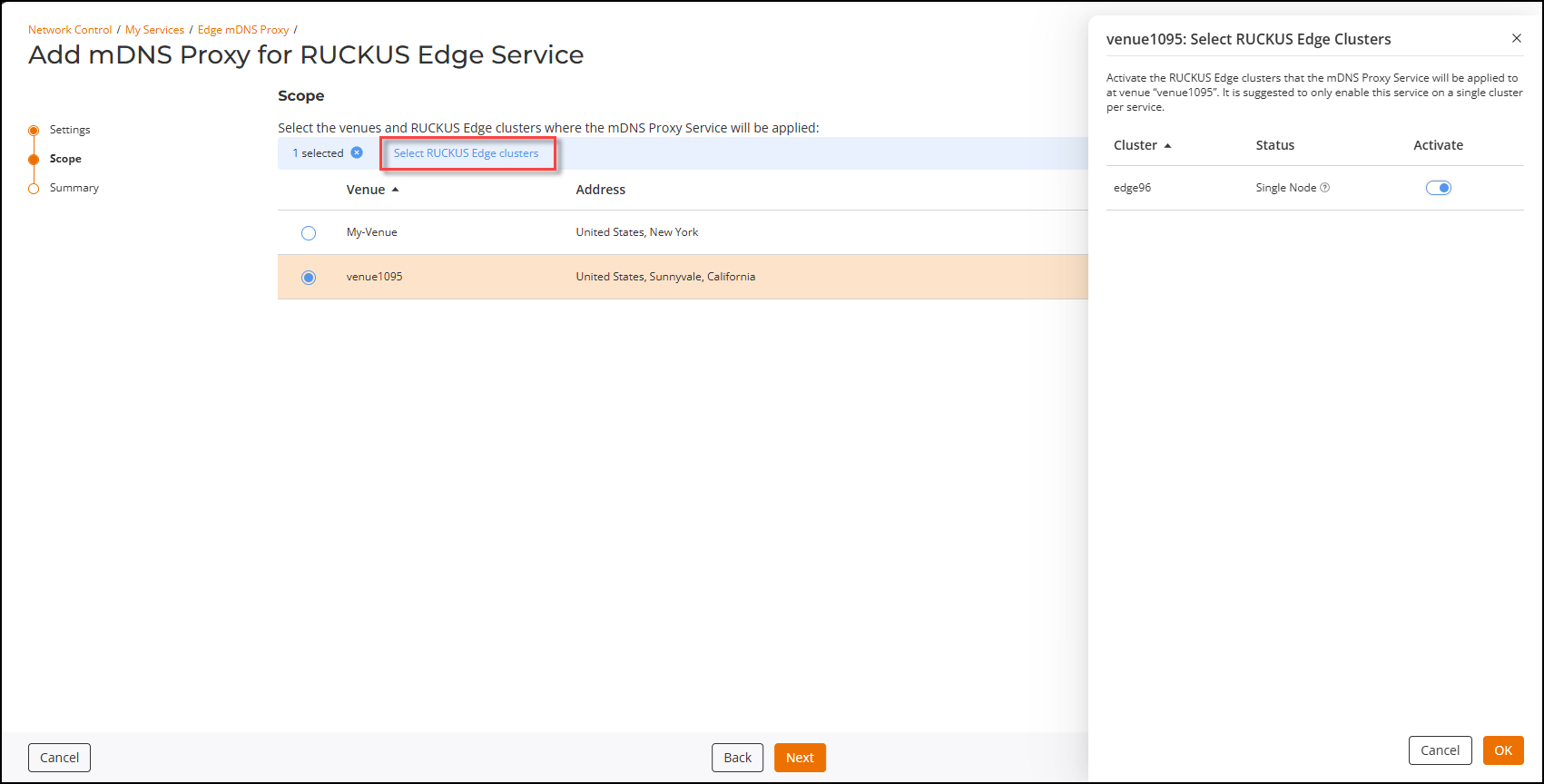
Scope page, select a venue and activate a cluster, then
click Next.Note: Ensure the venue is configured with RUCKUS Edge clusters.
- Select the Venue then and click Select RUCKUS Edge
clusters. This displays the Select RUCKUS Edge Clusters sidebar.
- Click the Activate toggle to apply this service to a cluster in the venue. When multiple clusters are listed, Activate only one cluster.
- Click OK to apply the setting.
- Select the Venue then and click Select RUCKUS Edge
clusters.
- Review the Summary page and click Add.