Viewng IoT Devices
After the IoT devices are scanned and
discovered, they are added to the controller for centralized management, allowing
device
monitoring, configuration, and batch actions, with customizable data views such as
MAC ID
and signal strength.
- From the main menu, click IoT Devices.
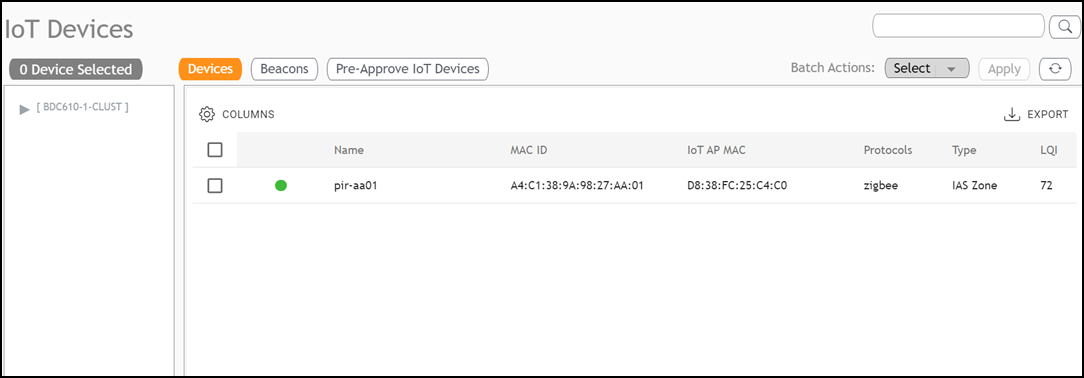
- Click Columns filter to choose which columns to display or hide in the main panel . You can customize the displayed information by selecting/deselecting fields.
- The main panel displays the various IoT devies. The table includes columns such as Name, MAC ID, IoT AP MAC, Protocols, Type and LQI.
- (Optional) Configure or modify a specific device. Click on a specific device entry in the table list; the sidebar appears, displaying comprehensive information and control options specific to that device.
- (Optional) Search for specific devices within the table. Enter the search
criteria and click the
 icon; the page refreshes displaying only the
devices matching the search criteria.
- (Optional) Click Export to download the details of the listed devices into a CSV file.
- (Optional) Perform a Batch Action, which runs on selected action on multiple devices simultaneously.