Adding an IoT AP

The administrator can add an IoT AP to the RUCKUS IoT Controller to manage IoT devices.

Complete the following steps to add an IoT AP to the controller.

  1. From the main menu, click IoT APs.
    The IoT Access Points page is displayed.
  2. Click the Pre-Approve IoT APs tab.
    The Pre-Approve IoT APs page is displayed with two options Single or Bulk.
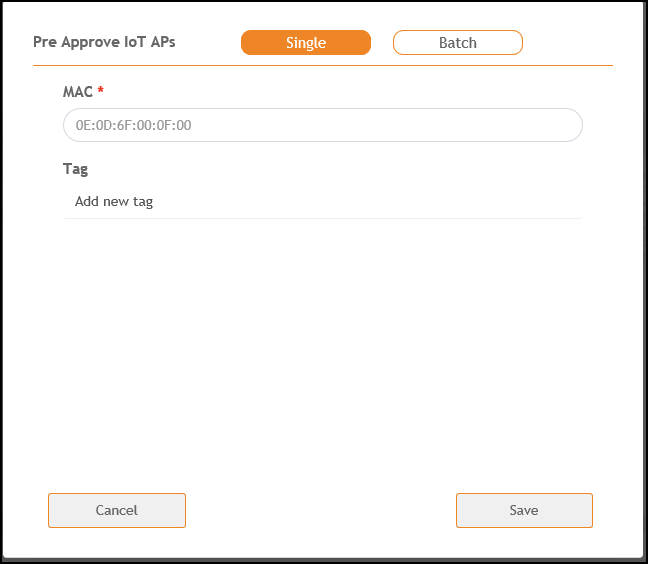
  3. To add a single IoT AP, click Single.

    Configure the following.

    Adding a Single IoT AP

    1. In the MAC address field, enter the MAC address of the IoT AP.
    2. In the Tag field, enter a new tag name.
    3. Click Save to add the IoT AP.
    4. Click Close to close the window.
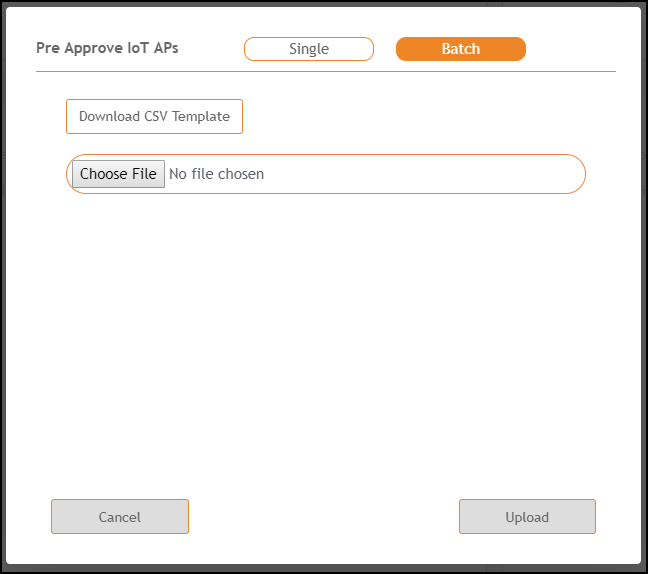
  4. To add multiple IoT APs, click Batch and download the CSV template. Enter the required details in the CSV template and click Upload.

    Adding a Batch of IoT APs