Network Policy Setup for EAP/TLS
- Open Server Manager.
- Expand
Network Policy and Access Services, and select
NPS (Local).
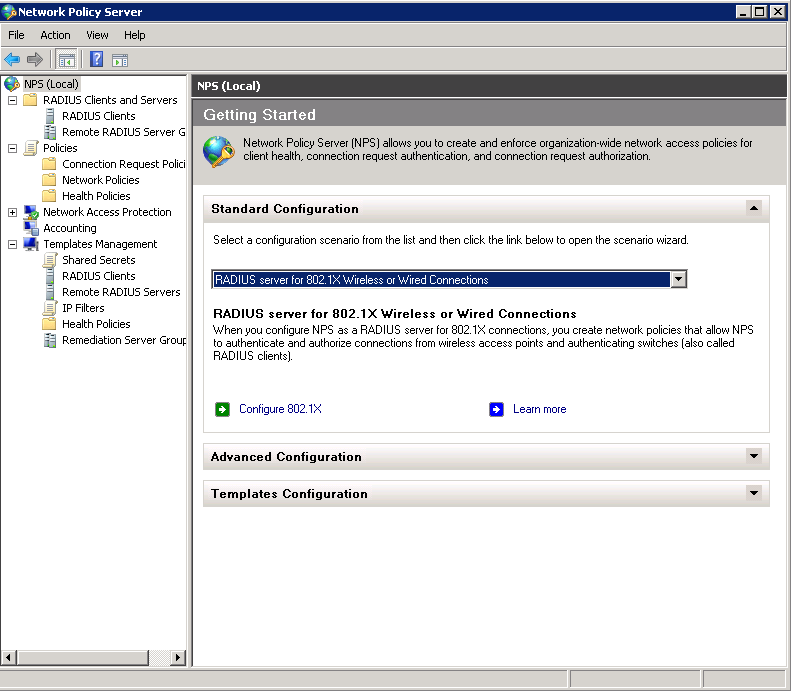
The Standard Configuration section should appear in the center pane.
- Select RADIUS server for 802.1X Wireless or Wired Connections, and click Configure 802.1X.
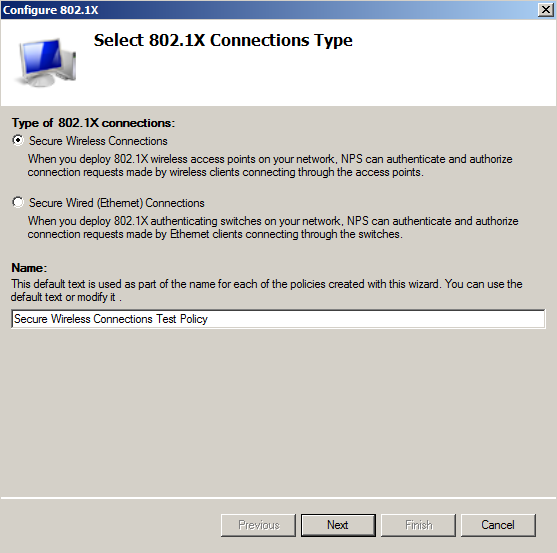
- In the Select 802.1X Connection Type window, select Secure Wireless Connections, enter a Name for the wireless connection, and click Next.
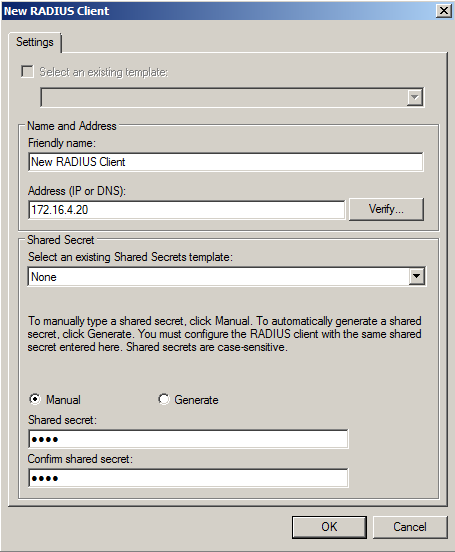
- In the Specify 802.1X Switches window, click Add to configure a wireless access point (RADIUS client).
- In the
New RADIUS Client window, enter settings for the wireless access point, and click
OK. Repeat this step to add additional RADIUS clients. Click
Next on the
Specify 802.1X Switches window to continue.
Note: If you already have a RADIUS client configured, skip to Step 10.
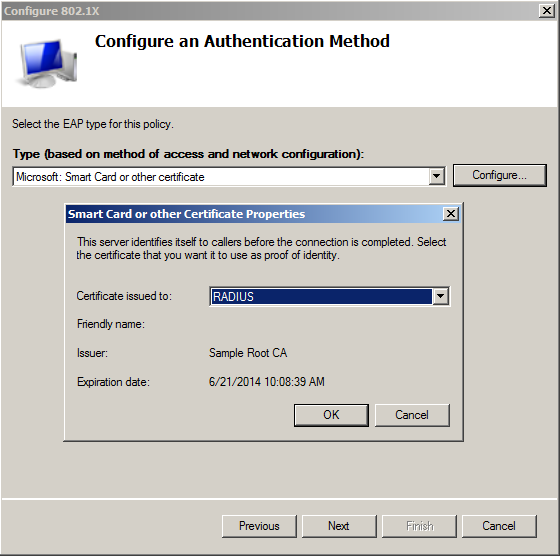
- In the Configure Authentication Method window, select Smart Card or other certificate.
- To configure a RADIUS client, click Configure.
- In the Smart Card or other Certificate Properties window, select the NPS RADIUS server certificate that you imported to the Computer Enterprise Trust store. (See Import the RADIUS Server Certificate for the NPS.) Click OK.
- When you select the server certificate, click Next in the Configure an Authentication Method window.
- Set up User Groups and Traffic Controls, if needed.
- Click
Finish.
The RADIUS client configuration is added.