Import the RADIUS Server Certificate into the Local Computer Personal Certificate Store
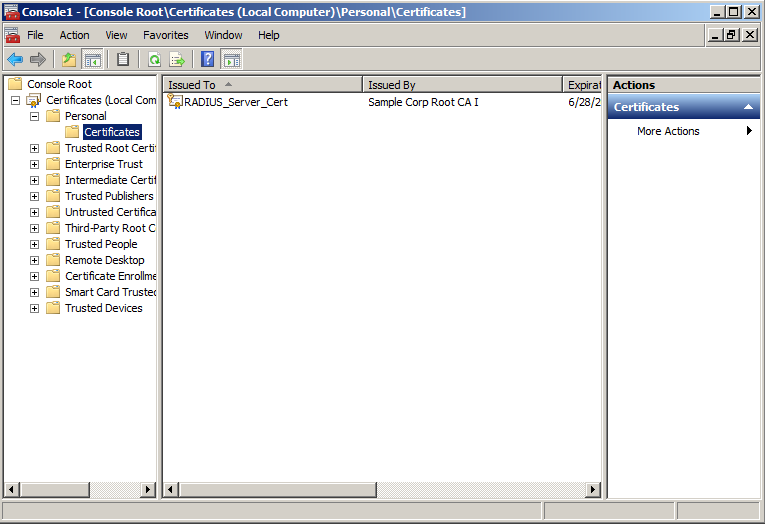
- On the Console window, expand Certificate (Local Computer) to locate the Personal/Certificates folder.
- Go to to start the Certificate Import Wizard.
- Browse to locate the private key of the server certificate you generated in Cloudpath to use for the NPS, and click Open.
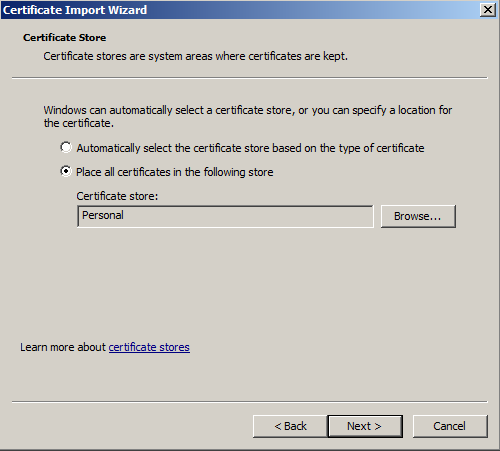
- On the Certificate Import Wizard, click Next.
- Place the NPS server certificates in the
Personal store, and click
Next.
Tip: Be sure that the RADIUS server certificate show the key icon
 . If it does not show it, you do not have the private key for the RADIUS certificate.
If you have issues, try downloading the RADIUS certificate and private key in P12
format. You can also try using the command line interface to install the private key
for the RADIUS certificate. See
Missing EKU in the RADIUS Server Certificate.
. If it does not show it, you do not have the private key for the RADIUS certificate.
If you have issues, try downloading the RADIUS certificate and private key in P12
format. You can also try using the command line interface to install the private key
for the RADIUS certificate. See
Missing EKU in the RADIUS Server Certificate.
- Review the imported certificate, and click Finish.